

 Deutsch
 Français
 Español
 Nederlands
 Italiano




The Workflow Module in GetMyInvoices allows you to efficiently manage internal business workflows and processes. With customizable workflows, you can digitally map and automate approval and review processes as well as payment runs. This article explains how to start a conversation in invoice approval, tag a user via @mention, and ensure that the user receives a notification to proceed directly to approval.
Step 1
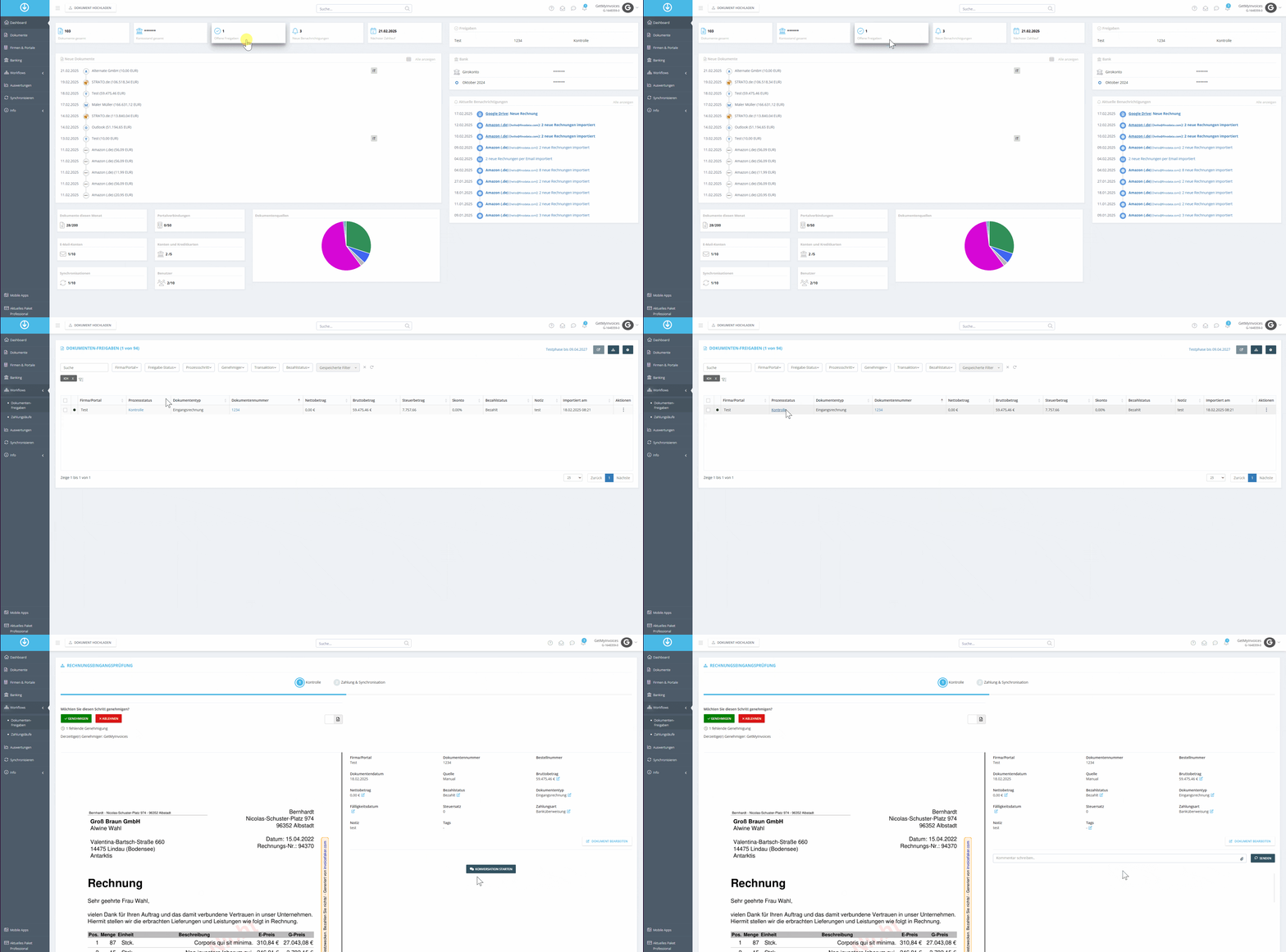
- Select Workflow from the menu on the left.
- Click Open Approvals and, for the desired invoice, click “Check” under Process Status.
- Click Start Conversation.
Step 2
- Enter the user’s @username.
- Compose a message.
- Click Send.

As soon as a user is mentioned in an approval, they receive a notification after logging in to GetMyInvoices on their dashboard and can go directly to the approval for that invoice.