

 Deutsch
 Français
 Español
 Nederlands
 Italiano




In addition to a checking account, you can also link a credit card to GetMyInvoices and view its transactions.
Step 1: Set up a connection
- Go to “Banking” in the menu on the left.
- Select “Link Bank Account.”
- Click “Automatically Synced Accounts” and then “Next.”
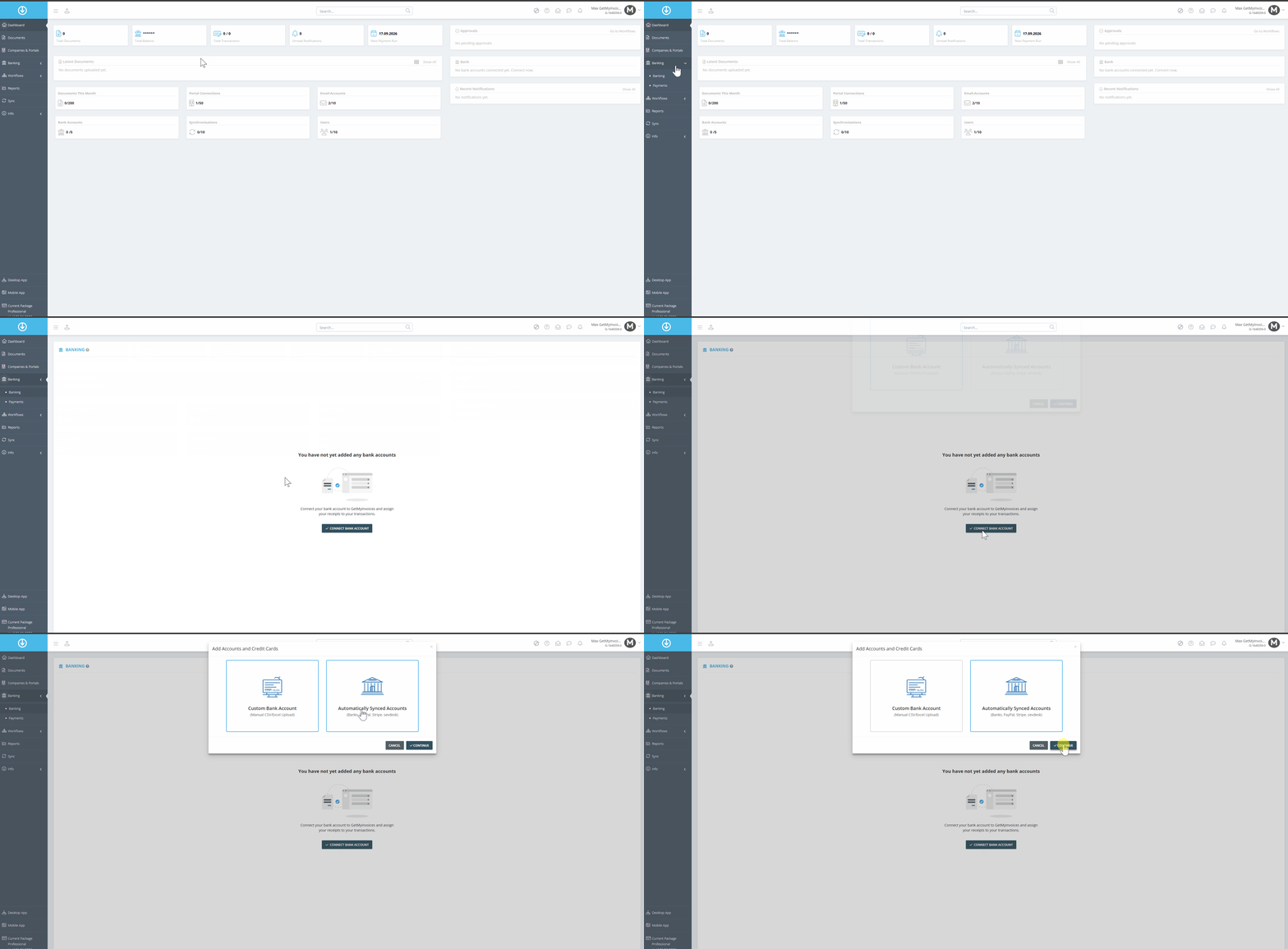
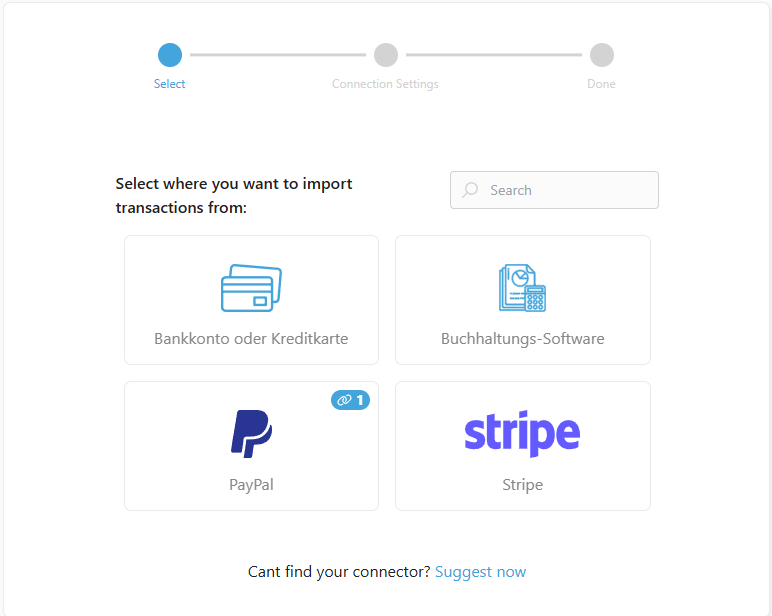
Step 2: Select Connection Types
- Select “Bank Account or Credit Card”
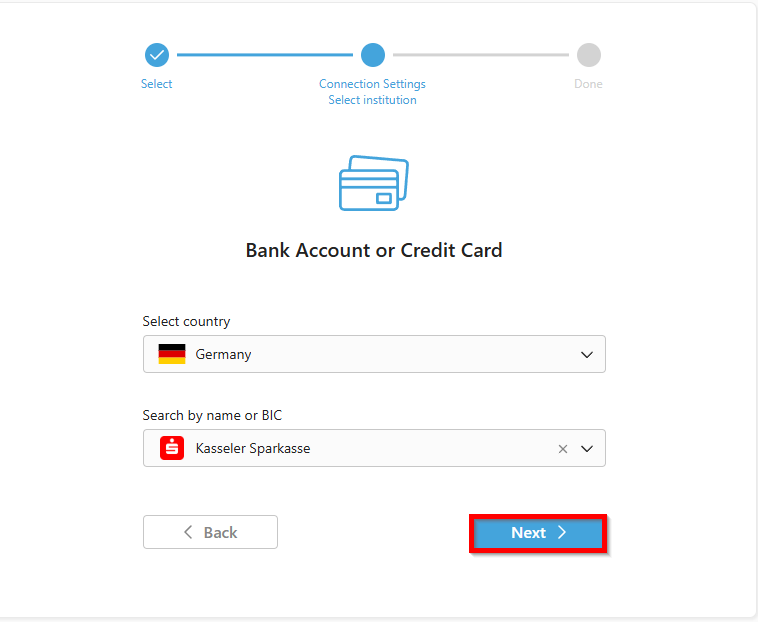
Step 3: Select a Bank and Set a Start Date
- Use the search function to filter by your bank
- Click “Next”
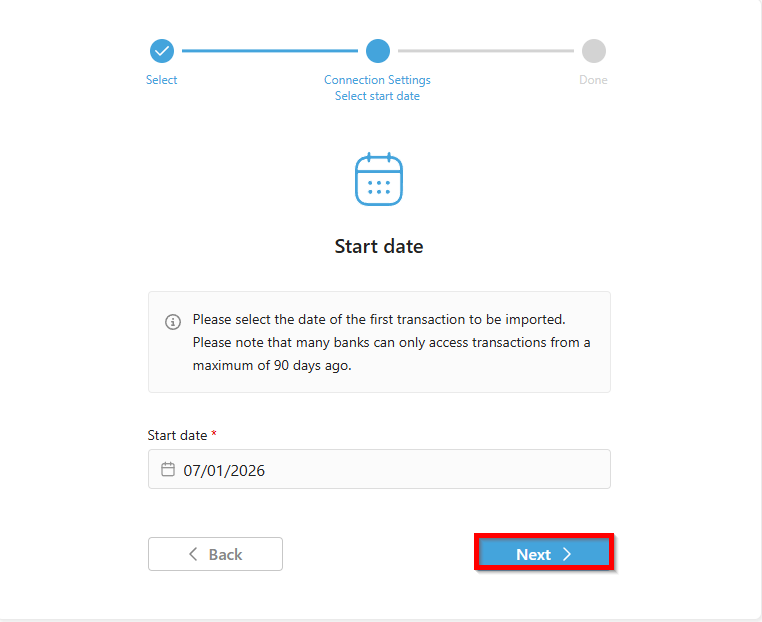
- Select a start date. Transactions can generally only be retrieved for the last 90 days.
- Click “Next”
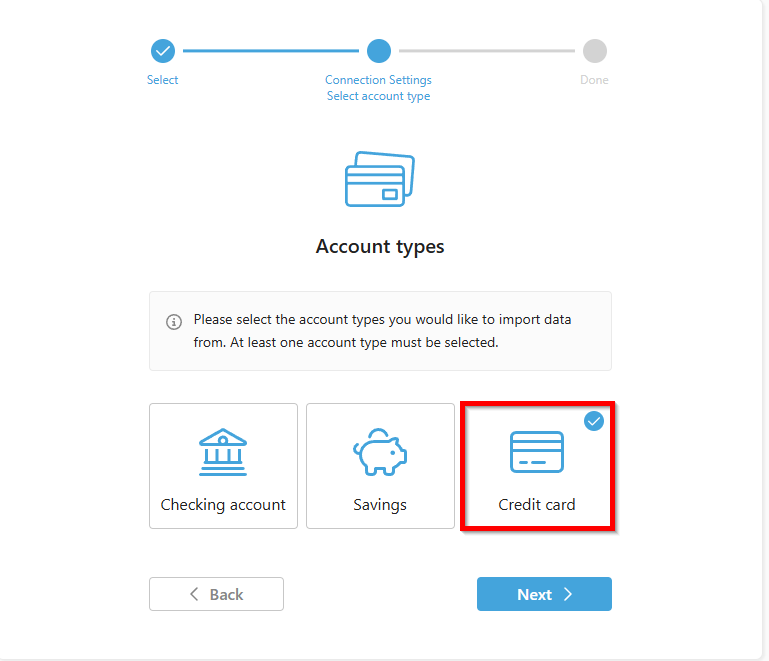
Step 4: Select credit card
- Select credit card.
- Click Next.
Step 5: Enter Login Data
- Enter your bank's login information.
- Select “Save PIN” to keep the connection active for as long as the bank allows.
- Click Next.
The credit card is now linked to GetMyInvoices, and the transactions are imported.
Tip: Check with your tax advisor or accounting department to determine which system should be used for bank account reconciliation. The transactions are only visible in GetMyInvoices.