

 Deutsch
 Français
 Español
 Nederlands
 Italiano




You have the possibility to invite or add other users to your account. You can individually define which access the added user should have to settings and functions in the account. For more information on user roles and the functions, see “User roles” .
- Invite user (by e-mail)
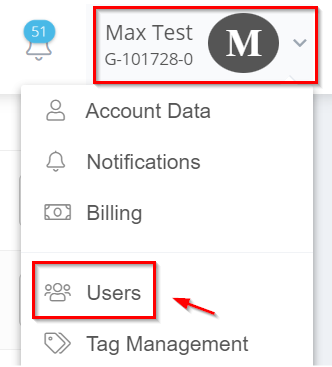
- Navigate to your account name, and then click “Users”.
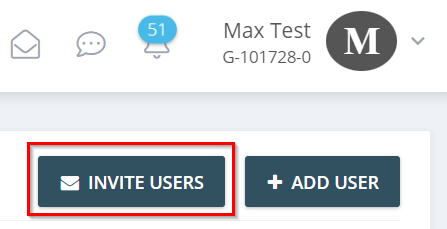
- Click “Invite users” in the upper right corner.
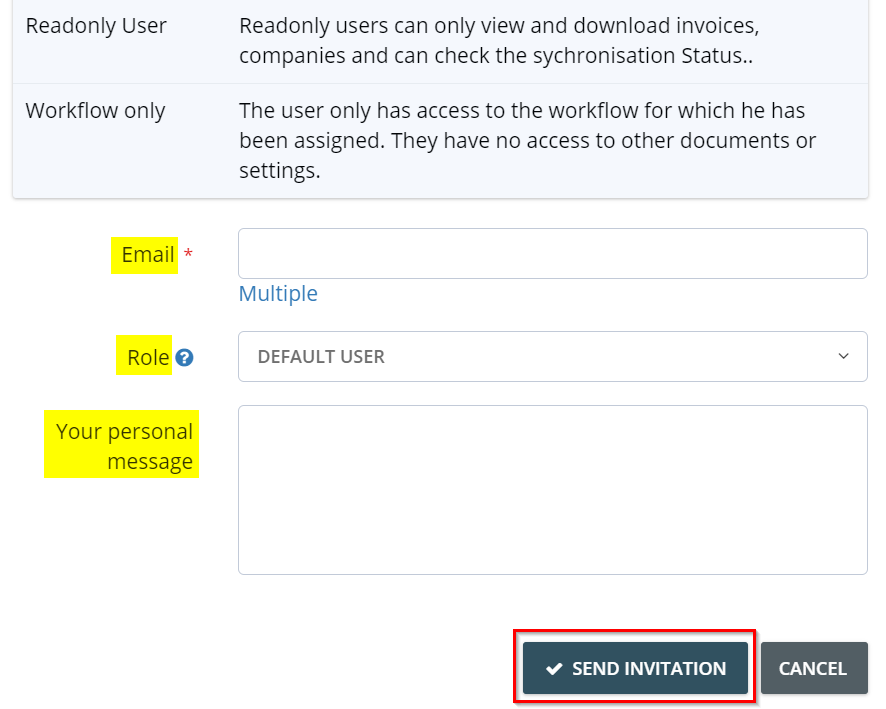
- Enter the e-mail address of the desired user and define his/her role in the account. Then click on “Send invitation” and the invitation will be sent to the specified e-mail address.
- Add user (in account)
- Navigate to your account name, and then click “Users”.
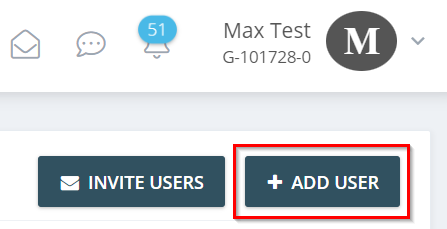
- Click on “Add user” in the upper right corner.
- Create the new user with the desired role and other functions. With the password set, the added user can log in later. Then click “Save” to apply the settings.