

 Deutsch
 Français
 Español
 Nederlands
 Italiano




The blacklist feature allows you to specifically exclude certain senders, domains, or subject lines from automatic email import. This ensures that unwanted or irrelevant emails are not imported as invoices into GetMyInvoices .
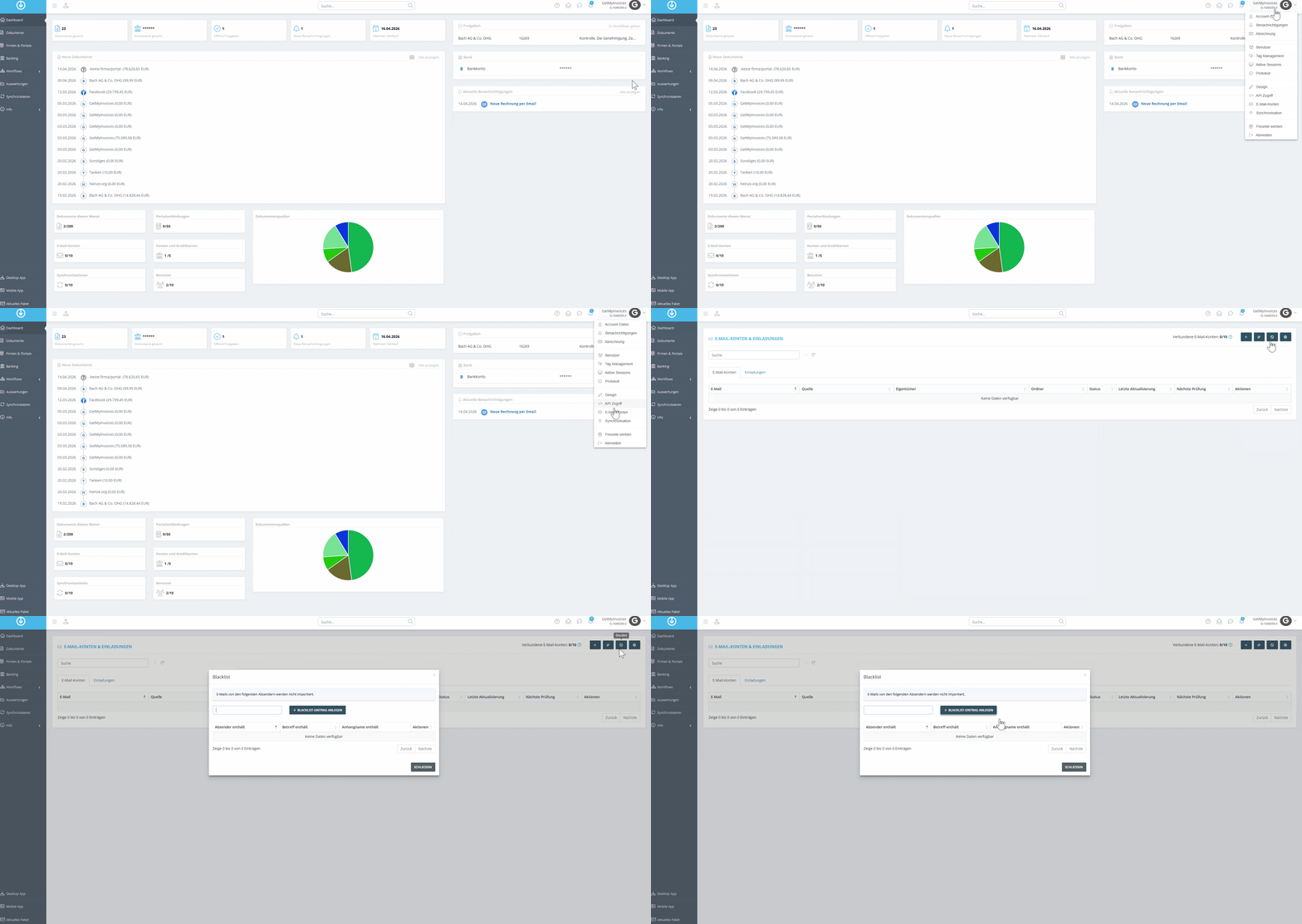
Step 1
- Click your account name in the top-right corner.
- Click on Email Accounts.
- Select the Blacklist tab.
- Click on “Create Blacklist Entry”
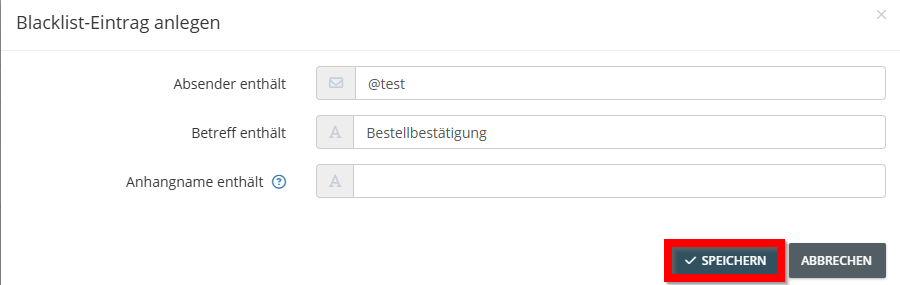
Step 2
- Now enter the desired data for emails that should not be imported
- Click “Save”
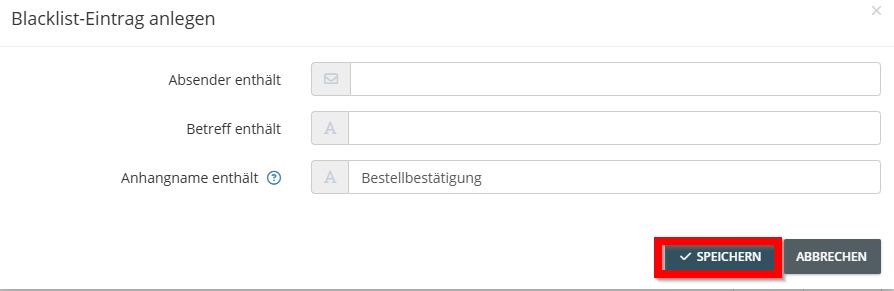
If you only want to exclude specific attachments from import, use the value “Attachment name contains ” and leave the other fields blank.
Note: Documents that have already been imported will not be retroactively removed by blacklist entries created later. The blacklist applies exclusively to future email retrievals.