Deutsch
 Français
 Español
 Nederlands
 Italiano




Once you've created a new day, assign it to documents that have already been imported into GetMyInvoices.
Step 1: Edit the document
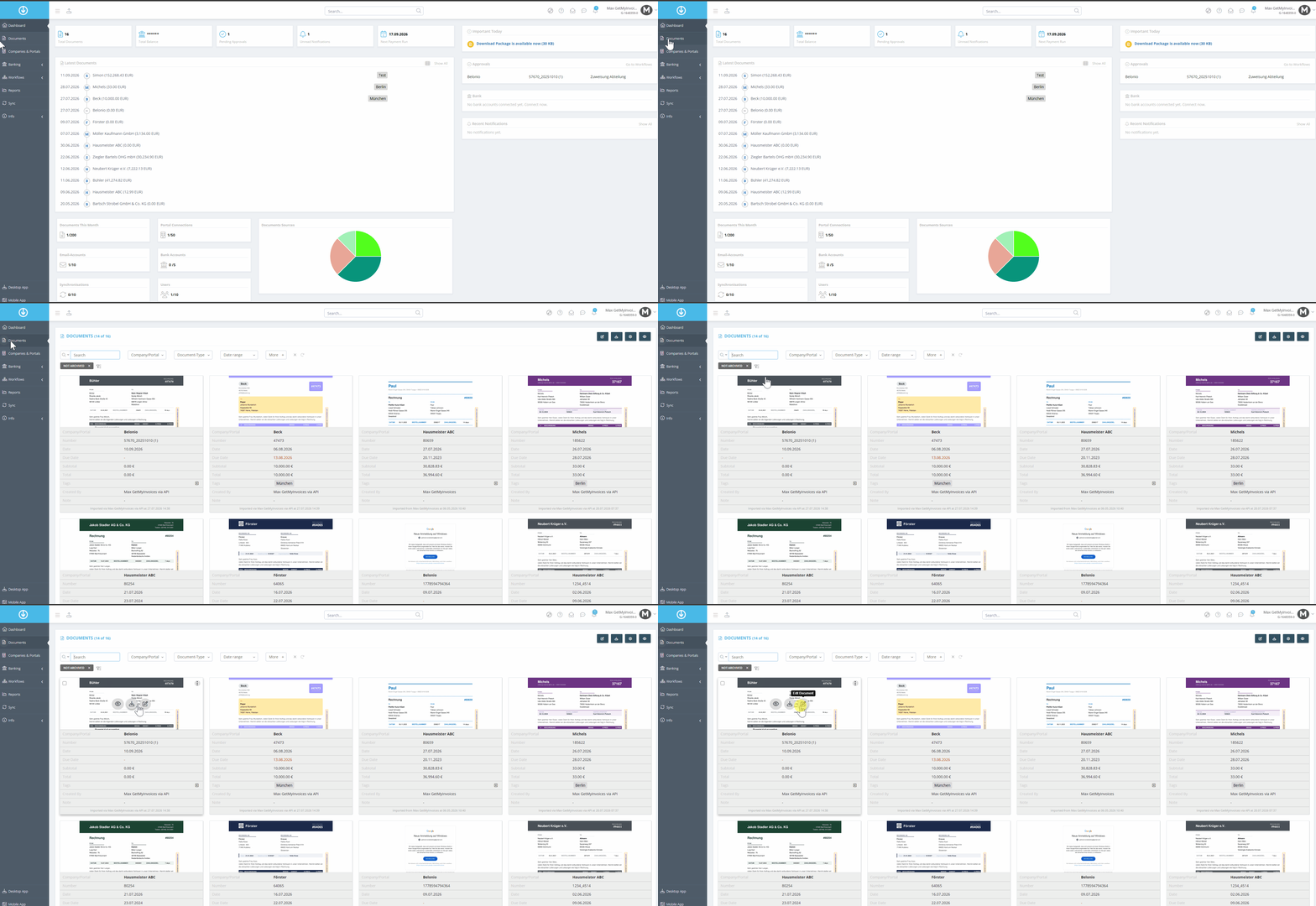
- Click “Documents” in the menu on the left.
- Select the desired document and click “Edit Document.”
Step 2: Assign a tag
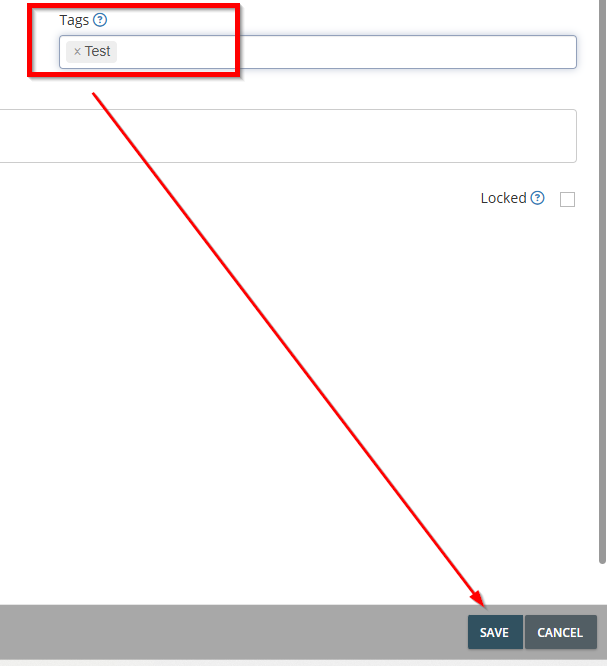
- Enter the tag name in the lower-right corner of the input field.
- Select the tag or tags, or press the Enter key.
- Click Save.
The document will then bear the assigned tag.