Deutsch
 Français
 Español
 Nederlands
 Italiano




GetMyInvoices lets you automatically transfer your invoices to the Xero interface. This allows you to streamline your accounting processes and manage invoices directly in Xero without any manual effort. This guide provides step-by-step instructions on how to set up Xero.
Step 1
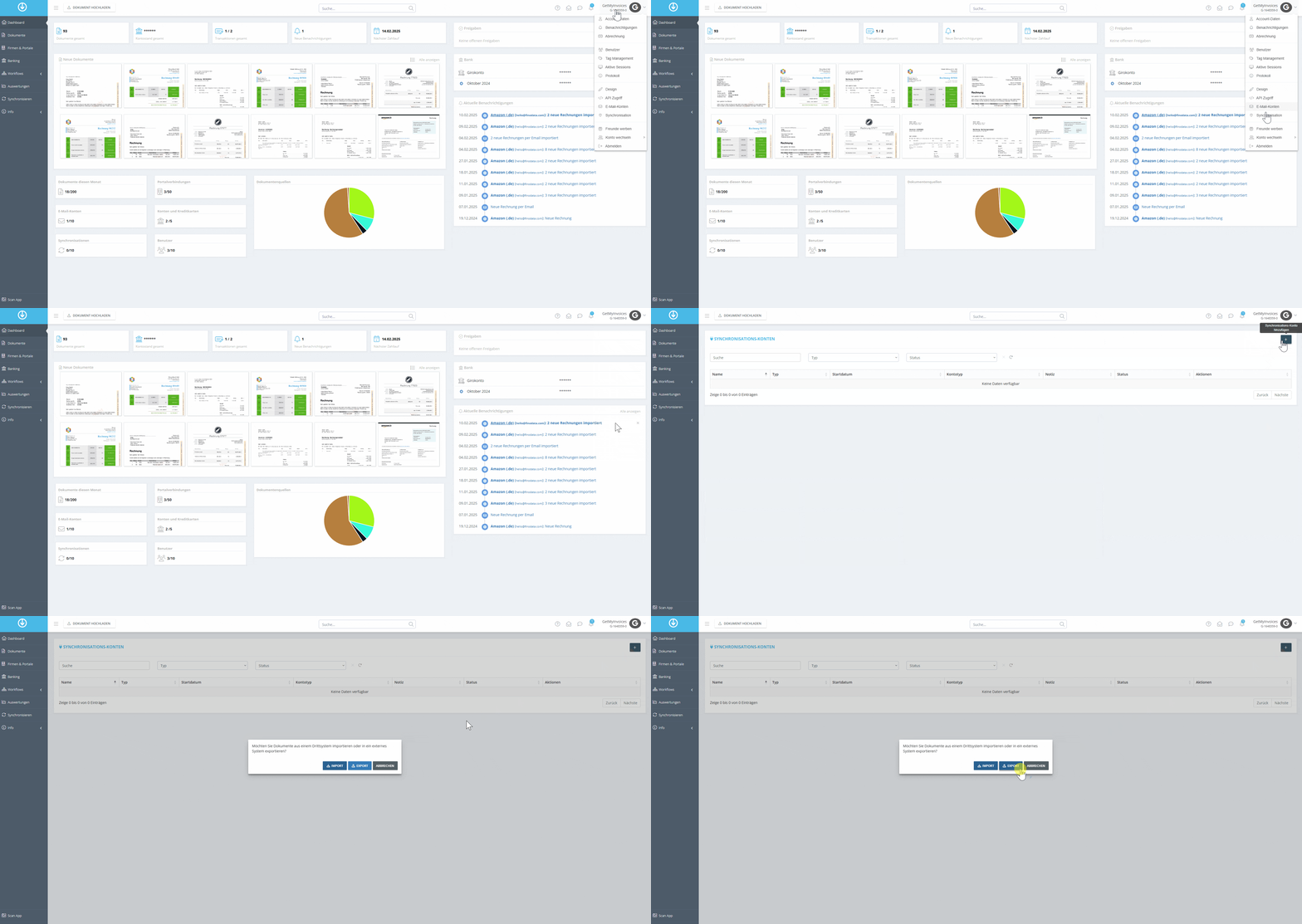
- Click on Profile in the top right corner and select Synchronization from the dropdown menu.
- Click the plus icon (+) in the top right corner to add a new sync.
- Select the “Export” option to automatically transfer invoices.
Step 2
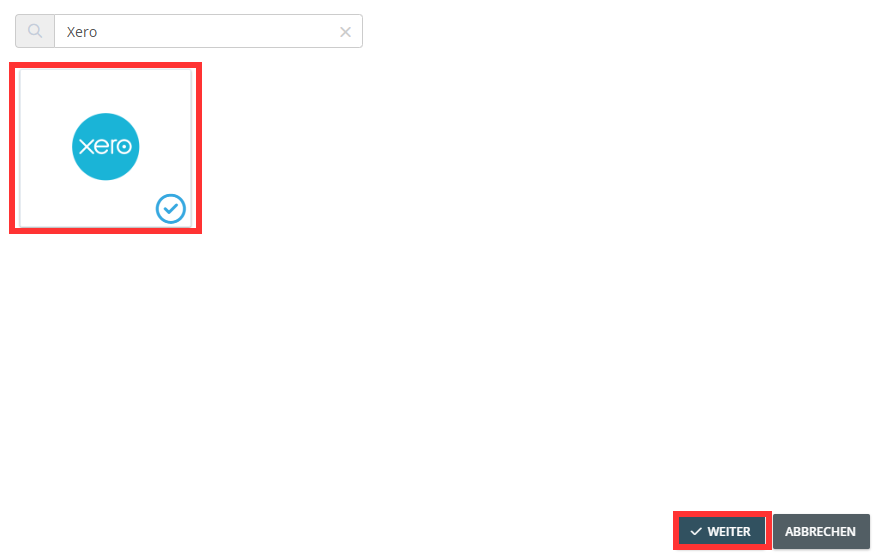
- Use the search function and search for Xero.
- Select the Xero tile.
- Click Next.
Step 3
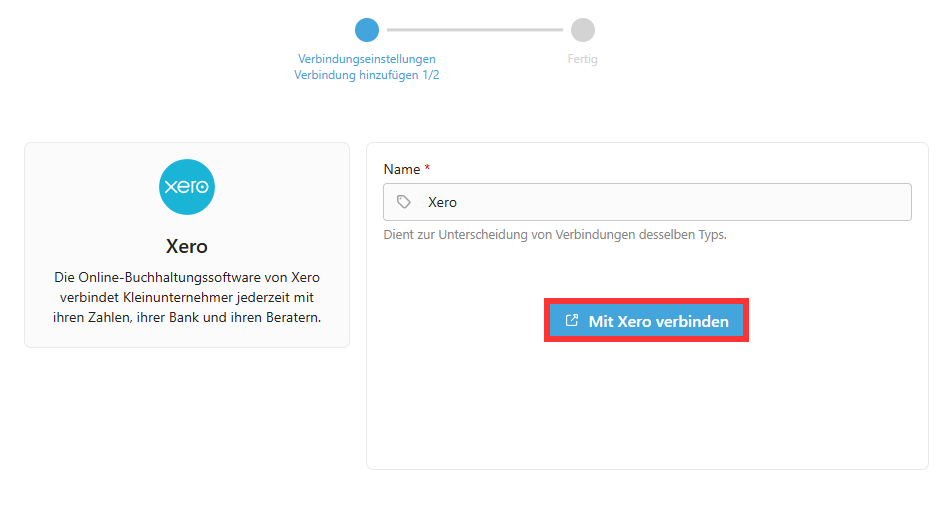
- You’ll be automatically redirected.
- Click Connect to Xero.
Step 4
- Enter your Xero credentials.
- Follow the process.
Step 5
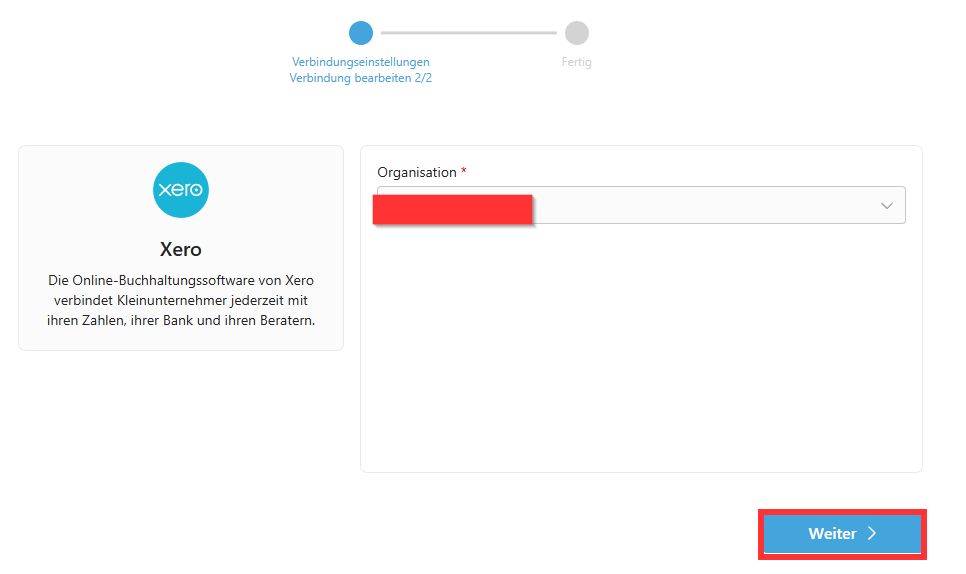
- Select your Xero organization.
- Click Next.
Step 6
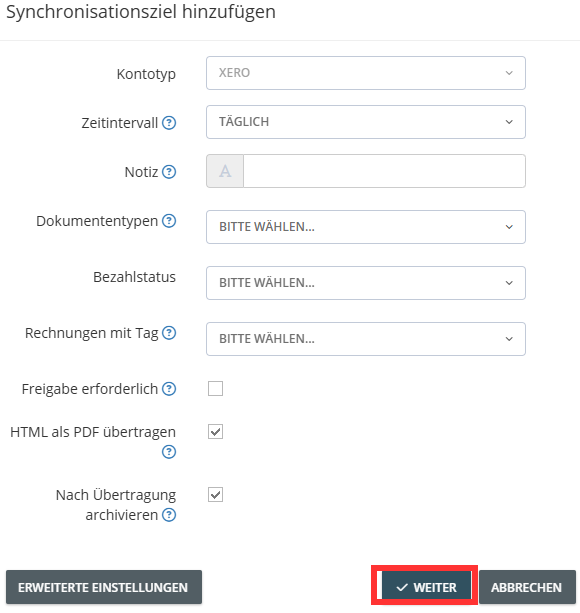
- Specify export settings for the documents.
- Use Advanced Settings to set additional criteria for the export.
- Click Next.
→ In our example, we’ll have the invoices archived in Xero after the export is complete.
Step 7
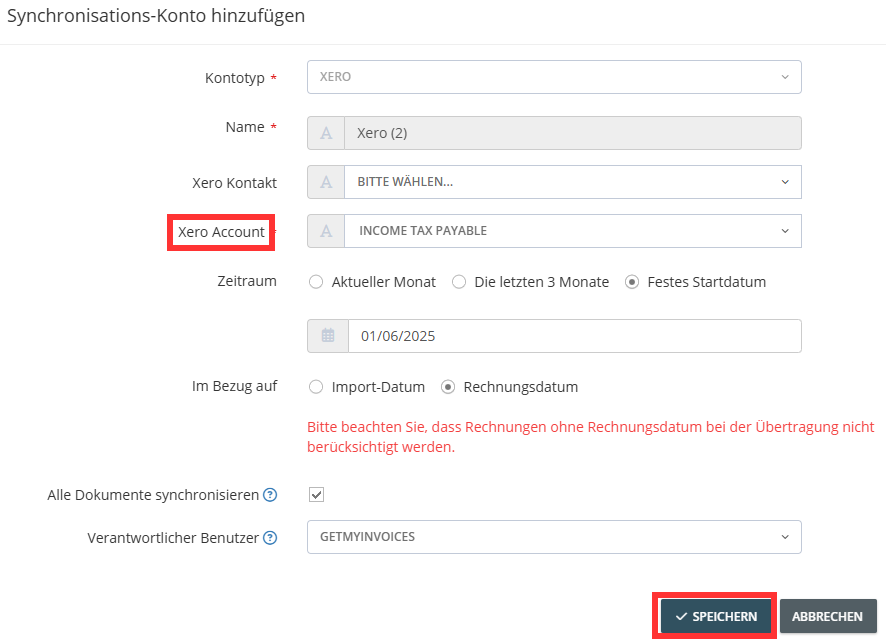
- Optional: Limit the export period based on the invoice or import date.
- Enter your Xero account.
- Optional: Select a Xero contact.
- Click Save to start the export.
GetMyInvoices will now automatically transfer all relevant invoices to Xero based on your settings.