

 Deutsch
 Français
 Español
 Nederlands
 Italiano




CAMT (Cash Management) is a standardized, XML-based format used by many financial institutions for account statement and transaction data. The GetMyInvoices banking module exports transactions in this format for financial tools and accounting software.
**Example: American Express and DATEV. **
If you want to transfer credit card transactions from American Express to DATEV, the transactions are first automatically imported into GetMyInvoices. You then export them as a CAMT file and upload it to DATEV.
The following CAMT formats are available
- camt.053: Contains posted account statements (as a replacement for MT940/MT950)
- camt.054: Contains detailed information on batch postings (formerly DTI)
Note: The camt.052 format (intraday postings/pending items) is not currently supported and is scheduled for a future update.
Step 1
- Select ‘Banking’ from the menu on the left-hand side of the dashboard.
- Click on the download icon in the top-right-hand corner.
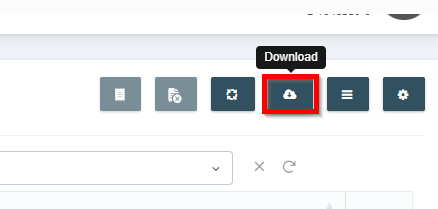
Step 2
- In the export dialogue, select the bank or card account for which you wish to export transactions.
- Select the desired format (camt.053 or camt.054).
- Set the time period.
- Click Download to download the CAMT file.
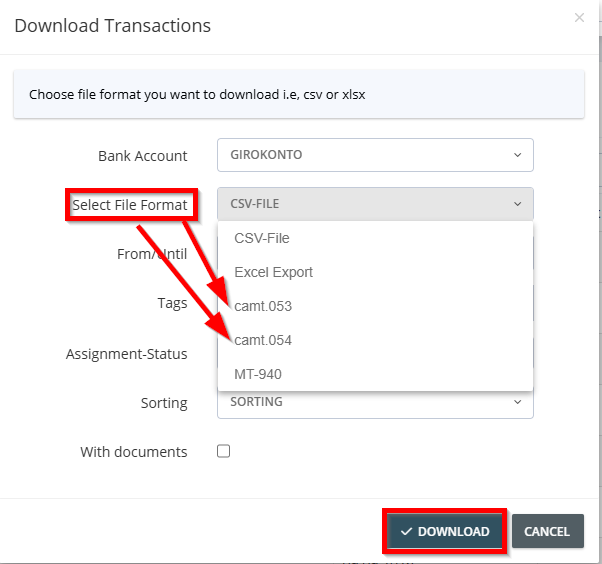
Special considerations for accounts without an IBAN
An IBAN is required for exporting in CAMT format. For accounts without an IBAN (e.g. PayPal, American Express® or custom bank accounts), the following message appears:
IBAN missing: The account from which you wish to export does not have an IBAN. An IBAN is required for exporting in CAMT format.
There are two options to choose from:
- Enter your own IBAN manually.
- Have GetMyInvoices generate a random IBAN (used only in the CAMT file).
Once you have selected an option, the export process can continue.
Uploading CAMT files to external systems
Once exported, the CAMT file can be imported into compatible financial or accounting systems:
- Log in to the external system.
- Navigate to the Import or Banking / Transaction Import section.
- Select File type: CAMT / XML.
- Upload the downloaded file.
- Check the transactions and complete the import.
Note: Not all systems support CAMT formats. Before importing, check whether the relevant tool can process CAMT files.