Overview
The GetMyInvoices Mozilla Thunderbird Add-on allows you to easily upload attached PDF invoices or emails to your GetMyInvoices account(s) to store and manage them in one central space.
Configure Thunderbird folders for automatic invoice upload. Drag&drop or move emails to the configured auto-upload folders manually or automatically with Thunderbird’s Message Filter rules, and they get uploaded to your GetMyInvoices account.
Operating System Support
Thunderbird on
- Windows 10 or later
- MacOS 10.12 or later
- Linux
Download the latest Thunderbird version for your operating system here: https://www.thunderbird.net/en-US/download/
Installation
Get your plugin here: https://addons.thunderbird.net/en-US/thunderbird/addon/getmyinvoices/
- Open “Tools/Add-ons and themes” in your Mozilla Thunderbird client and search for ‘GetMyInvoices’.
- Install the GMI plugin by clicking the ‘Add to Thunderbird’ button.
To activate and connect the plugin to your GetMyInvoices account
Once the plugin is installed in Thunderbird, you need to make a few simple steps to activate it and connect it with your GetMyInvoices account.
-
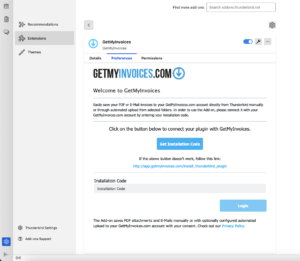
Once the plugin is installed in Thunderbird, you will be redirected to the activation screen to
connect it with your GetMyInvoices account. In case needed, you can open the activation screen by
opening the Add-on’s Preferences tab in Thunderbird’s Add-ons Manager (Tools/Add-ons and
Themes/Extensions)
-
Click the ‘Activate Plugin’ button. You will be redirected to your browser where you need to log
in to your GetMyInvoices account.
-
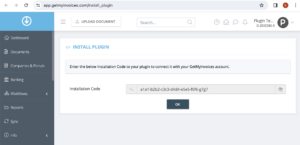
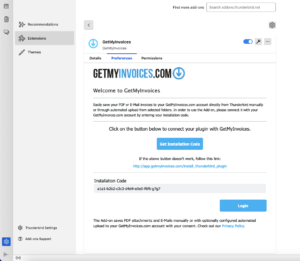
Copy your installation code, paste it into the ‘Installation Code’ field in Thunderbird and click
on ‘Login’. You will be redirected to the Add-on’s home screen
Adding a new connected account in GetMyInvoices
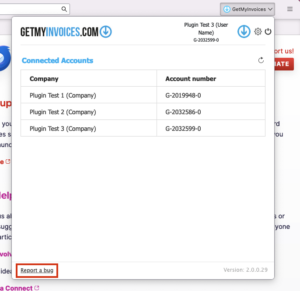
In case you set up a new connected account in your GetMyInvoices, please click the GetMyInvoices button in the top navigation bar in Thunderbird and press the refresh button to load the new account(s).

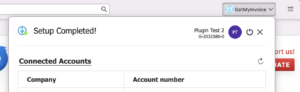
Upload invoices to GetMyInvoices
Manual Invoice Upload
Upload attached PDF invoices
- Open an e-mail that contains one or more PDF invoices as attachments.
- Right click on the attachment and select ‘Save attachment in GetMyInvoices’ from the context menu to upload the invoice to your GMI account. If you have multiple accounts connected, you are presented a prompt to select to which account(s) you want to upload the invoice to.
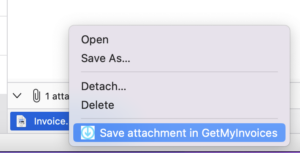
Please note that only PDF attachments are supported.
Upload an e-mail as an invoice
If the email itself serves as an invoice, you can upload and archive it to your GetMyInvoices account as well. The email will be converted to HTML format and saved and stored as a .eml file as well.
- Open the email that you wish to upload to GetMyInvoices.
- In the top-right corner of the email header, click the ‘Save E-Mail in GetMyInvoices’ button. The email will be stored as HTML and .eml files in your account. If you have multiple accounts connected, you are presented a prompt to select to which account(s) you want to upload the invoice to.
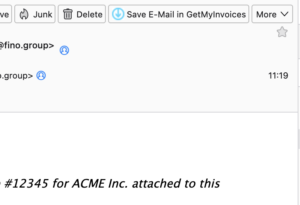
The uploaded .eml file, that is stored along with the HTML invoice, will be stored on the ‘Attachment’ tabs of the invoice details / edit page, and can be downloaded any time.
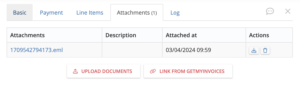
Please note that it can take a few minutes after uploading until invoices are processed and appear in your GetMyInvoices account.
Automated Invoice Upload
In addition to manual invoice upload, you can optionally configure folders in Thunderbird for automated invoice upload. You can connect auto-upload folders to your main GetMyInvoices account or to any of your connected accounts.
Any emails that you copy, move, drag&drop to these folders will be automatically uploaded to the configured GetMyInvoices account. You can also send emails automatically to these folders with Thunderbird’s message filters feature, for automated upload to GetMyInvoices.
You will also have the option to add an “Imported” folder for each of your configured auto-upload folders where your successfully uploaded emails will be moved.
Configure Thunderbird folders for automated invoice upload to GetMyInvoices
-
In Thunderbird, Open the Add-ons Manager (Tools/Add-ons and Themes/Extensions) and then opnen the Preferences/Options tab of the GetMyInvoices add-on.
-
Click the Edit button for the email account for which you would like to configure folders for automated invoice upload.
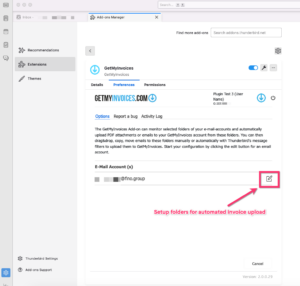
-
Custom folders: With Custom Folders, you can select any folder that you created for your email account and configure it for automated email upload to GetMyInvoices. System default folders, like the Inbox, Sent, or Trash, can’t be configured. Default Structure: If you select this option, we will automatically create and configure folders for automated invoice upload to GetMyInvoices. Folders will be created separately for each of your GetMyInvoices accounts with their company names. With or without sub-folder: Some email providers support sub-folders, some don’t or it can be your personal preference. Please select which one you prefer. This is Important, if you opt in the next screen to create an Imported folder, where emails uploaded to GetMyInvoices will be moved.
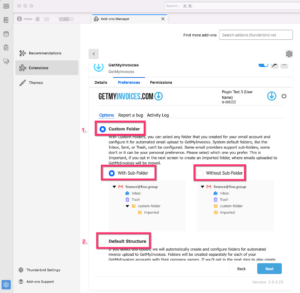
-
If you have selected custom folders, select the folder(s) you’d like to configure.
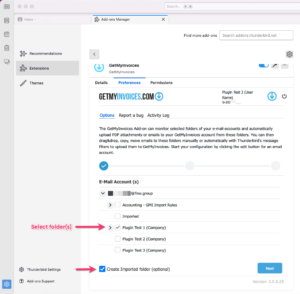
If you have selected default structure, the add-on automatically creates for you based on your GetMyInvoices company names.
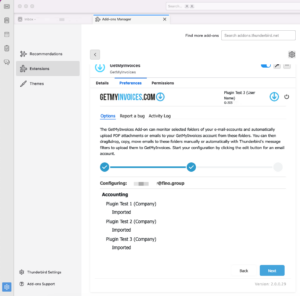
-
If you have selected Custom Folders, select the GetMyInvoices account for each folder where the invoices will be uploaded.
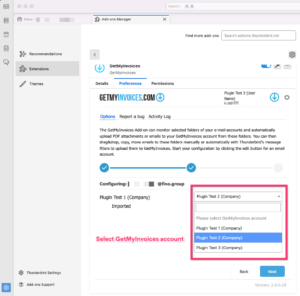
-
Click “Finish“ and start using your auto-upload folders.
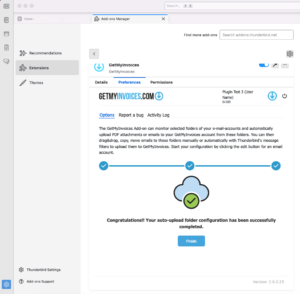
Reset folder configuration
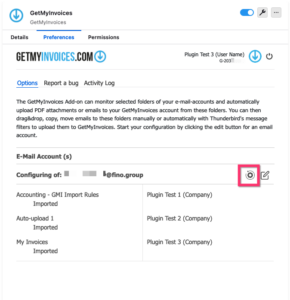
On the Options page, click the Clear button next to the email account and the auto-upload configuration will be removed. Clearing the configuration does not delete the folders.
Activity Log
On the Activity Log tab of the Add-on, you can see the invoice upload activity of the plugin. You can search and filter for invoices and also export the log as a CSV file.
If an upload fails (for example due to an internet connectivity issue), the Add-on will try to re-upload it in a while. Alternatively you can initiate manual re-upload in the Activity Log by clicking the upload button for the failed log entry in the status column.
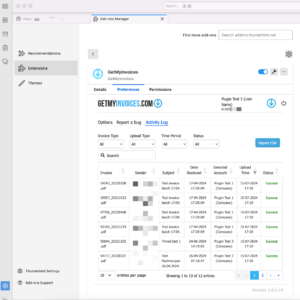
Report a bug
If you need to report a bug, feel free to do so by opening the plugin’s Home screen (press the GetMyInvoices button in the top navigation bar) and clicking the ‘Report a bug’ link in the bottom left corner. You can also access the bug report form by opening the Add-on’s Preferences tab in Thunderbird’s Add-ons Manager (Tools/Add-ons and Themes/Extensions) and then clicking the “Report a bug” tab.
Sometimes errors and mistakes happen, we’ll do our best to investigate promptly.