

 Deutsch
 Français
 Español
 Nederlands
 Italiano




Overview
The GetMyInvoices add-in for Microsoft Outlook allows you to easily upload attached PDF invoices from emails to your GetMyInvoices account and connected accounts. The Outlook add-in is also able to convert complete emails that contain the invoice or receipt as text into an HTML file and archive them with an additional .eml version in your GetMyInvoices account.
Supported Operating Systems and Outlook Versions
- Outlook on the web
- Outlook on Mac (Microsoft 365)
- Outlook on Windows (Microsoft 365)
Installation
Download the GetMyInvoices Outlook Add-in free of charge:
https://appsource.microsoft.com/en-us/product/office/WA200007117
On the following Microsoft support page you will find detailed step-by-step instructions for installing add-ins for Outlook on the Web, Outlook for Windows and Outlook for Mac:
To activate and connect the plugin to your GetMyInvoices account
Once the Outlook add-in is installed, you need to follow a few simple steps to activate it and connect it to your GetMyInvoices account.
-
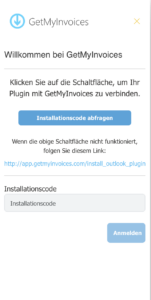
Open an email, click on the “GetMyInvoices” add-in and select “Save attachment” or “Save email”, depending on what you want to upload. If you are using the “GetMyInvoices” add-in for the first time, you will be asked to activate it with an installation code.
-
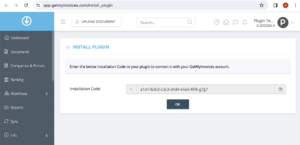
Click on the “Request installation code” button. You will be redirected to your browser where you will need to log in to your GMI account.
-
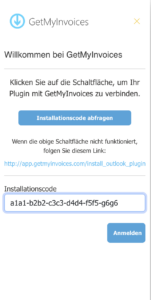
Copy your installation code, paste it into the “Installation code” field in Outlook and click on “Log in”.
To add a new Connected account in Outlook
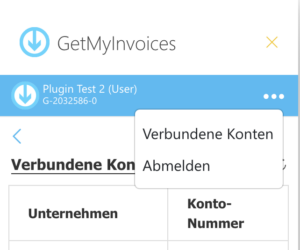
If you set up new connected accounts in your GetMyInvoices account, please press the refresh button on the “Connected Accounts” page of your Outlook add-in to load the new accounts.

Upload invoices to GetMyInvoices
Upload attached PDF invoices
-
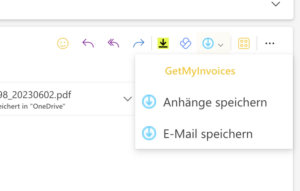
Open an e-mail that contains one or more PDF invoices as attachments. Click on the GetMyInvoices logo and select “Save attachment”. The side window of the add-in opens.
-
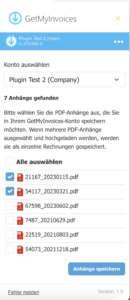
Select the desired GetMyInvoices account and the PDF files you want to upload. Click on “Save attachments”.
Upload an e-mail as an invoice
If the email itself serves as an invoice, you can also upload and archive it in your GetMyInvoices account. The email is converted into HTML format and also saved as a legally compliant .eml file.
-
Open the email you want to upload to GetMyInvoices. Click on the GetMyInvoices logo of the add-in and select “Save email”. The sidebar of the add-in opens.
-
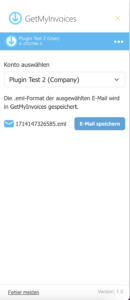
Select the GetMyInvoices account to which you want to upload the e-mail invoice. Click on “Save e-mail”.
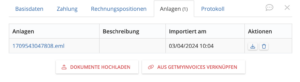
The uploaded .eml file, which is saved together with the HTML invoice, can be found in the “Attachments” tab of the invoice details / processing page. This can be downloaded at any time.
Please note that it may take a few minutes after uploading for the invoices to be processed and appear in your GetMyInvoices account.
Report an error
If you would like to report an error, you can do so by opening the plugin’s start page and clicking on the “Report a bug” link at the bottom left. We do our best to investigate and rectify these immediately.