Deutsch
 Français
 Español
 Nederlands
 Italiano




You can use tags to categorize your documents in GetMyInvoices and control the export to various interfaces. You can assign tags directly at the import sources so that invoices are automatically tagged during import, or you can add them manually to individual documents.
What tags are good for: They let you sort documents according to your own criteria—such as by project, department, or time period—helping you stay organized. When exporting, tags ensure that only the relevant documents are sent to the desired interface.
Step 1: Create a New tag
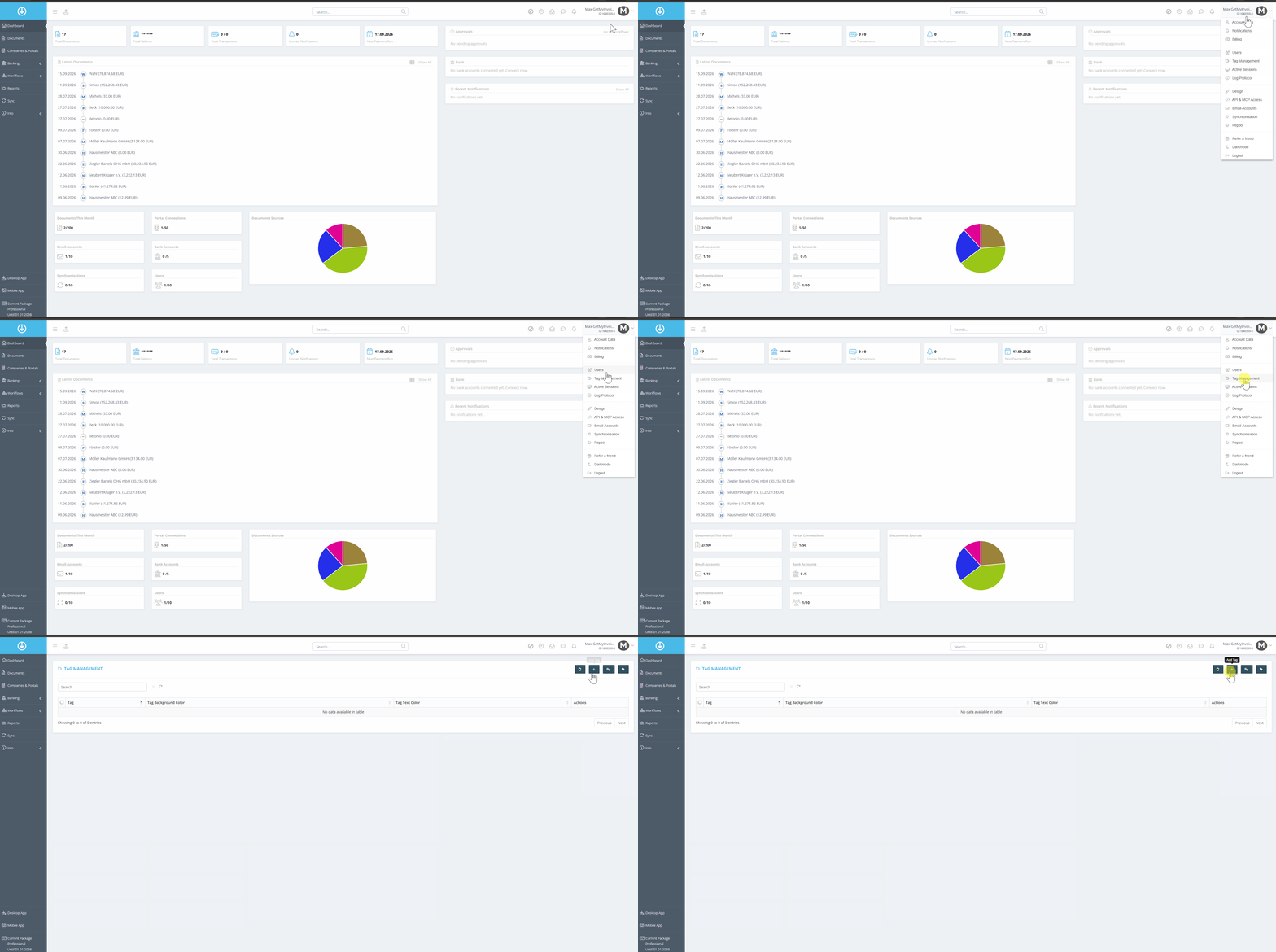
- Move the mouse to the top-right corner of your profile.
- Click “Tag Management” in the drop-down menu.
- Click the plus icon.
Step 2: Name and save the tag
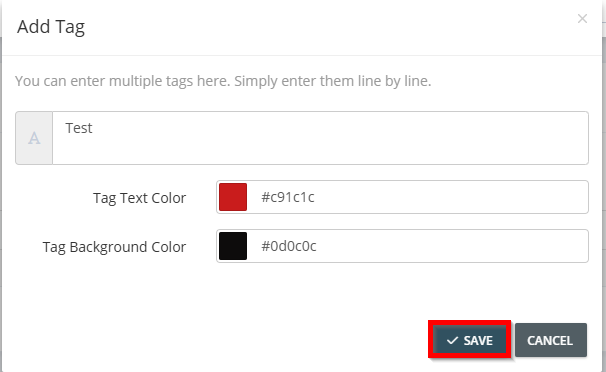
- Enter the name you want for the tag.
- Optionally, customize the background color in the document area and the color of the displayed tag.
- Click Save.