

 Deutsch
 Français
 Español
 Nederlands
 Italiano




With GetMyInvoices , you can automatically transfer your documents directly to your Google Drive cloud via the interface, so that all your invoices are then available in the cloud.
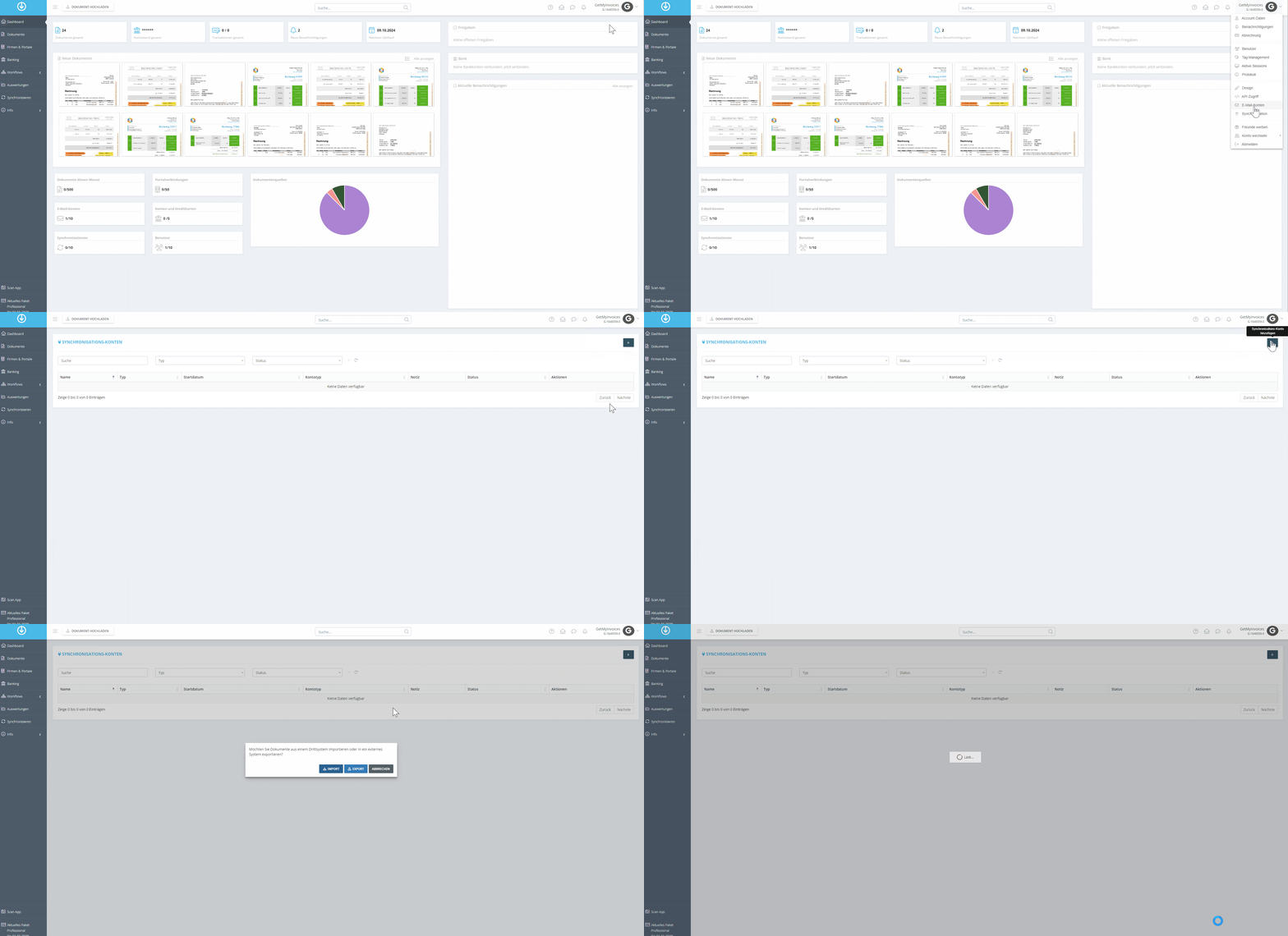
Step 1
- Click on your profile in the top right corner.
- Select “Sync” from the drop-down menu.
- Click the plus icon in the top right corner.
- In the pop-up window, click Export.
Step 2
- In the search bar, search for Google Drive.
- Click the Google Drive tile.
- Click Next.
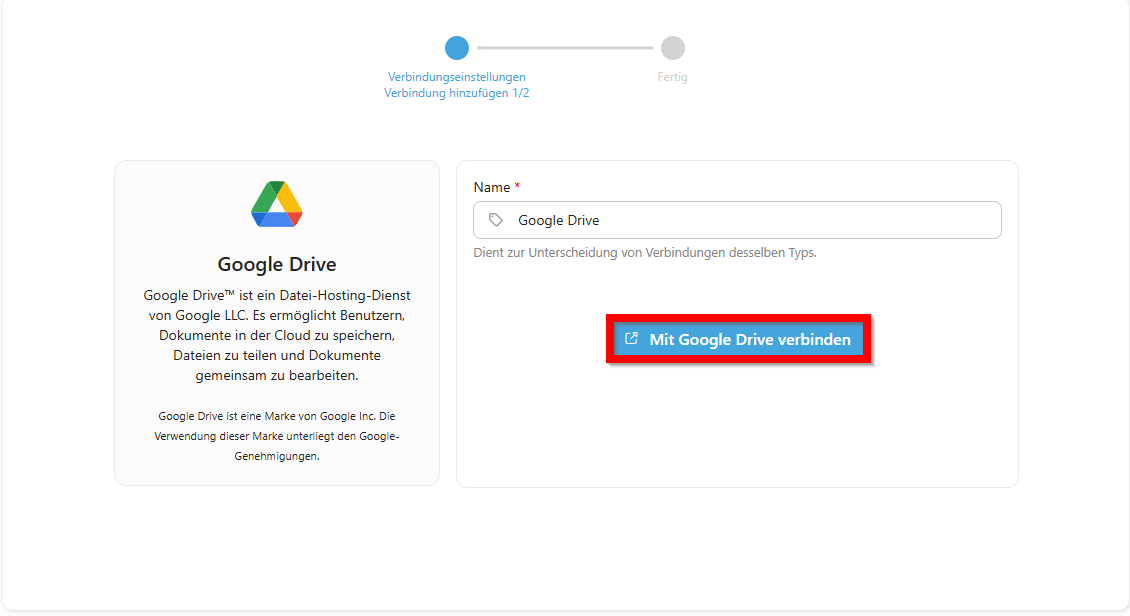
Step 3
- Select Connect to Google Drive.
- Follow the prompts.
- Grant access.
Step 4
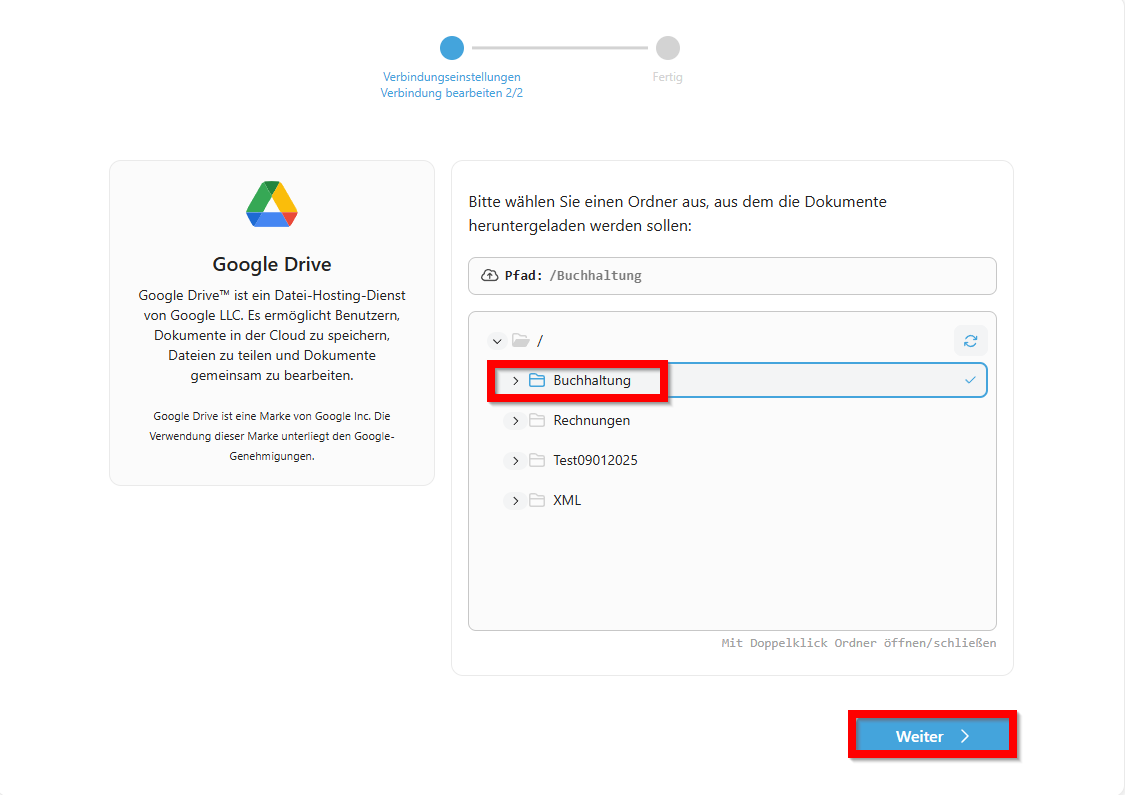
- Select a location where the invoices should be stored.
- Click Next.
Step 5
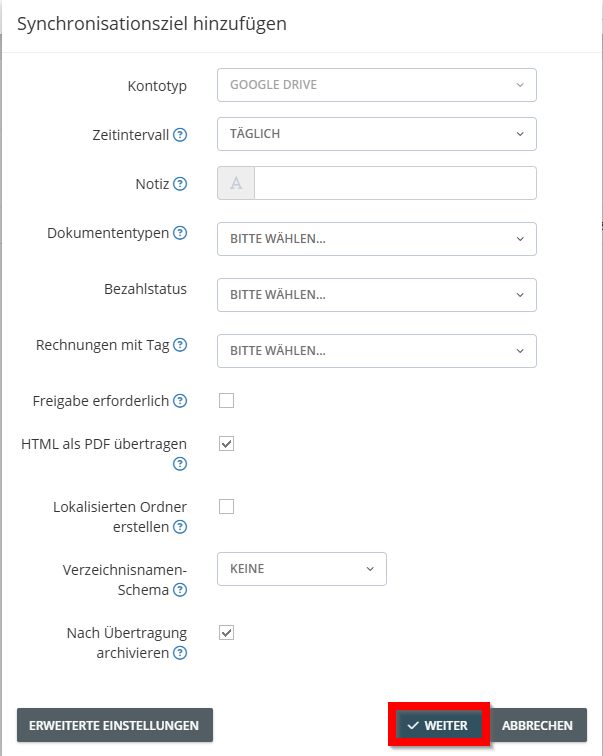
- Specify export settings for the documents.
- Use Advanced Settings to set additional criteria for the export.
- Click Next.
→ In this example, we’ll have the invoices archived to Google Drive after the export is complete.
** **
**
Step 6
- Optional: Limit the export period based on the invoice or import date.
- Click Save to start the export.
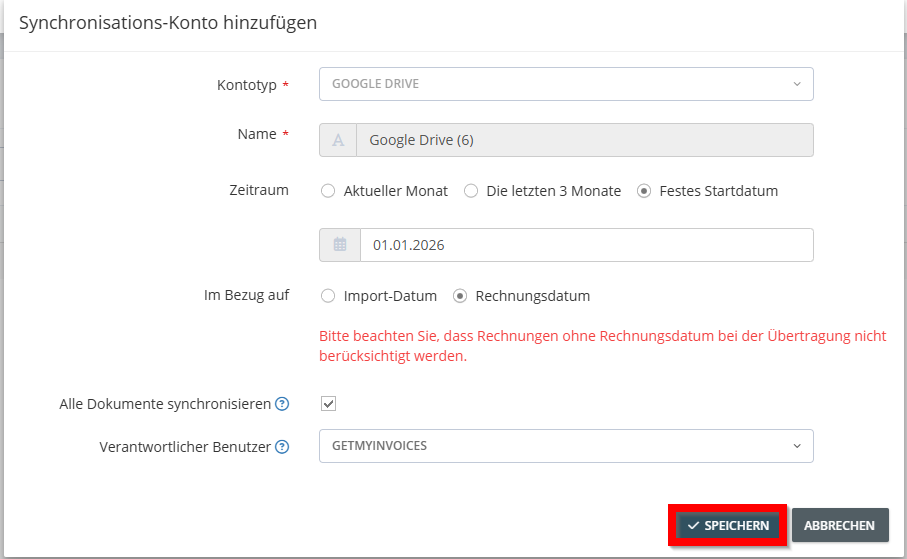
→ GetMyInvoices will now automatically transfer all relevant invoices as PDFs to your Google Drive based on your settings.