

 Deutsch
 Français
 Español
 Nederlands
 Italiano




With GetMyInvoices , you can easily forward your invoices automatically to an e-mail address. For example, to your accounting department, an archive system or an external tool that processes invoices by email. This function makes it possible to forward PDF invoices directly after importing or creating them without having to intervene manually.
In this step-by-step guide, we show you how to set up email synchronization, which settings you can make and what you should pay attention to.
Note: Only the PDF file of the invoice is transmitted - each invoice is sent in a separate email.
1. Step
- Click on Profile at the top righ.
- Select Synchronization in the dropdown.
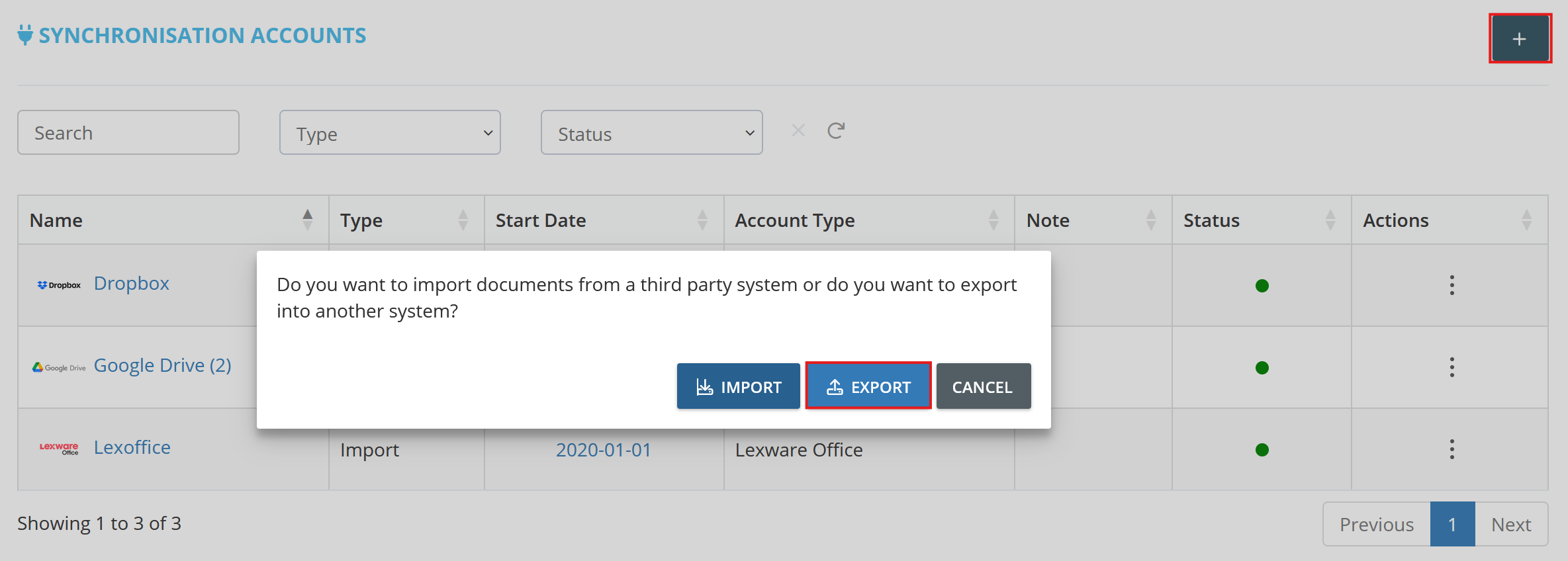
- Click on the plus symbol (+) at the top right to add a new synchronization.
- Select Export to transfer invoices automatically.
2. Step
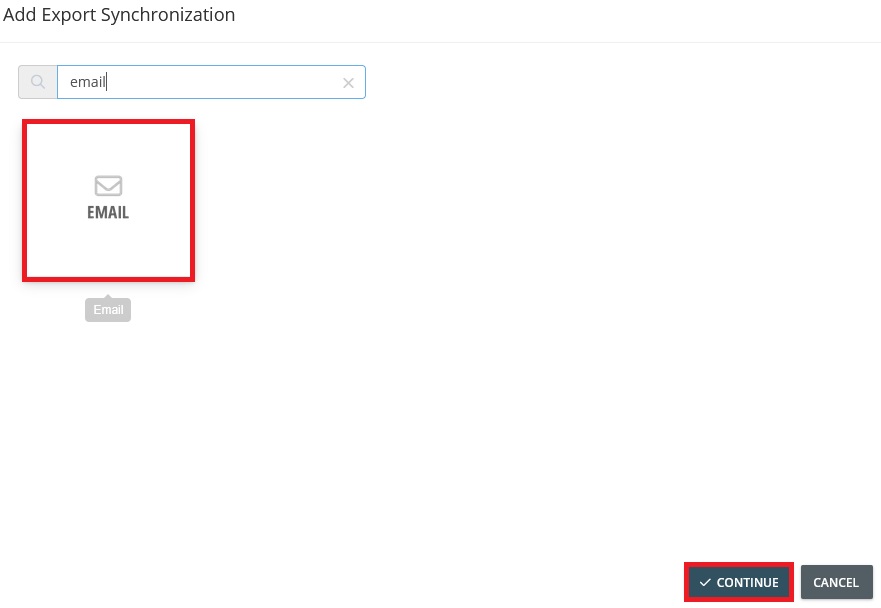
- Use the search function and type in EMail.
- Select the email tile.
- Click next.
3. Step
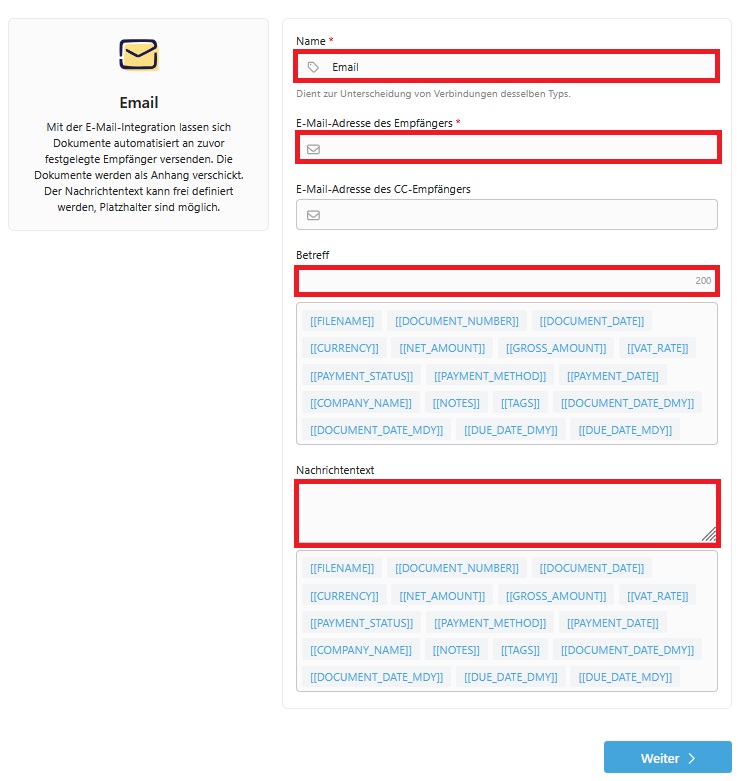
- Automatic forwarding takes place.
- Enter the e-mail recipient.
- Optional: Enter the subject and the message text.
4. Step
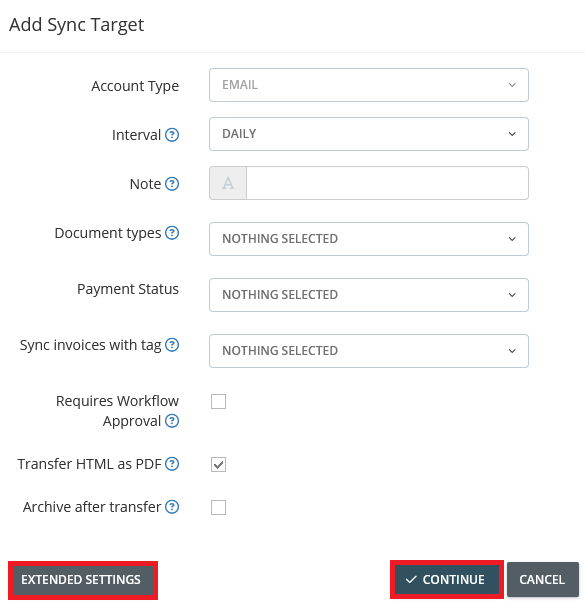
- Define settings for exporting the documents.
- Define further criteria for the export via advanced settings.
- Click Next.
- In our example, we have the invoices archived after successful export to e-mail.
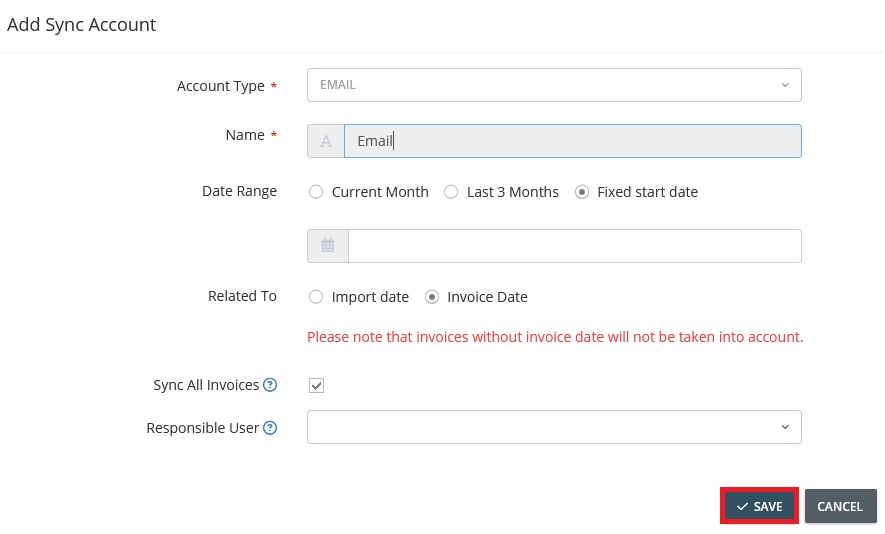
5. Step
- Optional: Restrict the export period based on the invoice or import date.
- Click Save to start the export.
GetMyInvoices now automatically transfers all relevant invoices to the e-mail address based on your settings.
Please note: If you use the Subject or Message text fields based on the variables, these must be present on the invoices for the export to start.