

 Deutsch
 Français
 Español
 Nederlands
 Italiano




GetMyInvoices supports a wide range of export synchronization options, including third-party accounting software, ERP systems and file hosting services. These synchronization options allow you to export your documents directly to your preferred systems and automate the process. This article explains how to set up a new synchronization account.
Step 1
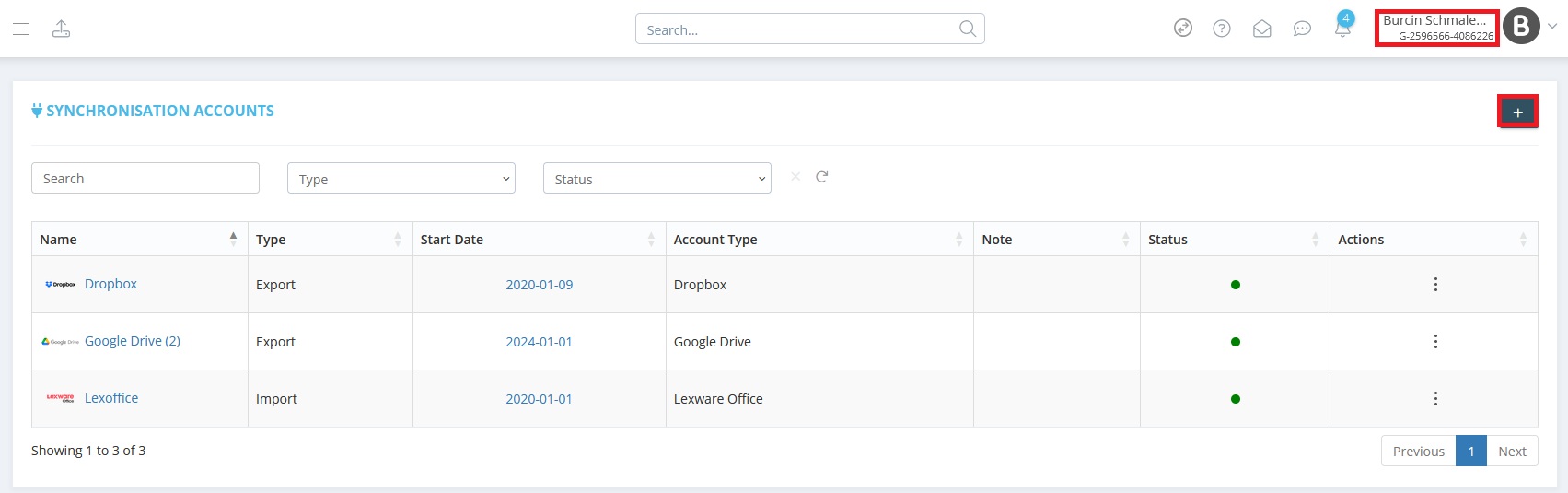
- On the GetMyInvoices dashboard, go to account name in the top right corner.
- Select Synchronization from the drop-down menu.
Step 2
- Click on Plus in the top right-hand corner.
Step 3:
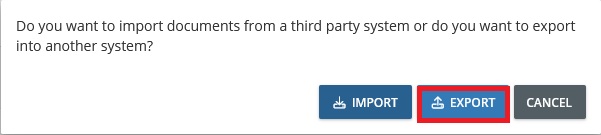
- A small window will appear.
- Please click Export.
Step 4
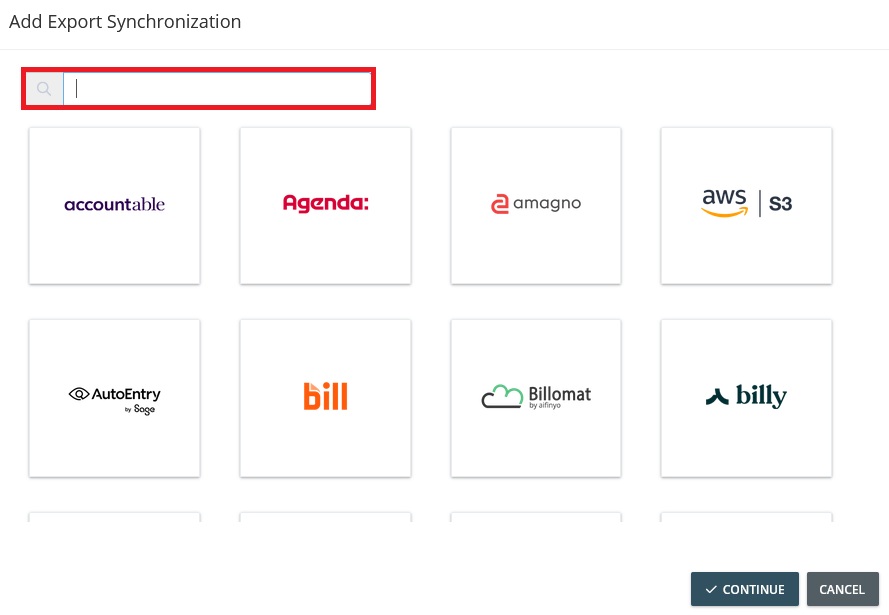
- Search for synchronization account you want to add.
- Click on the logo of the desired synchronization account.
- Click Next.
Step 5
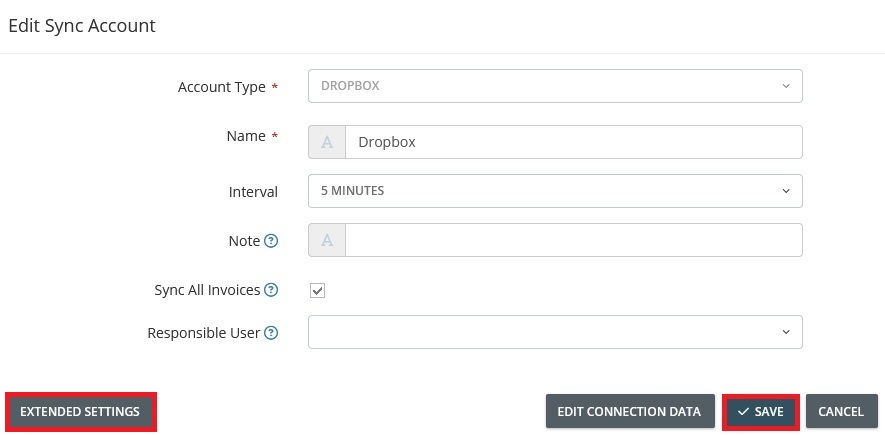
- Specify the desired settings for exporting the documents.
- Use Advanced settings to define additional criteria for the export.
- Click Next .
Step 6
- In the next window, enter the access data for your synchronization account.
- Follow the on-screen instructions (may vary depending on the synchronization account).
- If multi-factor authentication is enabled, enter the verification code or complete the security questions.
- After successful authentication, you will be redirected back to GetMyInvoices.
Step 7
- Add the synchronization account.
- Click on Save and the synchronization will start shortly.