

 Français
 Español
 Nederlands




It’s easy to manage your import and export sync accounts in GetMyInvoices. Follow these steps to learn how.
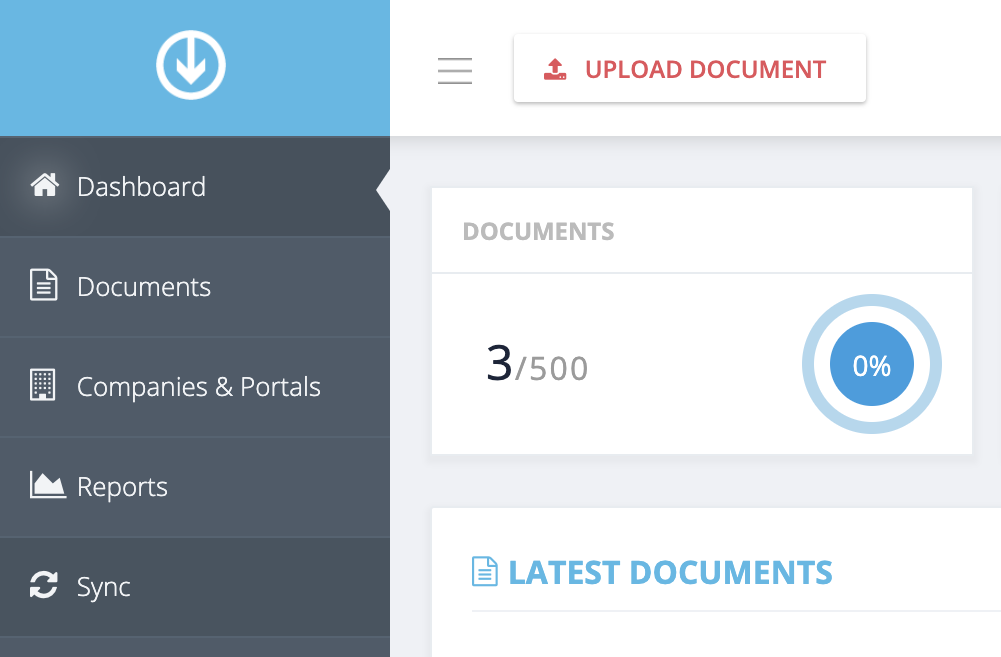
Step 1. From the GetMyInvoices dashboard, click Sync on the left side menu.
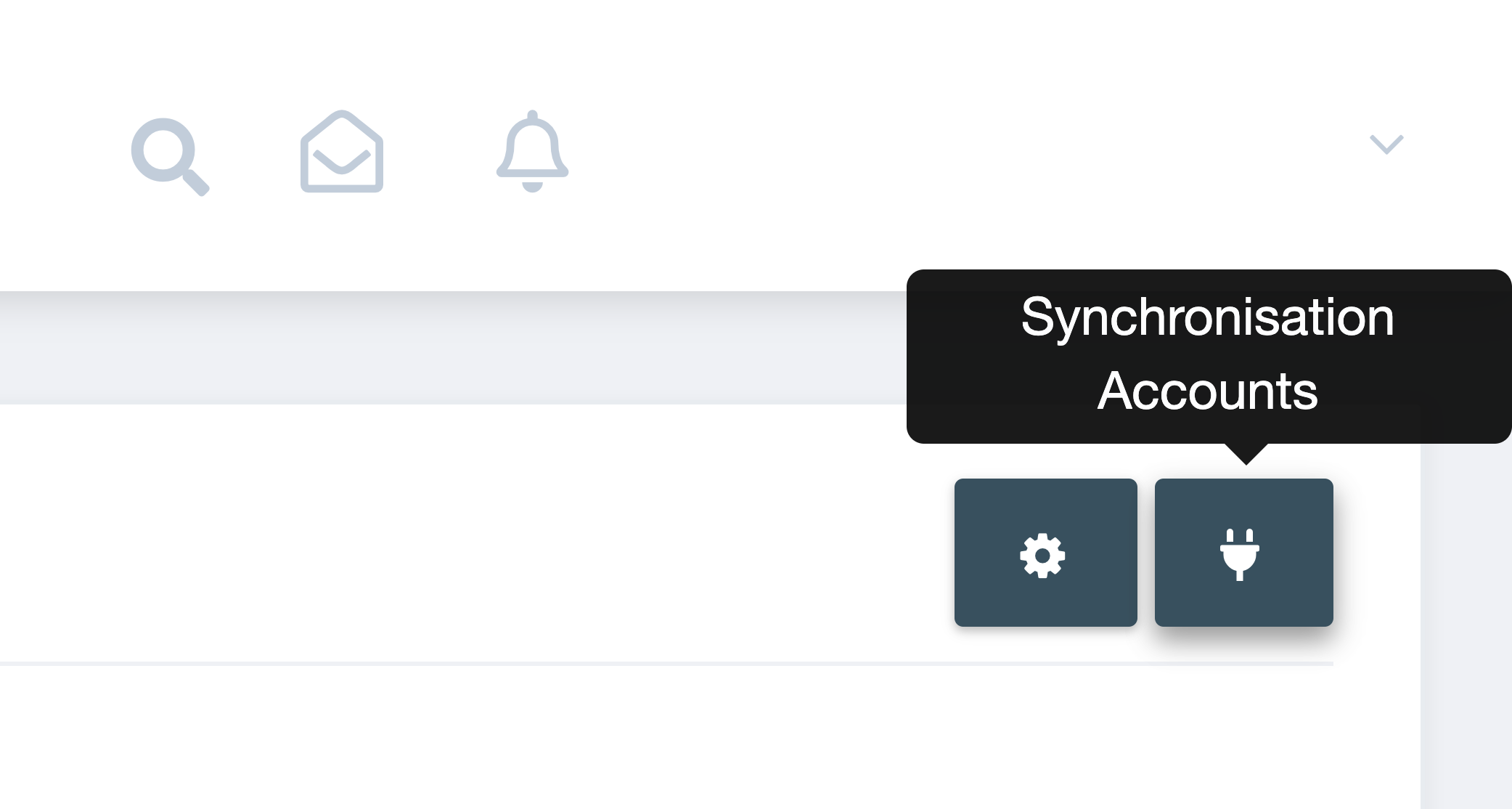
Step 2. On the Sync page, click the Synchronization Accounts button (plug icon) on the upper right corner.
Step 3. Find the sync account you want to manage. Make changes to your sync account by choosing any of the available options under Actions.
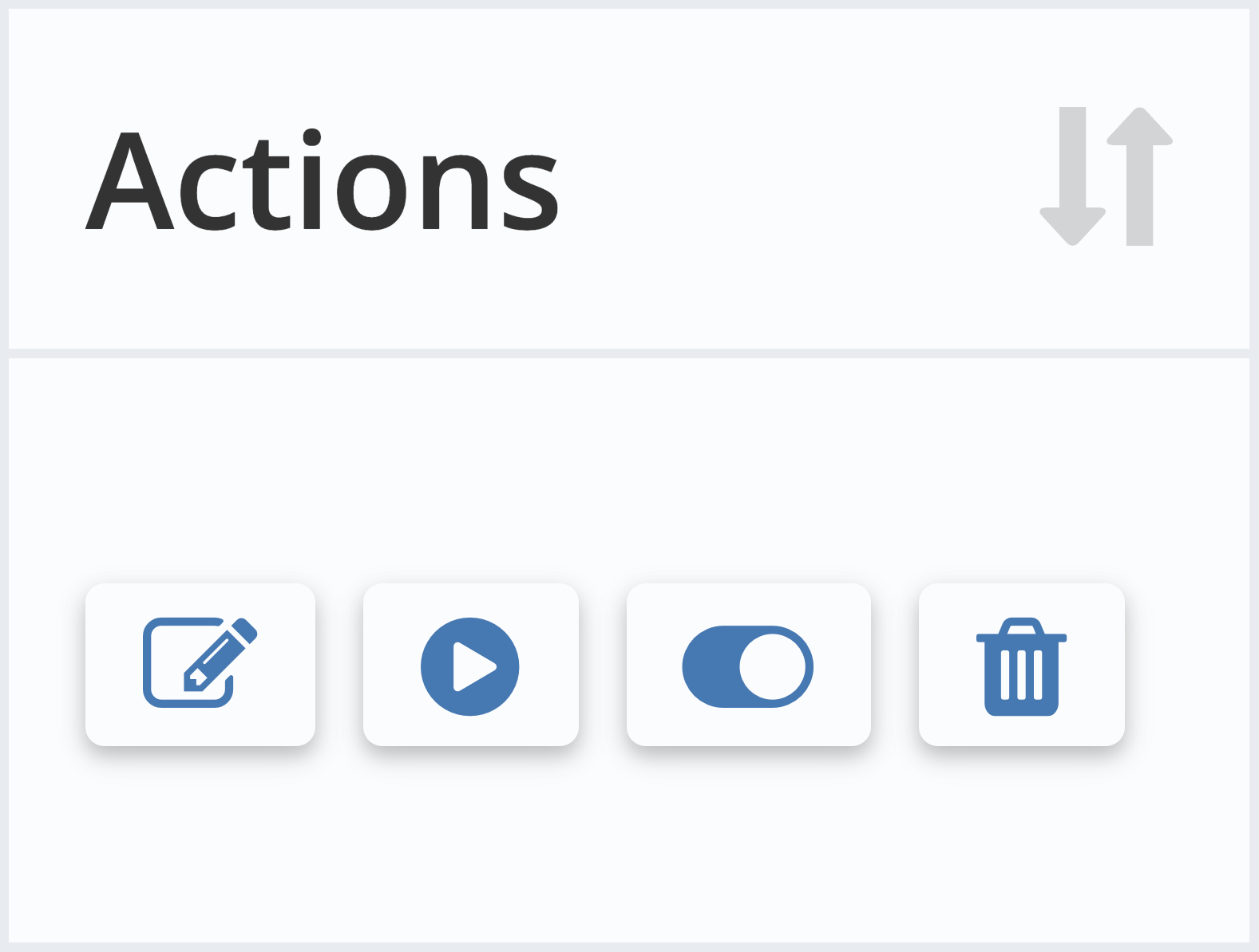
- Edit Sync Account: This gives you several options to configure your sync account settings, including sync intervals, restrictions, document/invoice settings, and more. Options may vary between import sync accounts and export sync accounts.
- Sync Now: You can manually start the sync process by clicking this button.
- Deactivate/Activate: Click this button if you want to temporarily disable syncing on your sync accounts, or re-enable a deactivated sync account.
- Delete Sync Account: This will permanently remove the connection between your sync account and your GetMyInvoices account. Clicking this button will require you to redo the sync account linking process if you wish to link it again in the future.