

 Deutsch
 Français
 Español
 Nederlands
 Italiano




You can add additional users to your GetMyInvoices account and specify which settings and features they have access to. There are two ways to do this: You can invite someone via email, or you can create the user directly in the account.
To learn about the rights associated with each role, see User Roles.
Option 1 Invite users via email
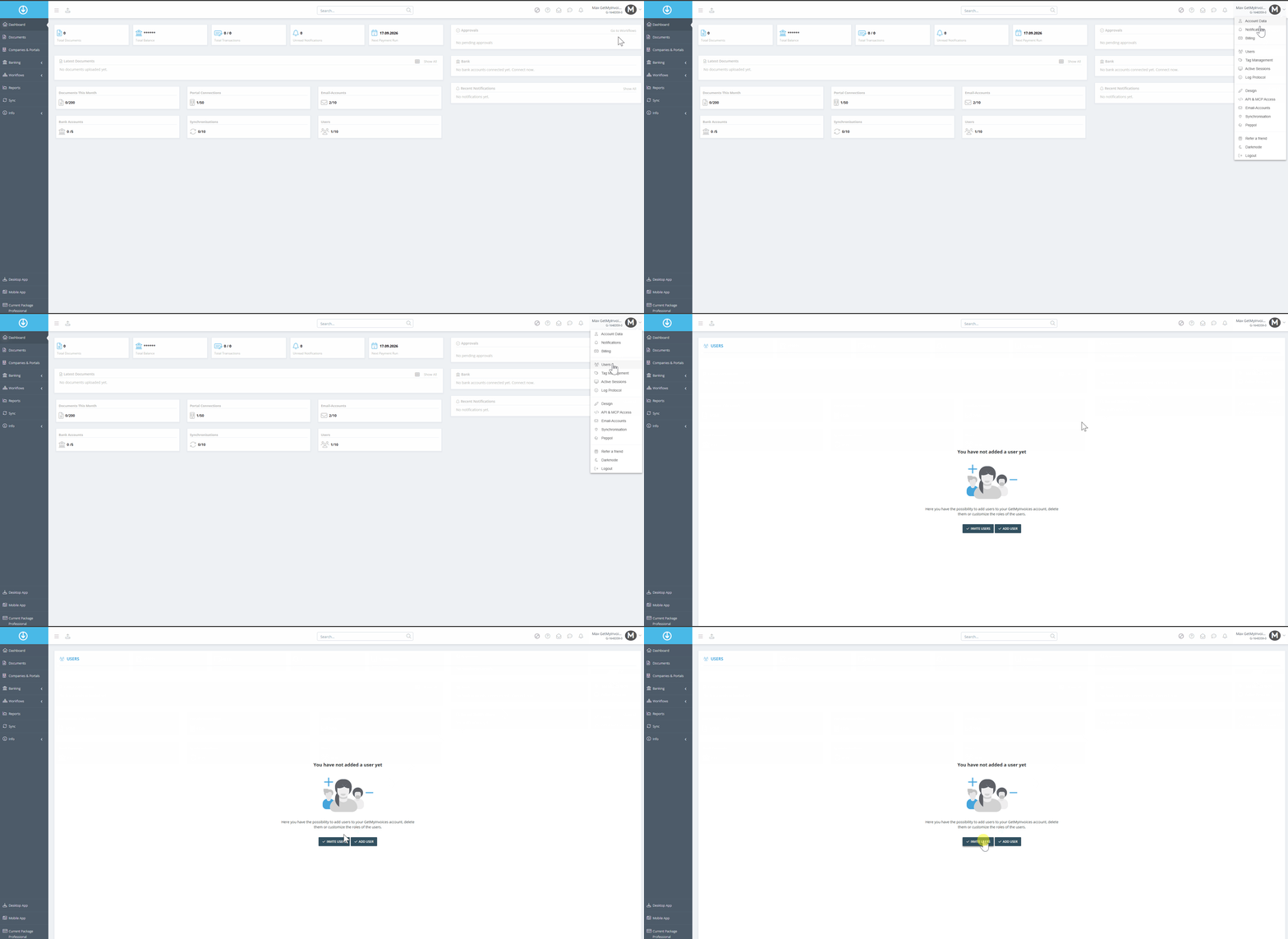
- Click on your name in the upper-right corner.
- Click “Users.”
- Select “Invite Users.”
- Now enter the email address of the person you want to invite.
- Select the user role.
- Write a short message.
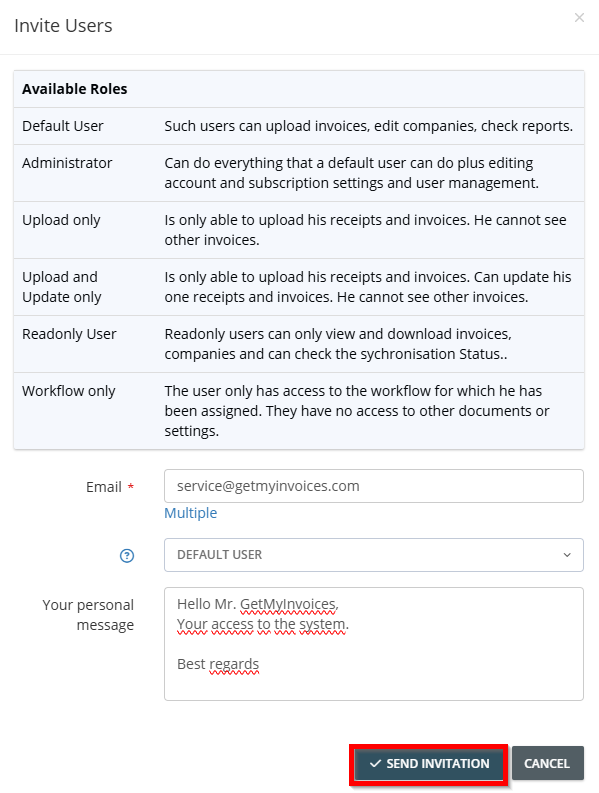
- Click “Send Invitation.”
The person will receive an email and can create an account using the link in the email.
Option 2: Add a user in the account
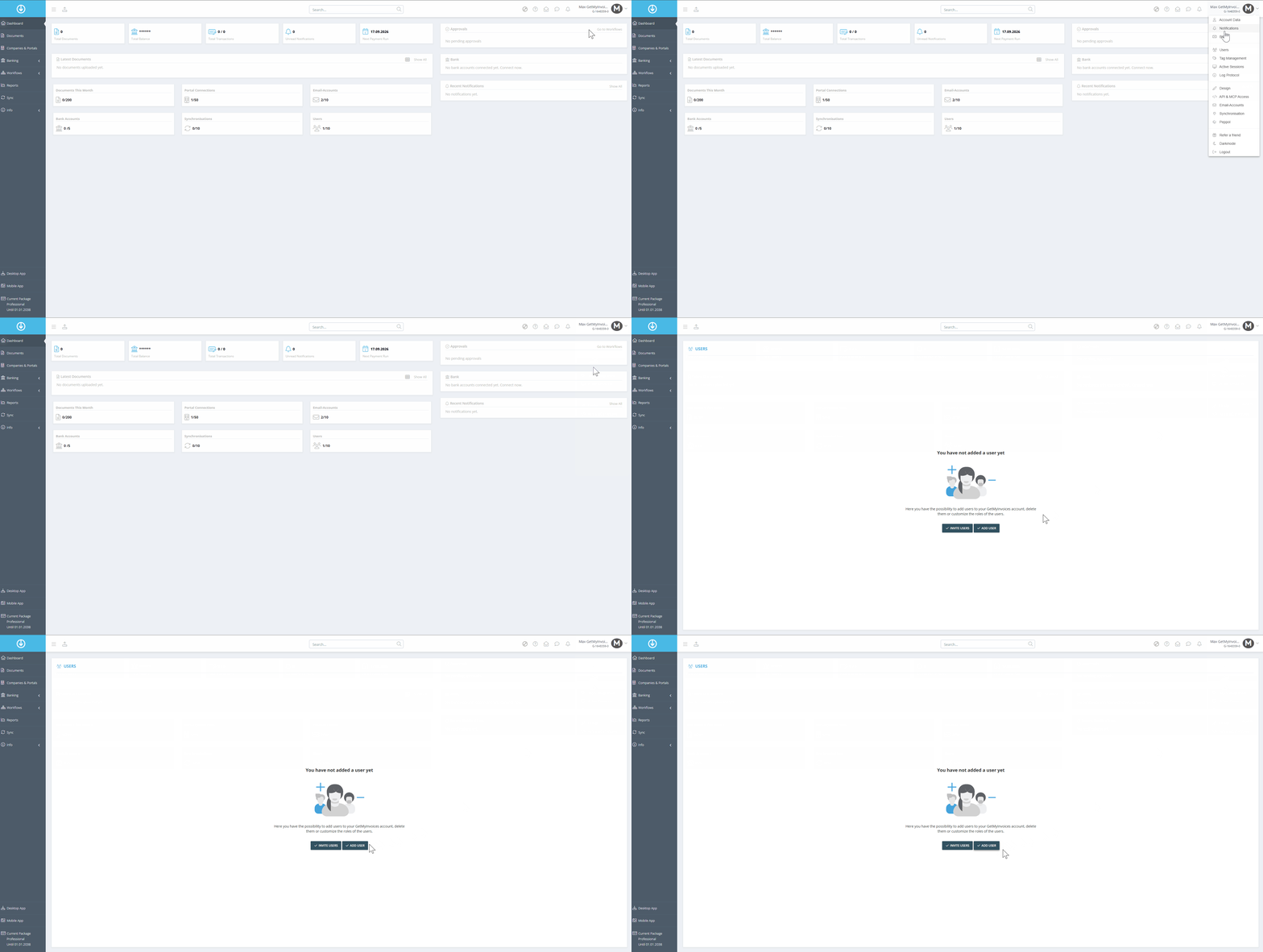
- Click on your name in the upper-right corner.
- Click “Users.”
- Select “Create User.”
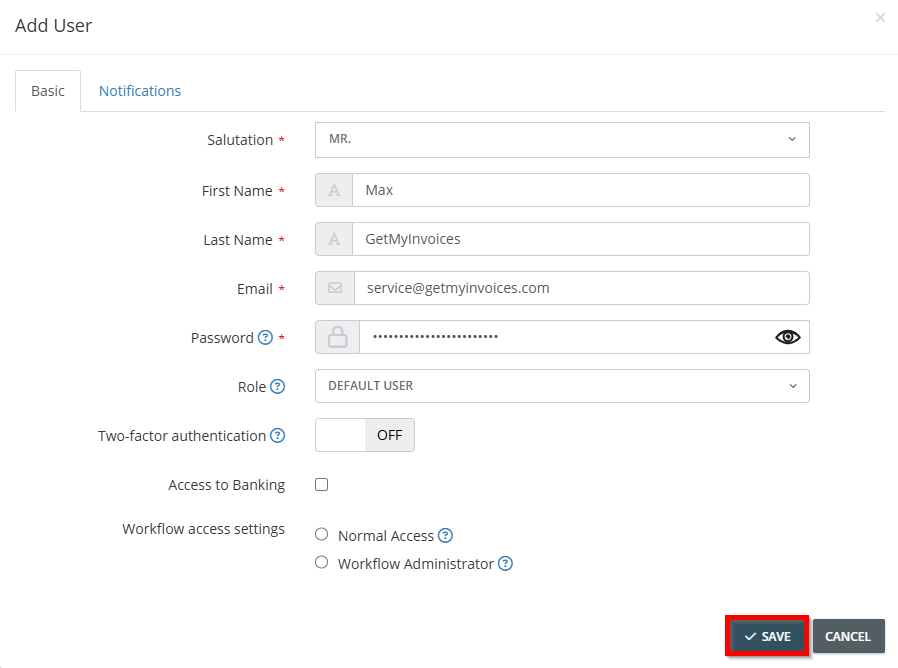
Now enter all the information for the person for whom you are creating the account:
- Title
- Email Address
- Password
- Click “Save”
Important: You must provide the user with the login credentials. To do so, use the option to send the login credentials via a one-time link. To do so, use: ReadOnce Encryption
For more information about the “Users” theme, see: User Management