

 Deutsch
 Français
 Español
 Nederlands
 Italiano




You can link your bank account to GetMyInvoices and match your transactions to the corresponding invoices. This allows you to view the transaction and the corresponding receipt in one place. This step is optional.
Step 1: Create a connection
- Click “Banking” in the menu on the left.
- Click “Link Bank Accounts.”
- Select “Automatically Synchronized Accounts.”
- Click “Next.”
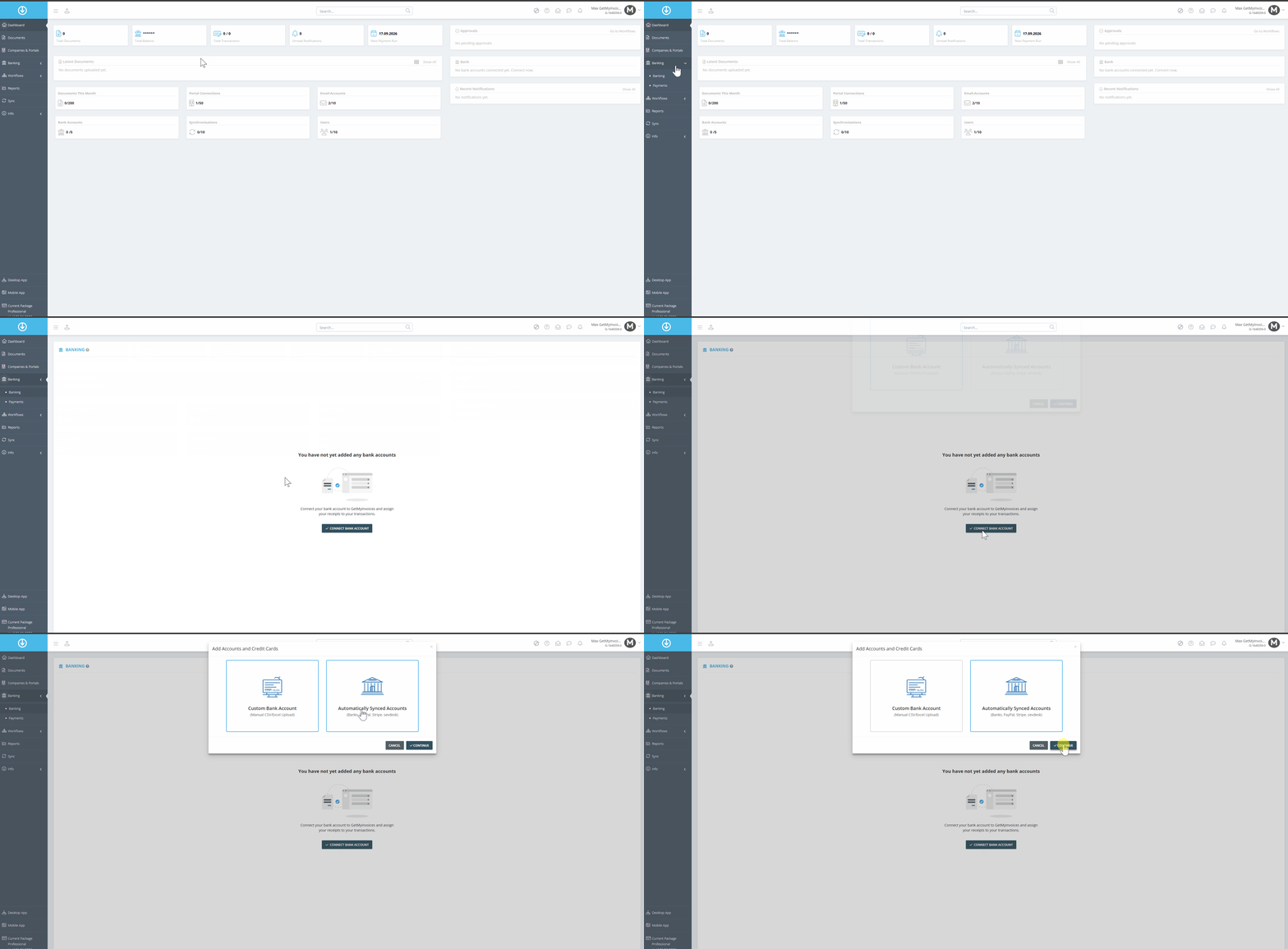
Step 2: Select a Bank
- Select the banking service provider you want.
- Click on the tile.
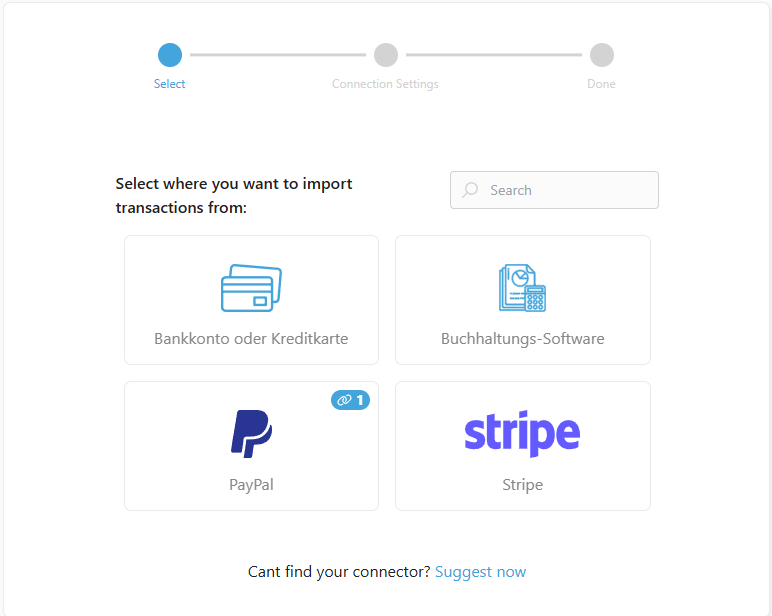
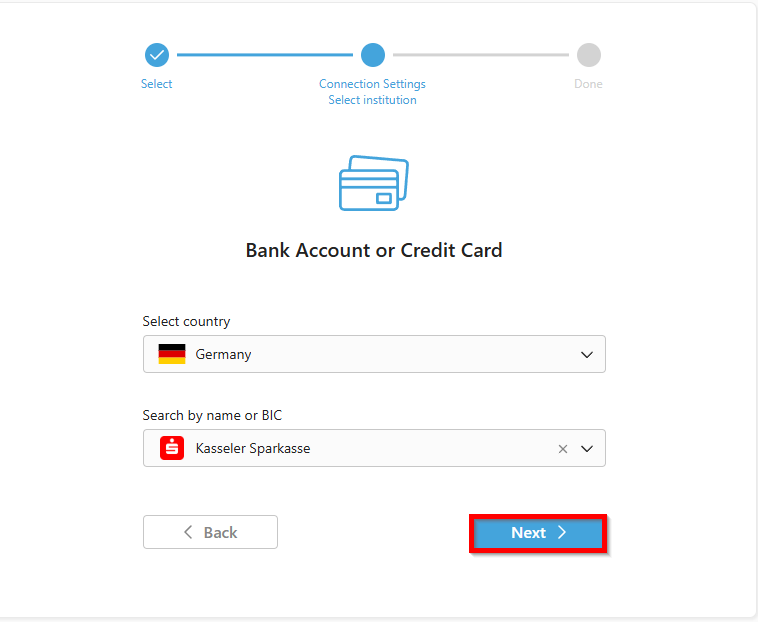
Step 3: Example—We’ll choose a bank account or credit card
- Use the search function.
- Select the desired bank.
- Click “Next”
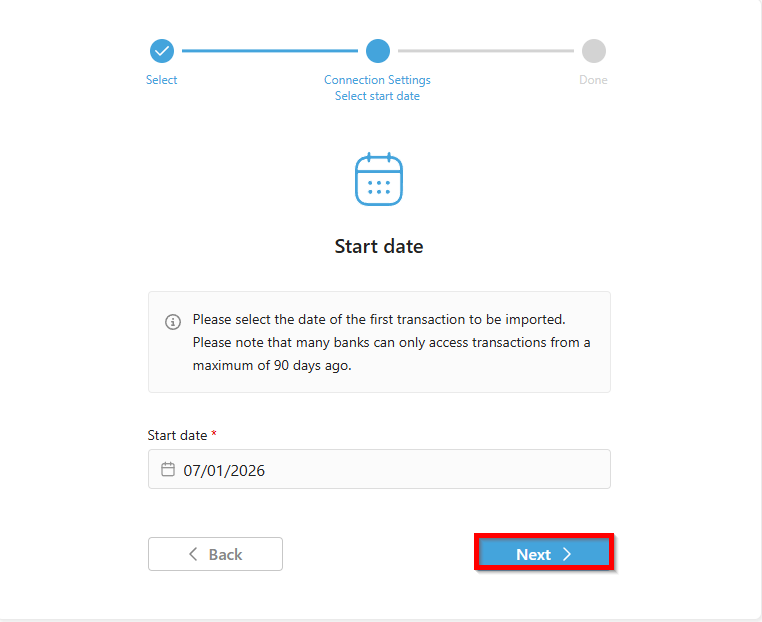
Step 4:
- Set the start date.
- Click “Next.”
Important note: Transactions can generally only be retrieved for the last 90 days.
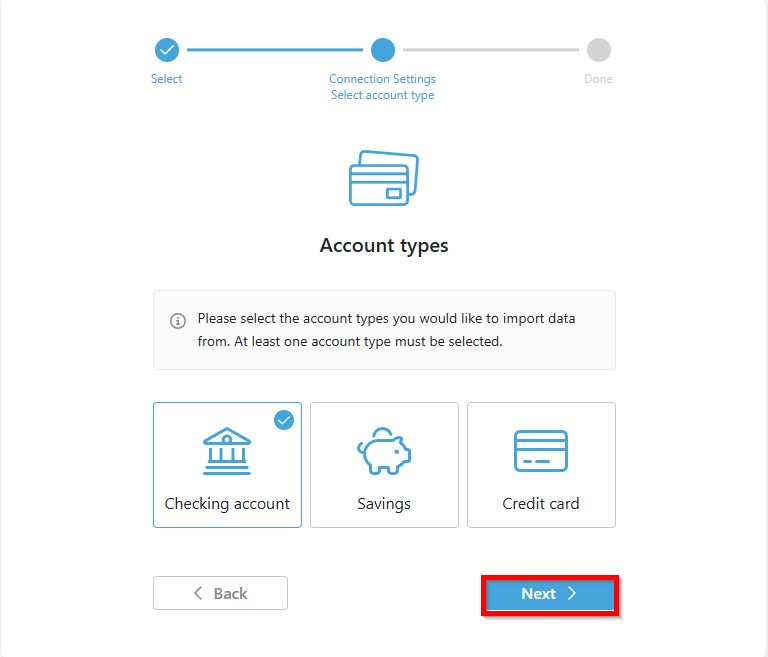
Step 5: Select Account Type
Select the type of account. GetMyInvoices supports the following account types:
- Checking account
- Credit card
- Savings account
In our example, we’ll select a
- checking account.
Step 6: Login with the bank and take over the account
- Enter your bank login credentials.
- Confirm your login with a TAN.
- After logging in, select one of the listed accounts and follow the process.
- Click the checkbox next to the account you want to add.
- Click Save.
You have now linked your account to GetMyInvoices. It takes a little time for the transactions to be retrieved.
Tip: Check with your tax advisor or accounting department to determine which system should be used for bank account reconciliation. The transactions are only visible in GetMyInvoices.
For more options regarding account linking and settings, see: Bank Accounts