

 Deutsch
 Français
 Español
 Nederlands
 Italiano




With the GetMyInvoices desktop app, you can automatically download invoices from thousands of online portals and manage them all in one place.
This guide walks you through the process from installation to setting up your first portal.
Step 1: Download the desktop app
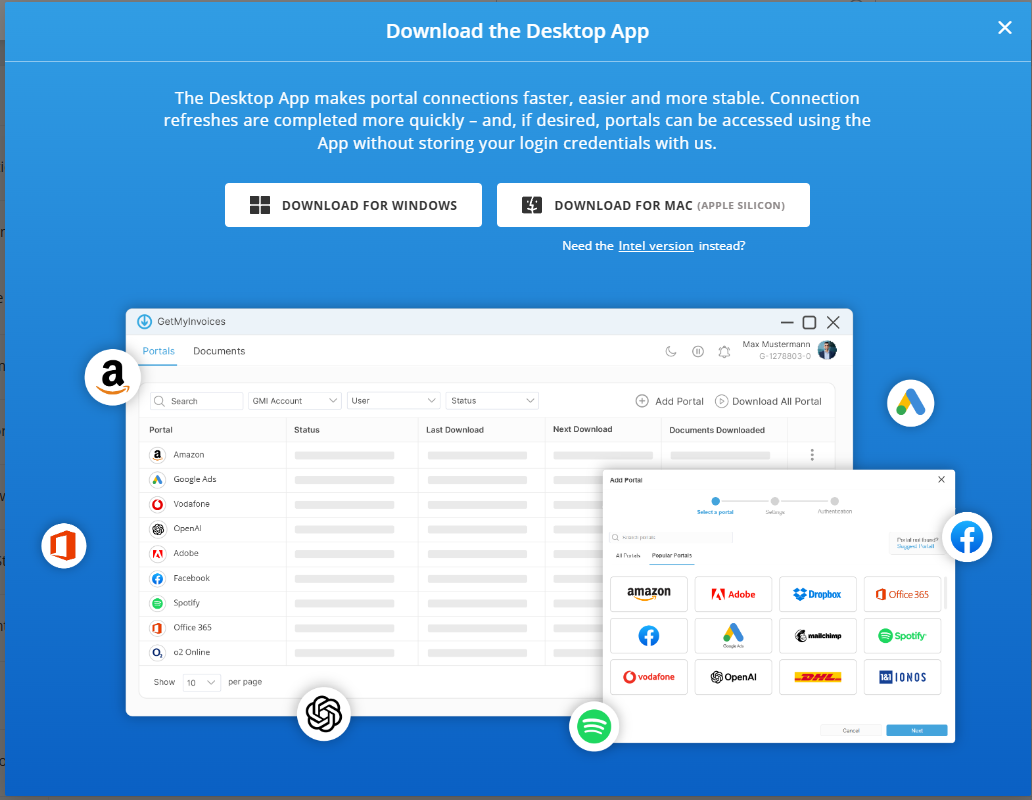
- In the dashboard, click “Desktop App” in the menu bar on the left.
- Select your operating system: macOS or Windows. The system requirements for macOS are listed at the end of this article.
- Start the download.
- Install the app.
- Sign in with your login credentials.
Step 2: Add a portal
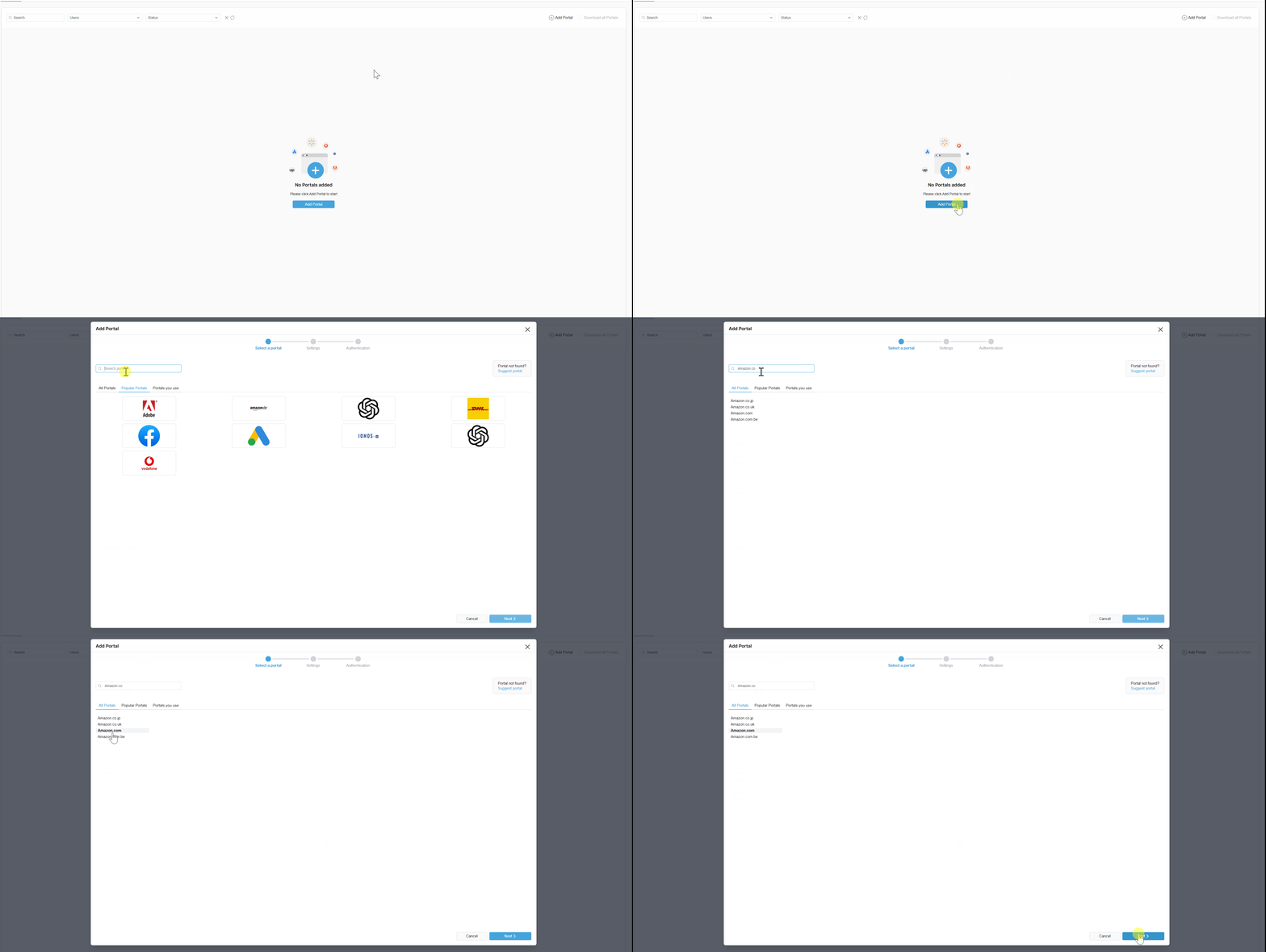
- Click “Add Portal.”
- In our example, we're looking for the Amazon.com Portal.
- Click “Next.”
Step 3: Configure and Select Settings
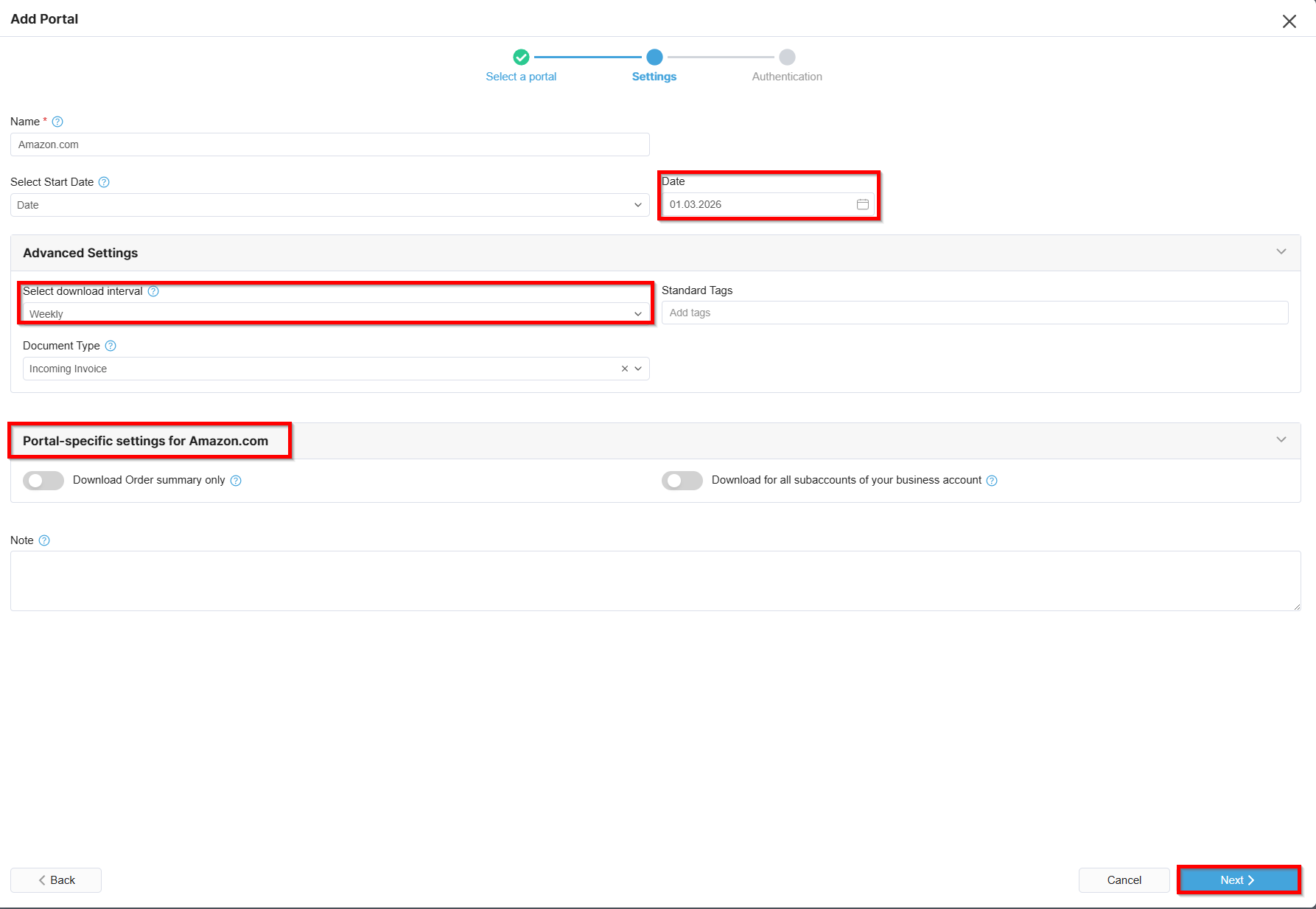
Some portals offer so-called portal-specific settings; you can use these as well.
- Enter a start date for the import.
- Select the interval for the download process.
- Click “Next”
Step 4: Specify the Authentication Method
Specify how the desktop app logs in to the portal. You have two options, which are described in the following sections.
Option 1: Save my login information
Enter the login credentials you normally use to log in to a portal.
- Username
- Password
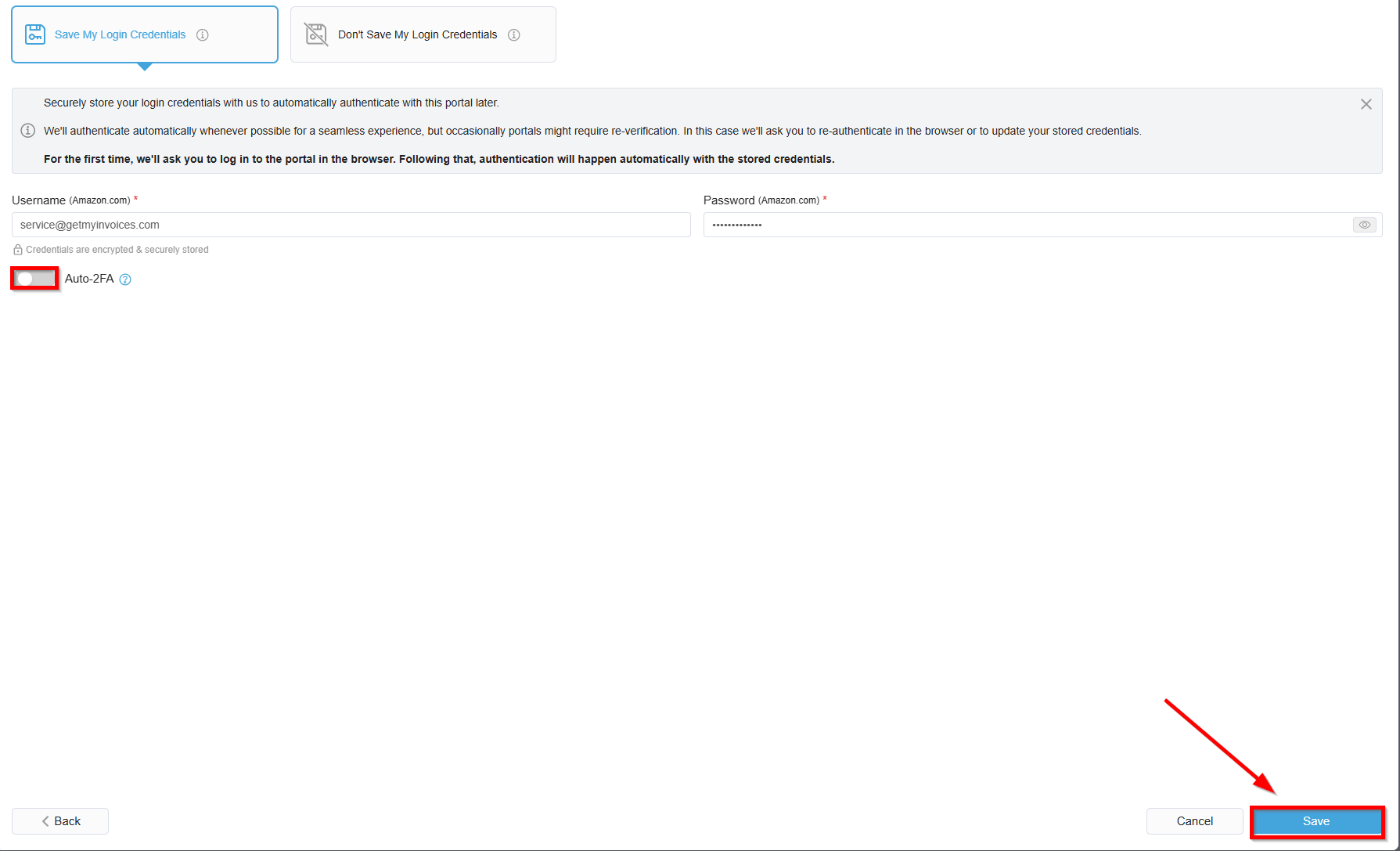
Optionally, enable automatic two-factor authentication (2FA), if available. Confirm the prompt “Automatically retrieve the 2-factor code” by selecting “Yes.”
- When enabling 2FA, select the “Authentication App” option.
- Save the QR code displayed on the online portal as a screenshot. Be sure to frame only the QR code itself, without any additional content.
- Scan the QR code with your two-factor authentication app and enter the one-time passcode (OTP) that appears to complete 2FA.
- Click “Upload screenshot with QR code” and select the file from the folder.
- Click “Send.” A message will appear stating that 2FA has been successfully enabled.
- Click Save.
Option 2: Do not save my login information
Enter the username you normally use to log in to this portal. Click Save.
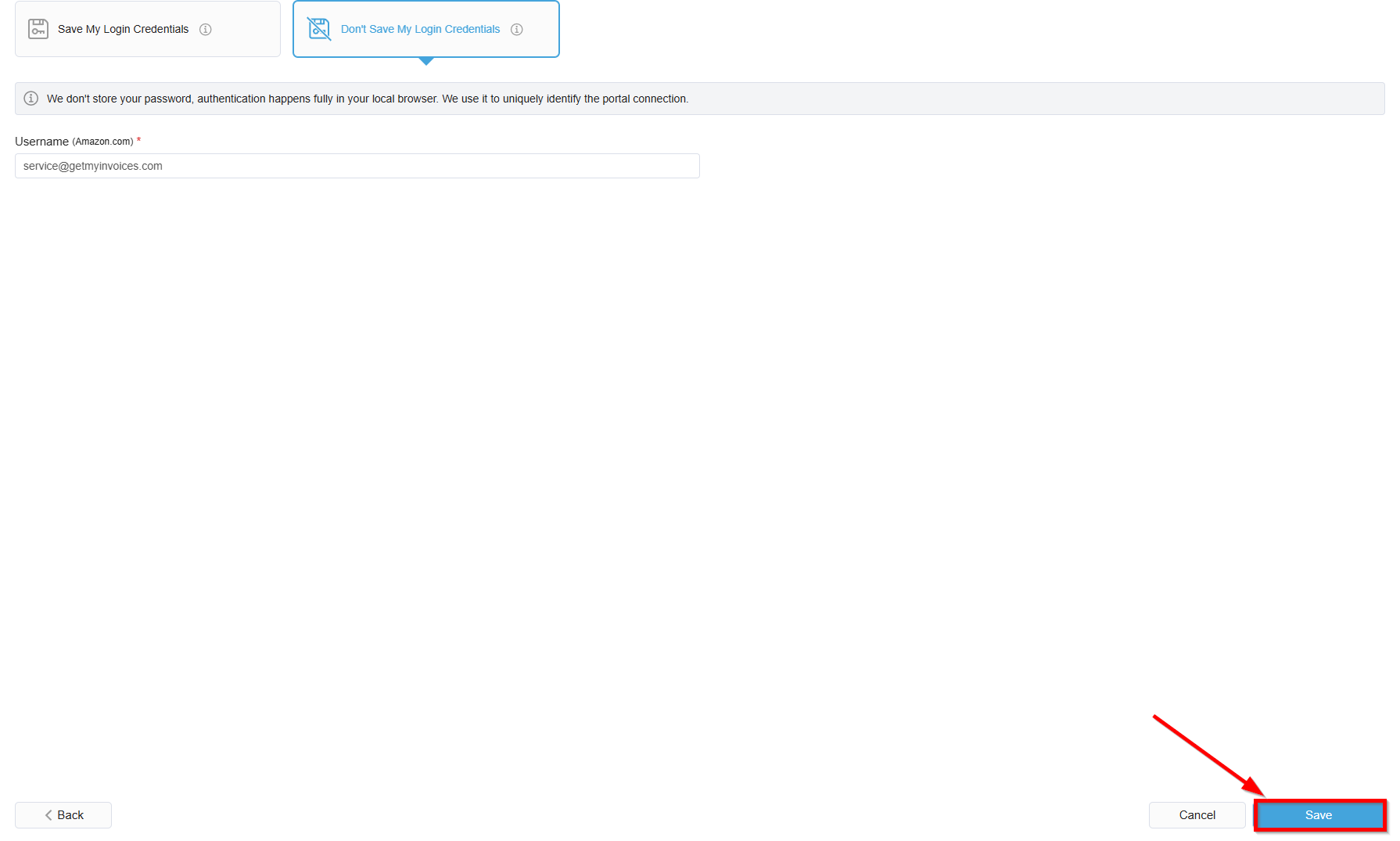
- Click “Save”.
- Follow the steps.
Note: Even when using the desktop app, the portal may occasionally request a second factor again. This is not an error; it is due to the portal's security mechanisms—entering the information is quick and easy each time.
System Requirements for macOS
- Operating System: macOS 14.0 (Sonoma) or later
- Processor: Intel 64-bit (Core i5 or higher)
- Memory: at least 8 GB of RAM