

 Deutsch
 Français
 Español
 Nederlands
 Italiano




GetMyInvoices
offers you a variety of ways to retrieve your incoming invoices via
automatic retrieval from online portals, so you no longer have to log in to the
portal and download your invoices manually. GetMyInvoices automates this process. We’ll show you how
to connect an online portal in the browser version.
You’re also welcome to use our
Desktop App
to complete the process.
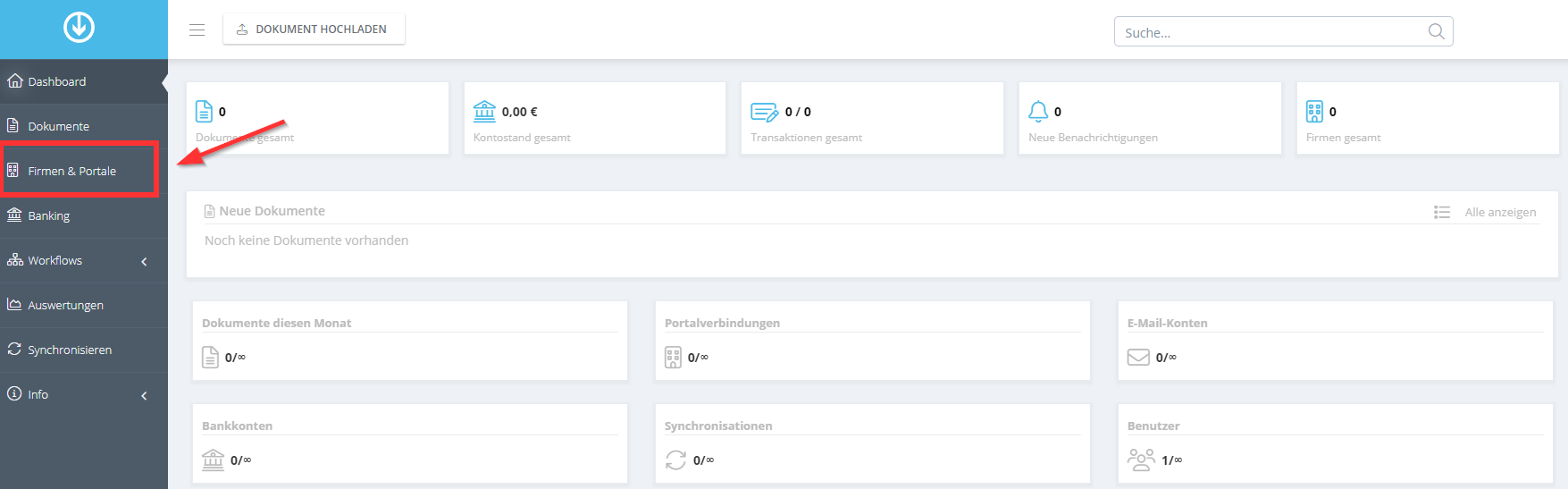
Step 1
- Move your mouse to the left side of the screen.
- Click on Companies & Portals.
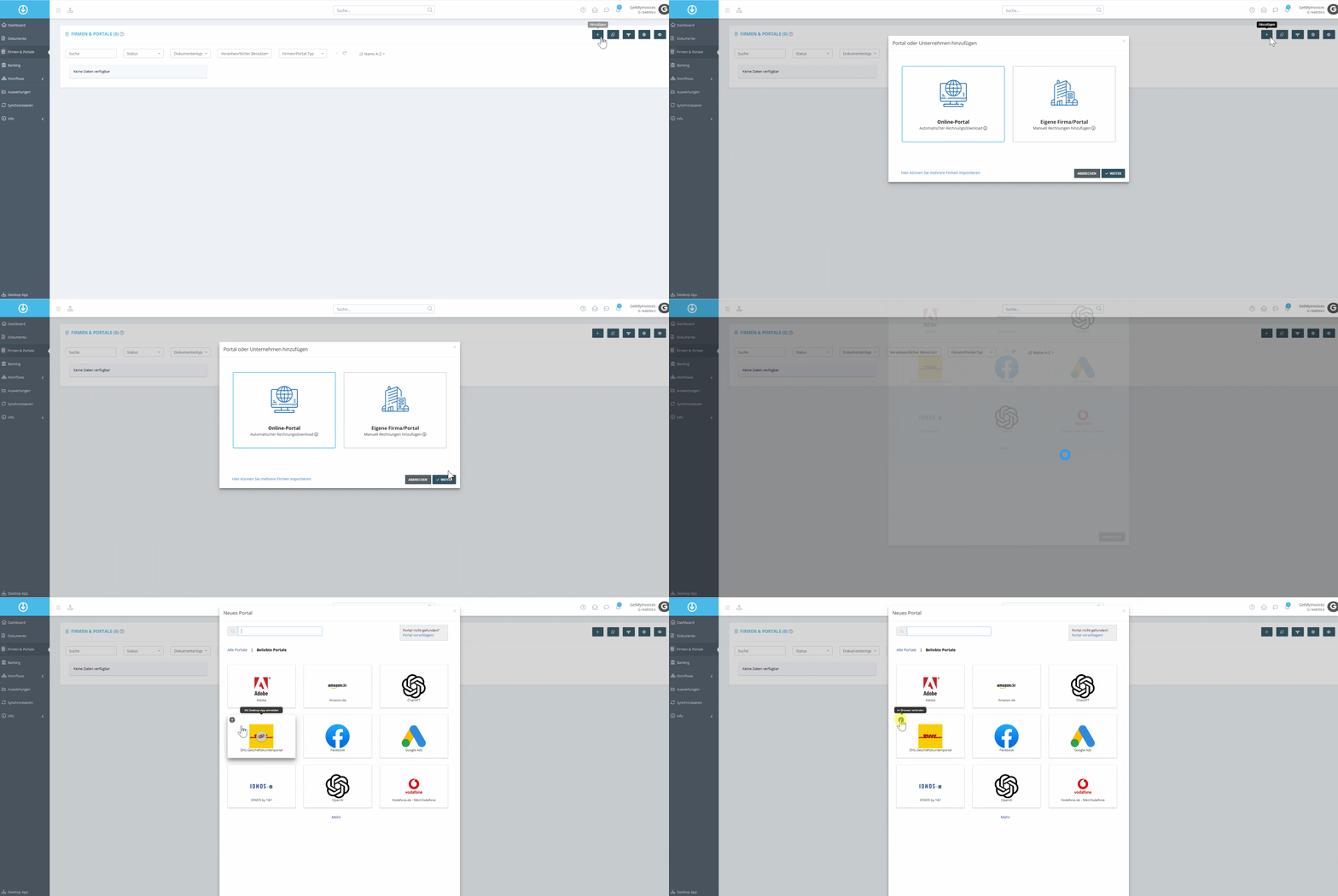
Step 2
- Click on “Add”.
- Select Online Portal from the tile.
- Click Connect in Browser
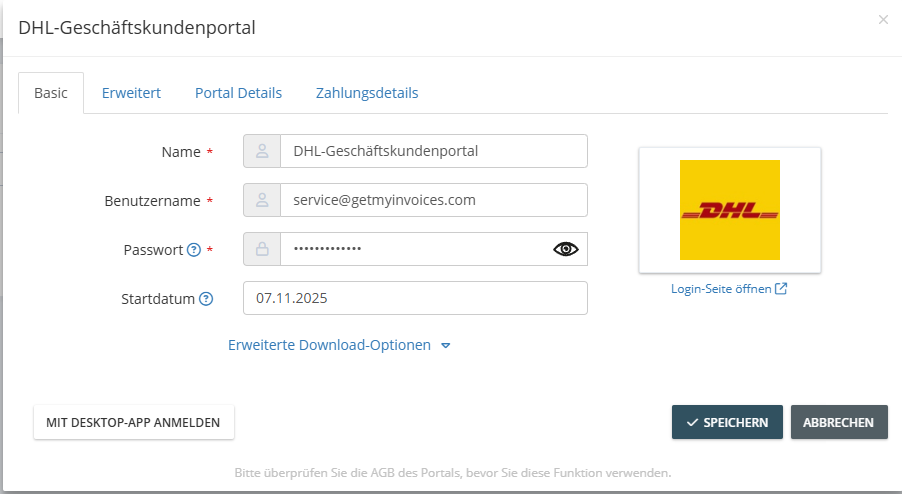
Step 3
- Select the desired portal.
- Enter your login credentials (the information used for the standard login to the portal).
- Set the start date (e.g., starting January 1, 2024, when invoices will be imported).
- Set the time interval for automatic retrieval (e.g., every 7 days).
- Maintain master data in Advanced and Payment Details .
Step 4
- In the Advanced tab, specify the document type for the connected portal. Note: Invoices are typically retrieved via the portals-that is, invoices you receive from suppliers.
- All documents are classified as incoming invoices in GetMyInvoices.
- Enter payment details.
- Set the payment status of the invoices.
- Select a payment method (e.g., direct debit).
- Specify the portal’s default currency.
- After entering the data, click Save
You have successfully connected the portal.
Please note: The further back in time you set the start date, the more invoices will be retrieved. Depending on the number of invoices, the process can take up to 24 hours. Also, make sure to enter the “Advanced” and “Payment Details” information on each online portal. This is important for optimal use in GetMyInvoices!