

 Deutsch
 Français
 Español
 Nederlands
 Italiano




With GetMyInvoices, you can export incoming invoices directly to Finmatics. This saves you time and ensures that your documents are stored in one central location. This guide provides step-by-step instructions on how to set up synchronization with Finmatics.
Step 1
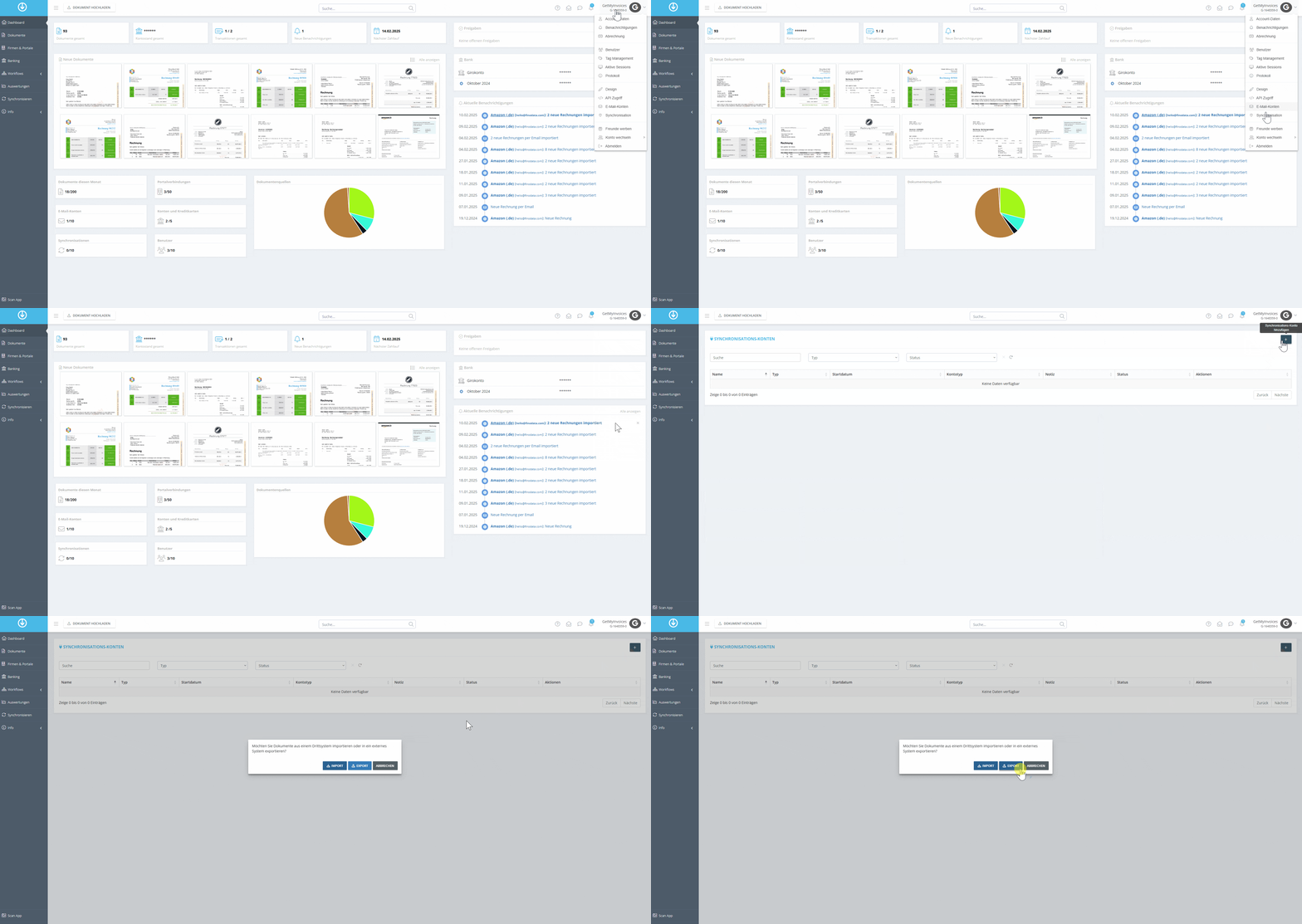
- Hover your mouse over your name in the top-right corner and click “Synchronization” in the dropdown menu.
- Select the plus icon (+) in the top-right corner.
-
Click “Export”
Step 2
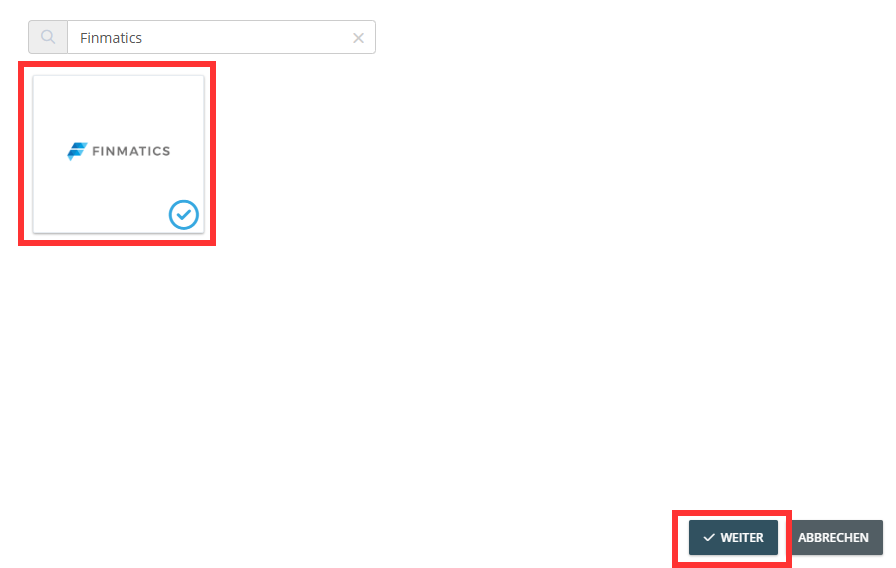
- Use the search function to search for “Finmatics”.
- Click on the Finmatics tile and then on “Next”
Step 3
-
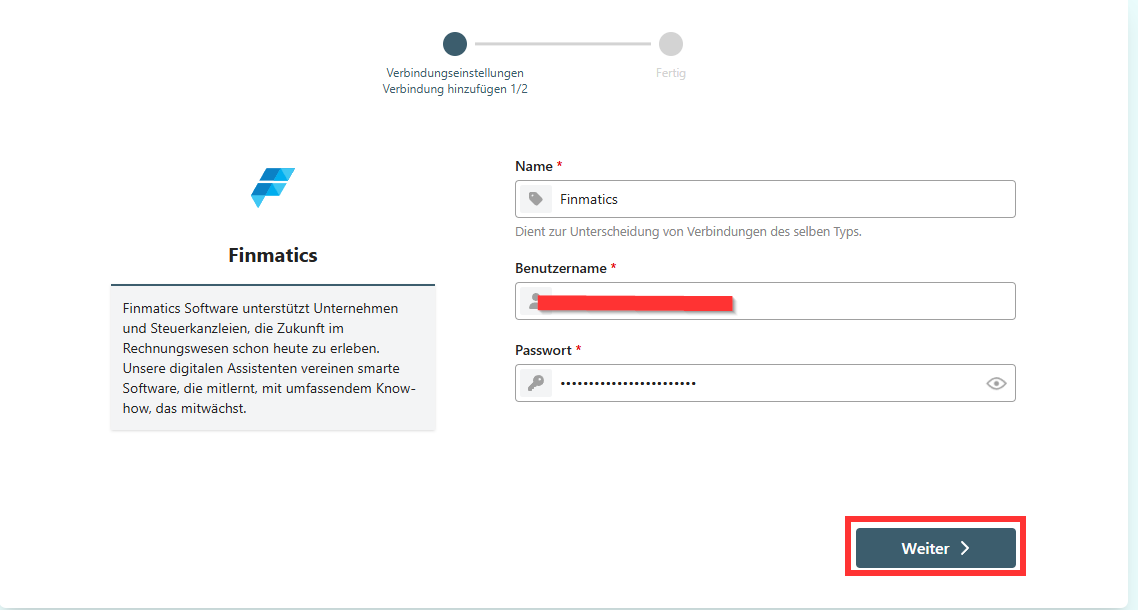
You will now be redirected.
-
Enter your Finmatics login credentials
-
Click “Next”
Step 4
-
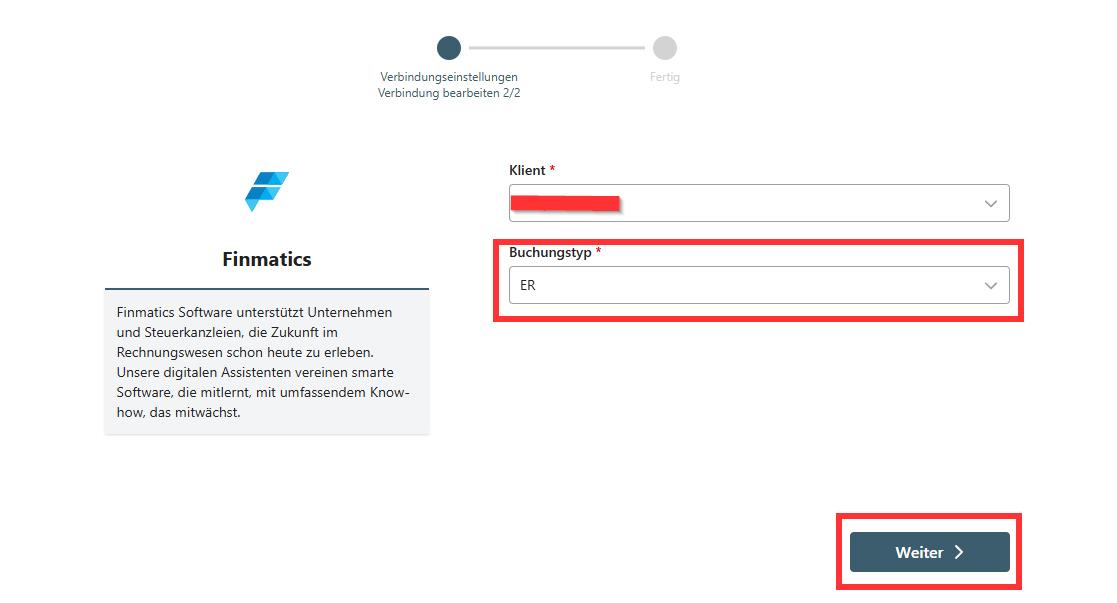
Now select your client
-
Set a default transaction type; all invoices will then have this transaction type in Finmatics
-
Click “Next”.
Step 5
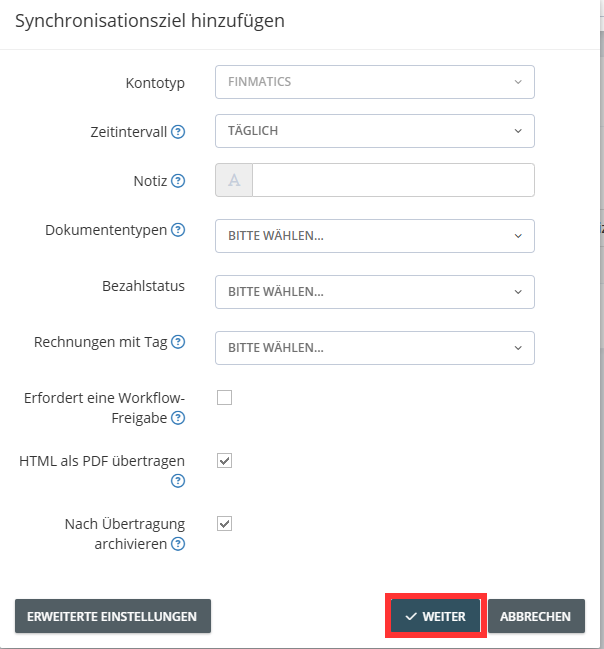
You can configure the settings for exporting the documents. Via “Advanced Settings , you can specify additional criteria for the export. Then click “Next.” In our example, we’ll have the invoices archived in Finmatics after the export is complete
Step 6
-
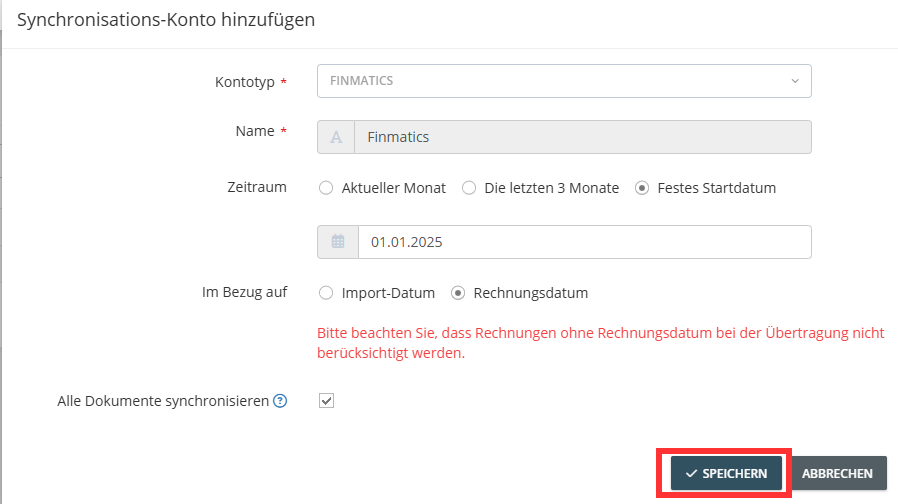
Optionally, you can limit the export period based on the invoice or import date.
-
Click “Save” to start the export.
 GetMyInvoices will now automatically transfer all relevant invoices to Finmatics based on your
settings.
GetMyInvoices will now automatically transfer all relevant invoices to Finmatics based on your
settings.
Additionally, you can configure advanced settings directly for a company or portal in GetMyInvoices. For more information, see here: