Deutsch
 Français
 Español
 Nederlands
 Italiano




With
GetMyInvoices
, you can export incoming invoices directly to your OneDrive. This saves you time
and ensures your documents are stored in one central location. This guide provides step-by-step
instructions on how to set up synchronization with your OneDrive.
When transferring to your OneDrive, we only transfer the PDF file.
Step 1
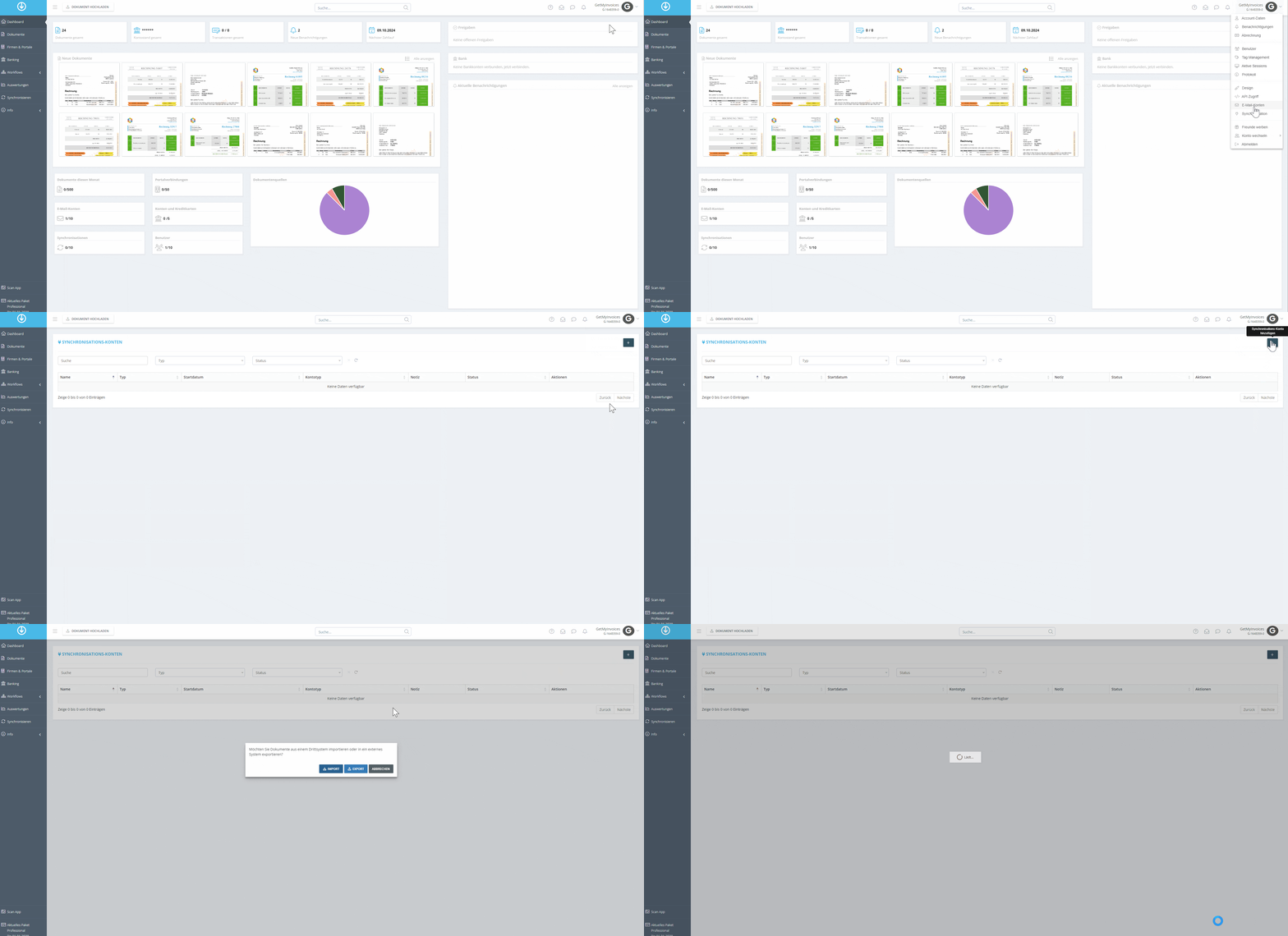
- Click on your profile in the top right corner and select “Synchronization” from the dropdown menu.
- Click the plus icon (+) in the top right corner.
- Click Export.
Step 2
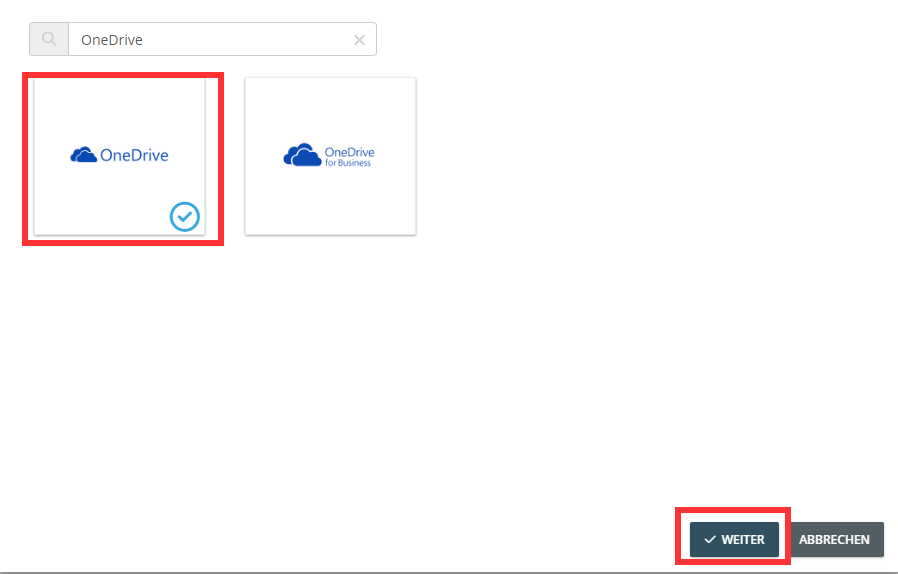
- Use the search function and search for OneDrive.
- Click the OneDrive tile.
- Select Next.
Step 3
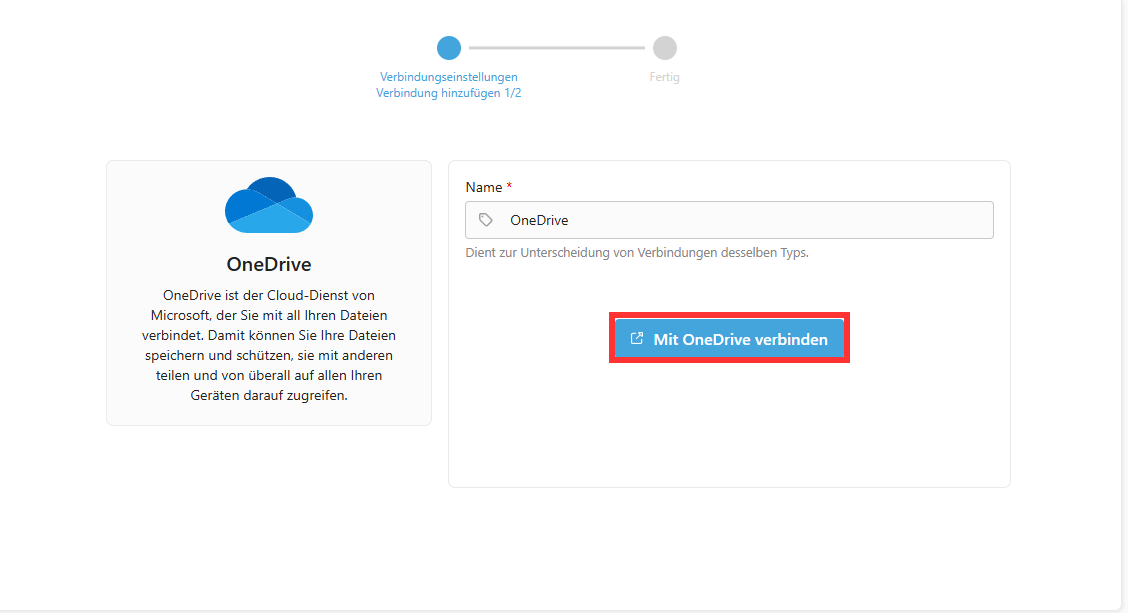
- Select “Connect to OneDrive”
- Follow the prompts
- Grant access
Step 4
- Select the path where invoices should be stored
- Click “Next”
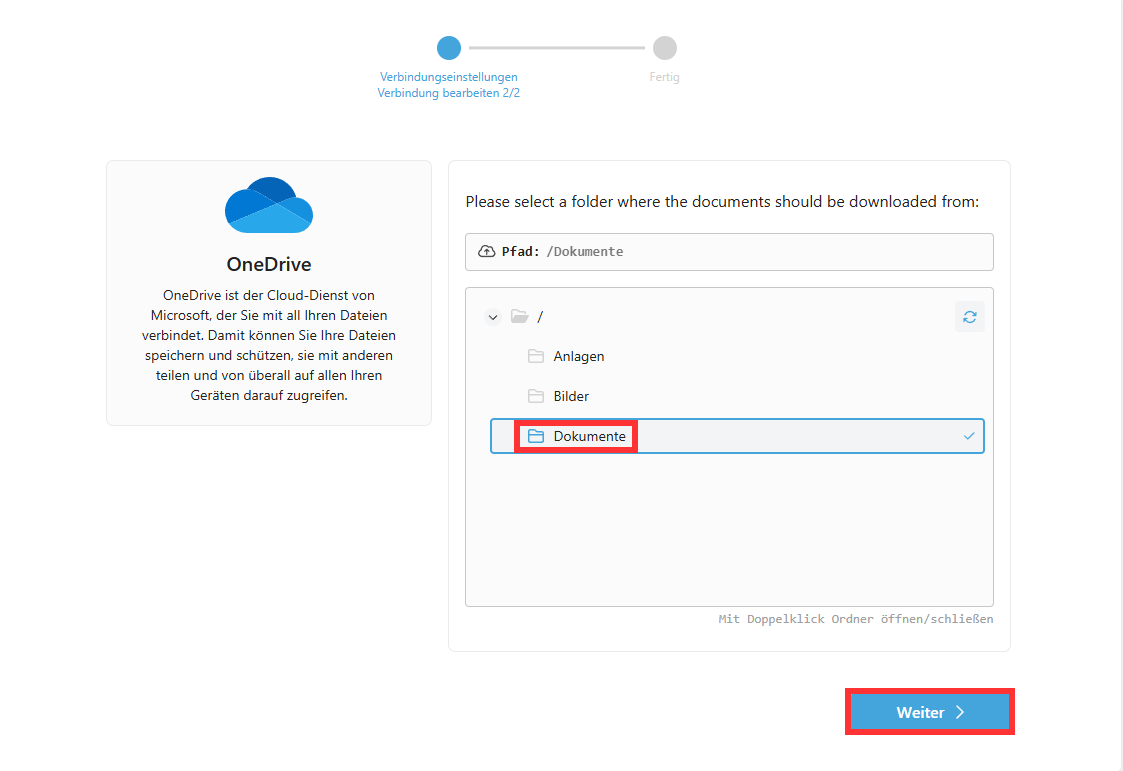
Step 5
- Configure export settings for the documents.
- Use Advanced Settings to set additional criteria for the export.
- Click Next.
→ In this example, we’ll have the invoices archived to OneDrive after a successful export.
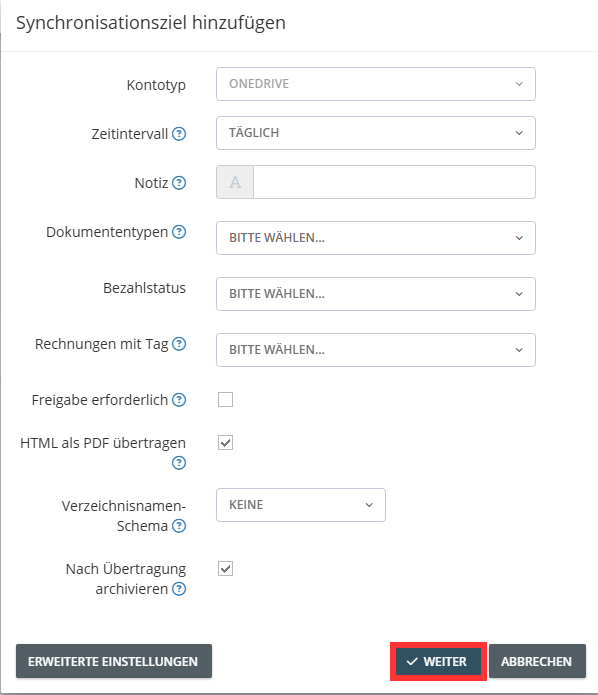
Step 6
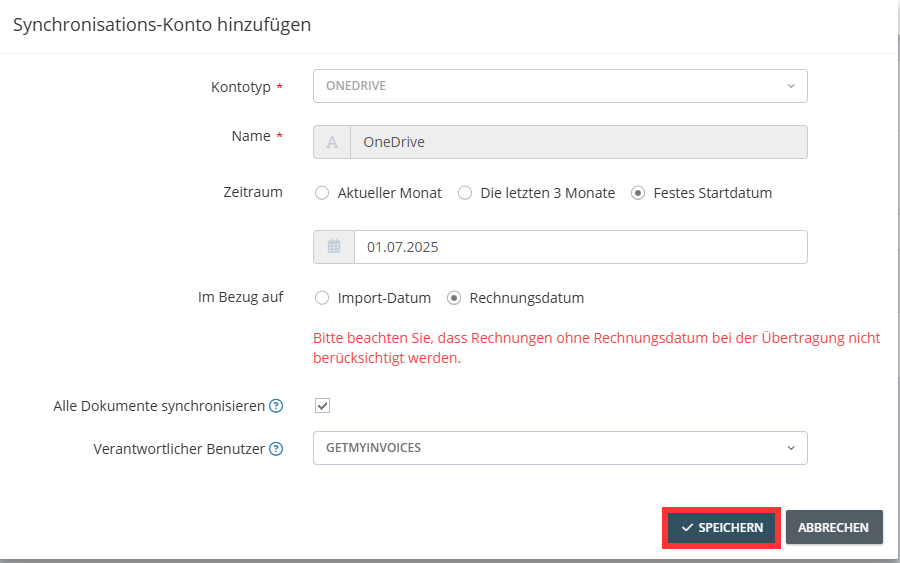
- Optional: Limit the export period based on the invoice or import date.
- Click Save to start the export.
→ GetMyInvoices will now automatically transfer all relevant invoices to OneDrive based on your settings.