

 Deutsch
 Français
 Español
 Nederlands
 Italiano




In GetMyInvoices , a responsible user can be assigned to each sync account. This user receives automatic notifications via email and in the portal as soon as a connection expires and requires their attention. This allows responsibilities to be clearly assigned and problems to be resolved more quickly. This feature helps resolve connection issues promptly.
Step 1
- Click on the account name in the top-right corner.
- Select Synchronization from the dropdown menu.
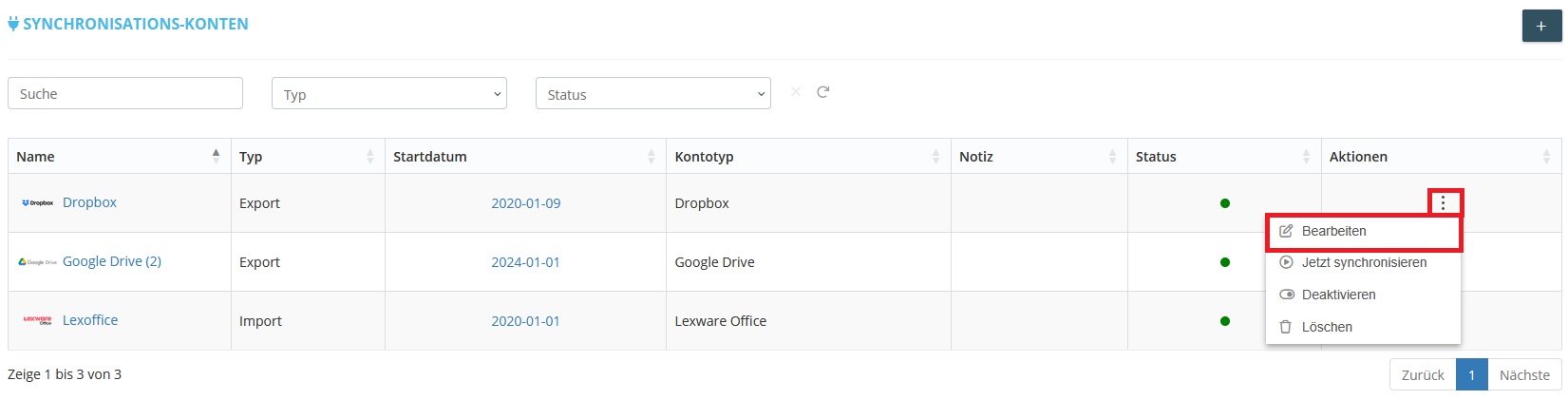
- On the right side of the desired account, click the three-dot icon.
- Select Edit.
Step 2
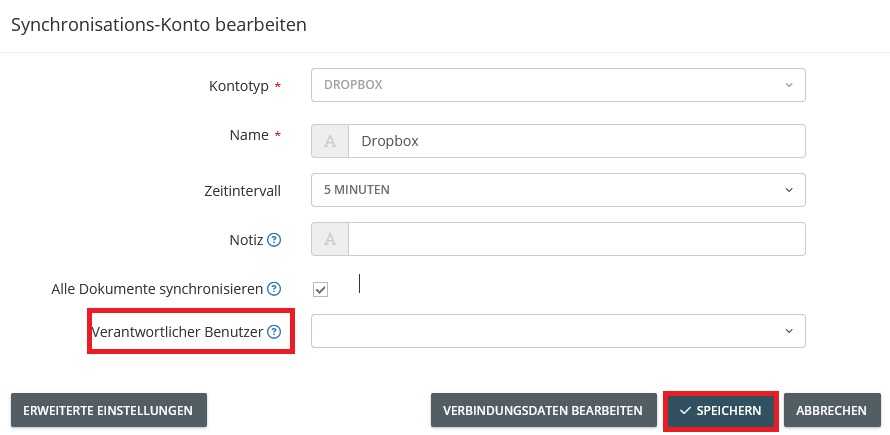
- In the settings window, scroll down to the Responsible User option.
- Select a user from the dropdown menu.
Note: The selected user must have full access to GetMyInvoices. Users with restricted workflow access cannot be designated as responsible users.
- Confirm changes by clicking Save.
Notifications for Responsible Users
Once a responsible user has been designated, the following notifications are sent automatically:
- Immediate notification: Immediately upon expiration or disconnection.
- Reminder after 3 days: If the account has not been restored.
- Weekly reminder: Every 7 days until the account is reconnected or deactivated.
These notifications are predefined and remain active regardless of the general notification settings.
Reconnect the synchronization account
When you receive a notification, proceed as follows:
- Click the account name in the top-right corner.
- Select Synchronization from the drop-down menu.
- Select the affected account and open its settings.
- Follow the on-screen instructions to reconnect or re-authenticate the account.