

 Deutsch
 Français
 Español
 Nederlands
 Italiano




With the GetMyInvoices Gmail plugin, you can automatically import invoices from your Gmail inbox into your GetMyInvoices account. The extension offers a powerful web import feature that lets you set import rules to efficiently automate invoice import.
Key features of the GetMyInvoices Gmail plugin
-
Automatic upload:
Configure specific Gmail folders so that invoices are automatically uploaded to your GetMyInvoices account as soon as they are detected. -
Smart import logic:
The extension recognizes invoices based on predefined rules. You can specify whether to import all emails from a specific folder or only selected invoices. -
Manual upload:
If necessary, you can manually upload PDF invoice attachments or entire emails and save them to your GetMyInvoices account.
How to set up the extension
Step 1
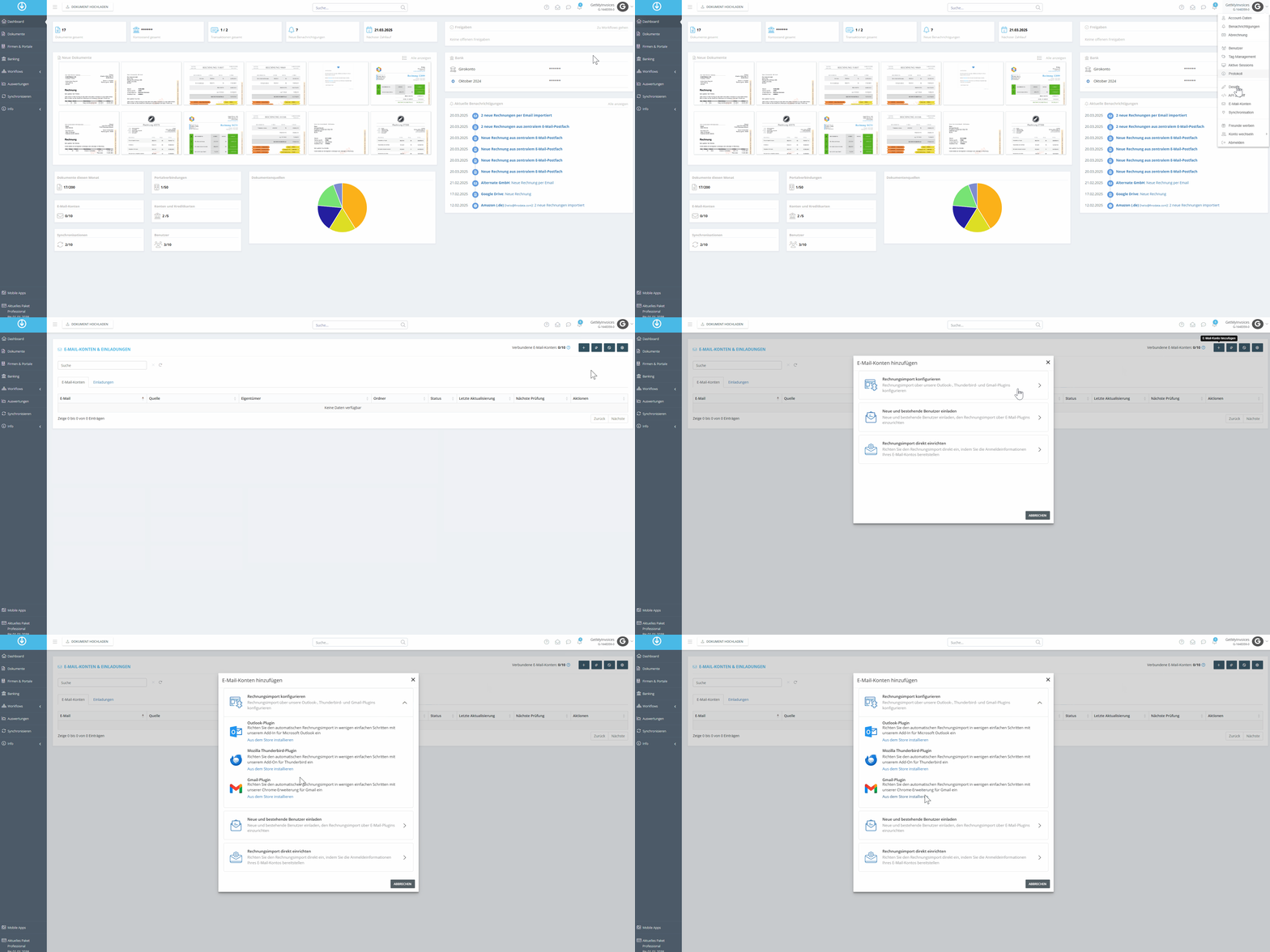
- Click your account name in the top-right corner of the Dashboard.
- Select Email Accounts from the drop-down menu.
- Click Add Email Account.
- Select Configure Invoice Import.**
- Click Install from the Store.
Step 2
- In the Google interface, click Add.
- Select Add extension.
- The browser will start downloading the plugin.
Step 3
- You’ll be redirected to your Gmail account.
- Select Sign in with Google.
- Follow the Google sign-in process.
Step 4
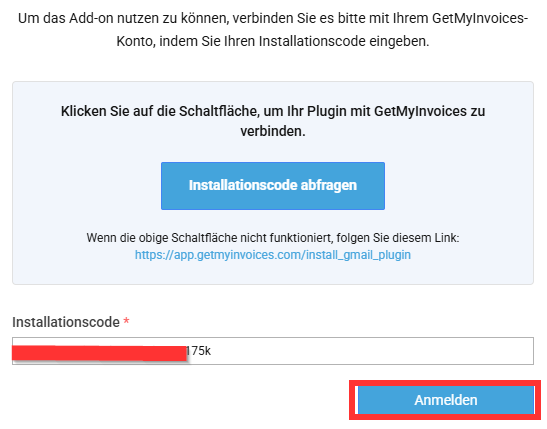
- Click Get installation code.
- You’ll be redirected to GetMyInvoices.
- Copy the code and paste it into the field.
- Click Sign In.
Step 5
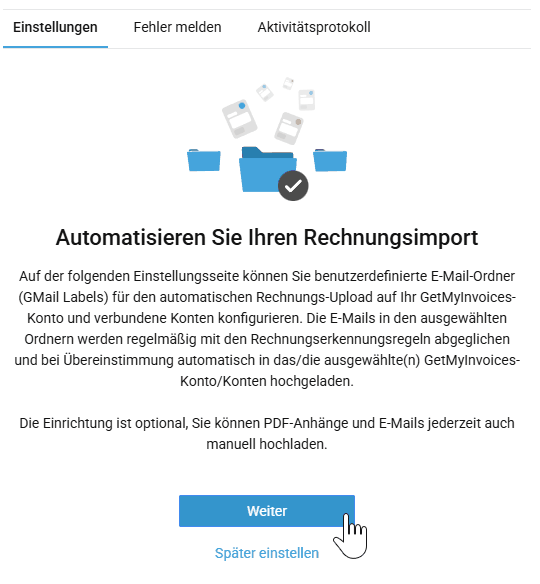
- Click Next.
- Configure the import.
- Select the desired folder for the import.
Step 6
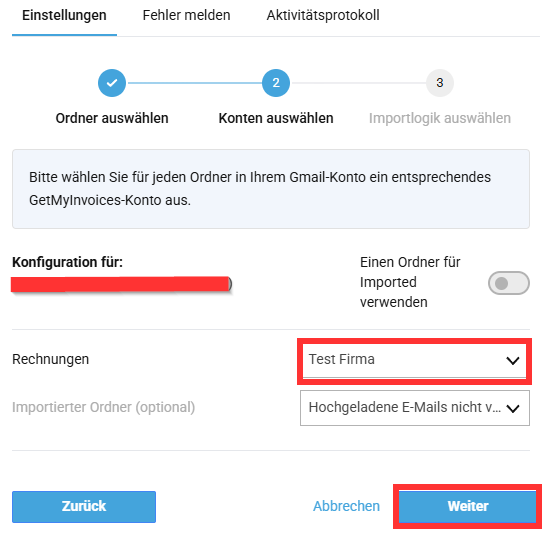
- Select the GetMyInvoices account into which the emails should be imported.
- Optional: Move invoices to a different folder after the import.
- Click Next.
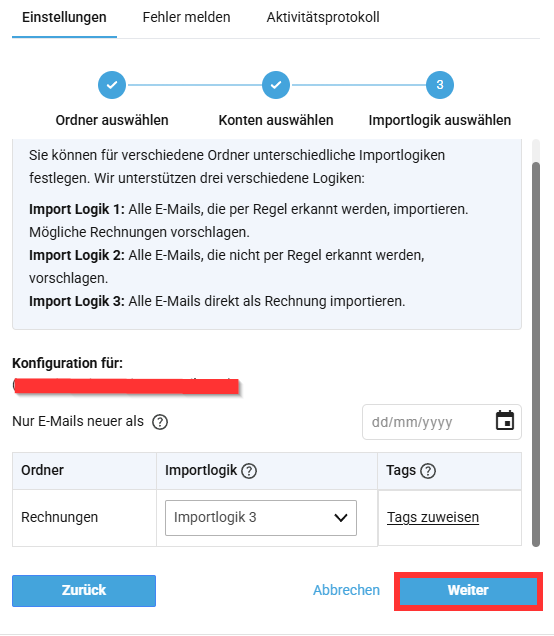
Step 7
- Select the desired import logic for the folder.
- Click Next.
You have now successfully added the plugin to import emails from your Google email account. In the email account section of GetMyInvoices, you still have access to the Email Import Log, to review the process.