Deutsch
 Français
 Español
 Nederlands
 Italiano




If you want to check any changes that’s been made to any of your imported invoices and documents on your GetMyInvoices account, follow the steps below.
See changes made to a single document
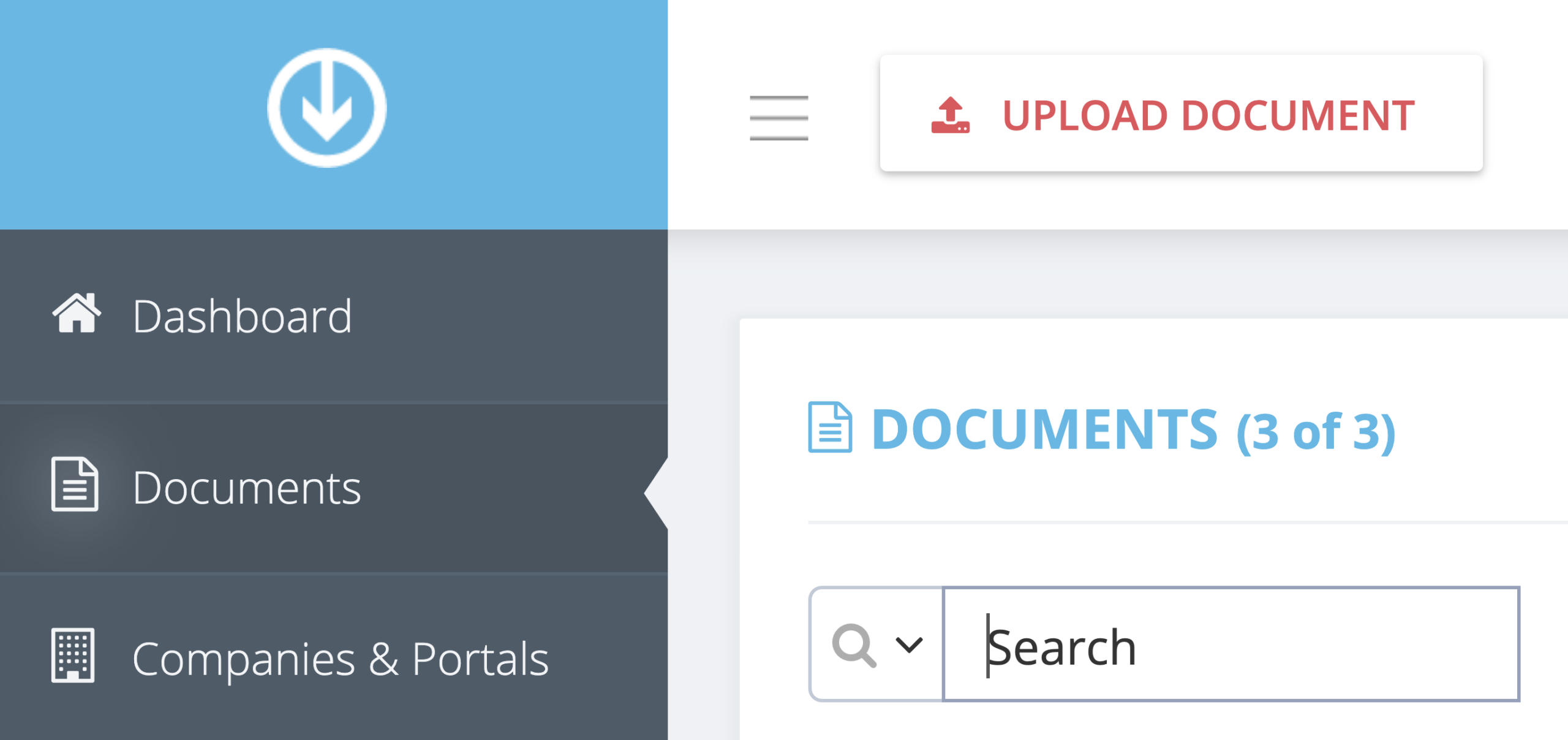
Step 1. From the GetMyInvoices dashboard, click Documents on the left-side menu.
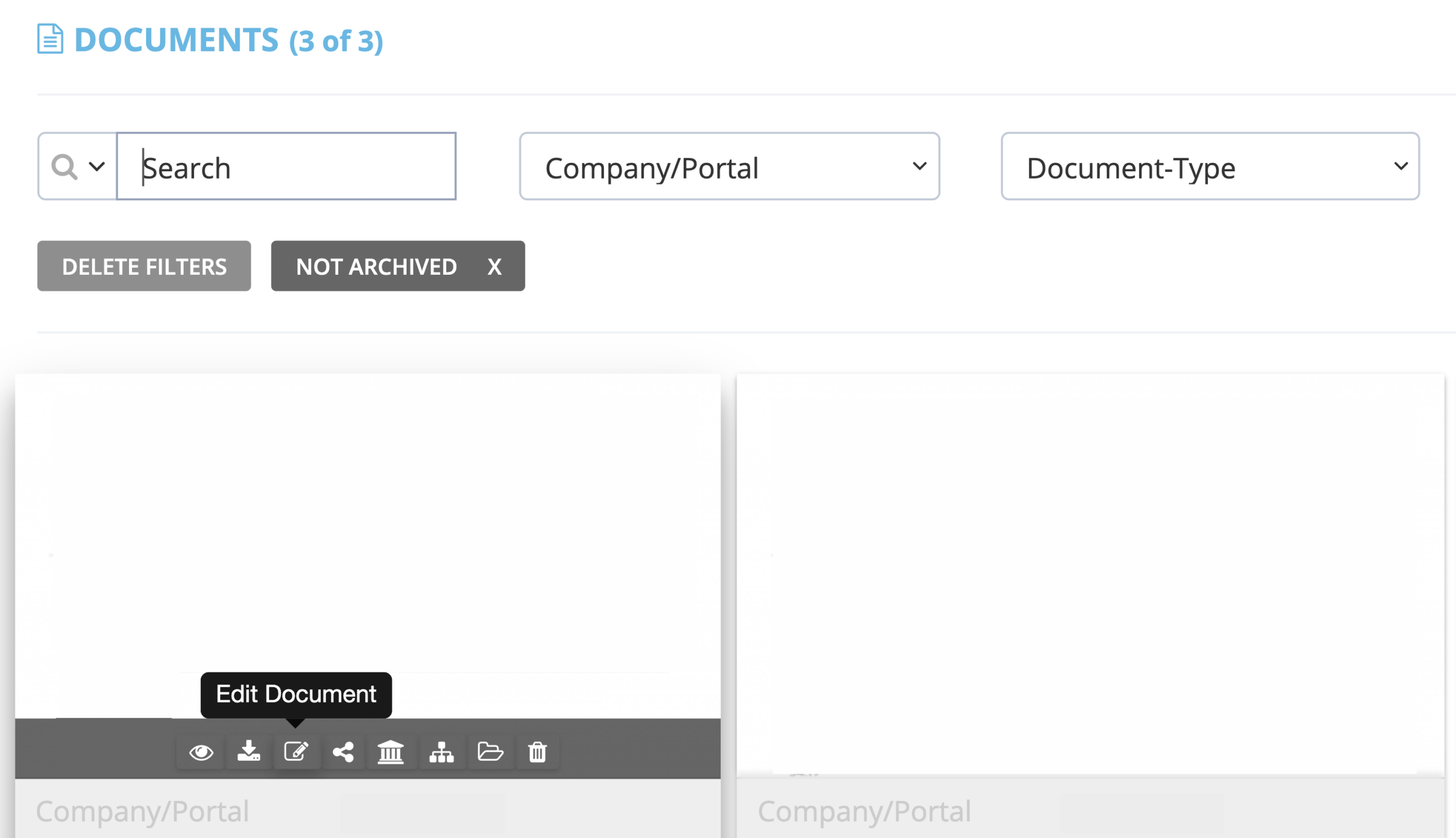
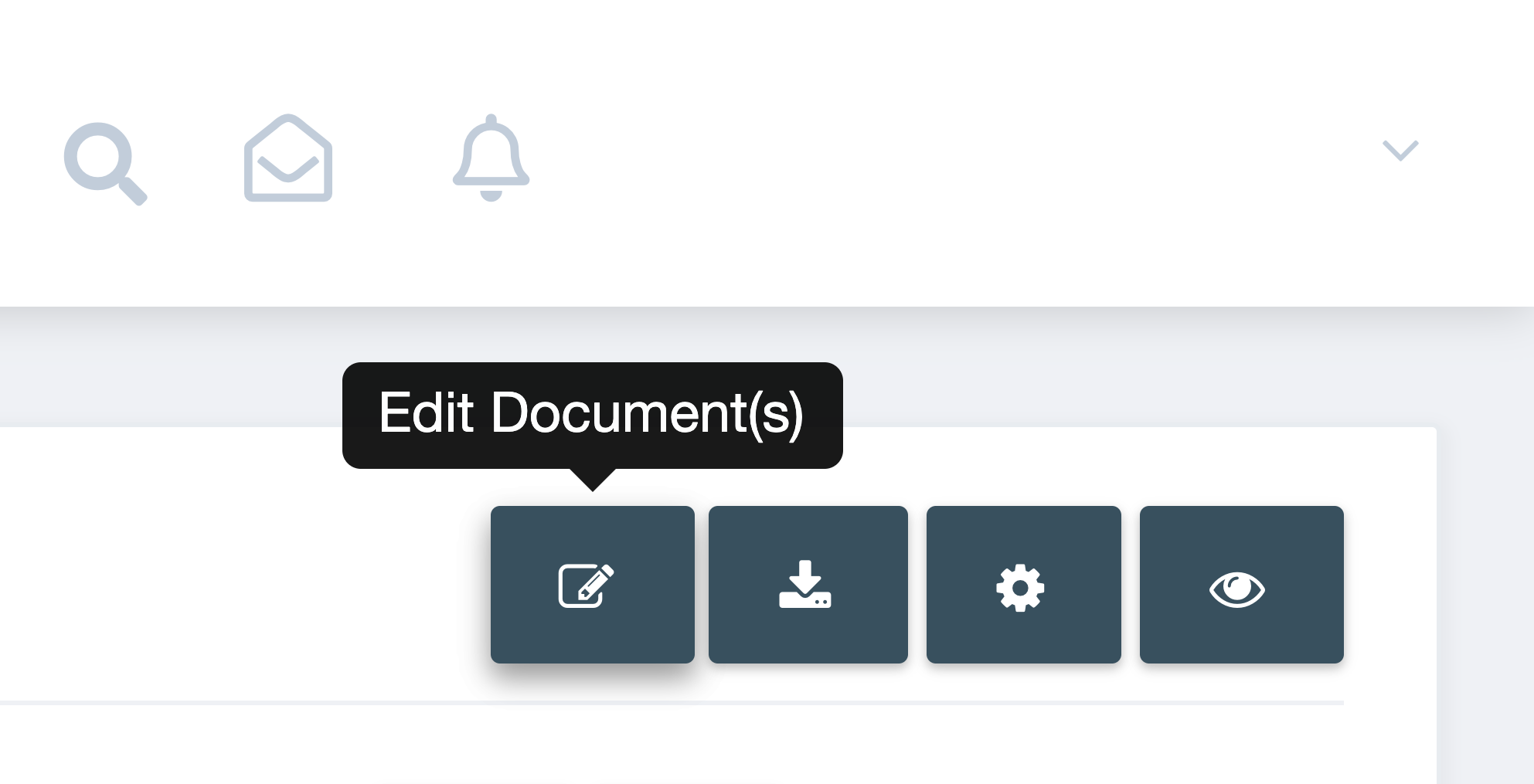
Step 2. Navigate to the document you want to check, then click Edit Document.
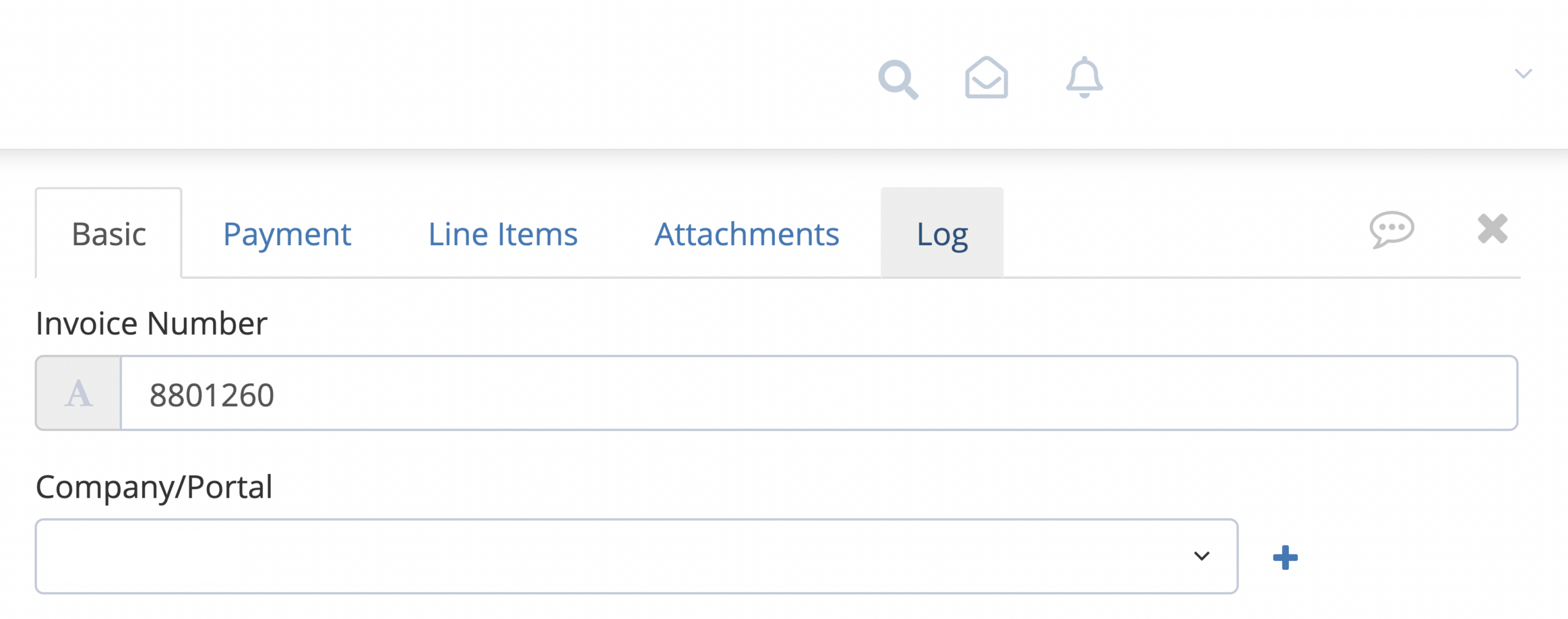
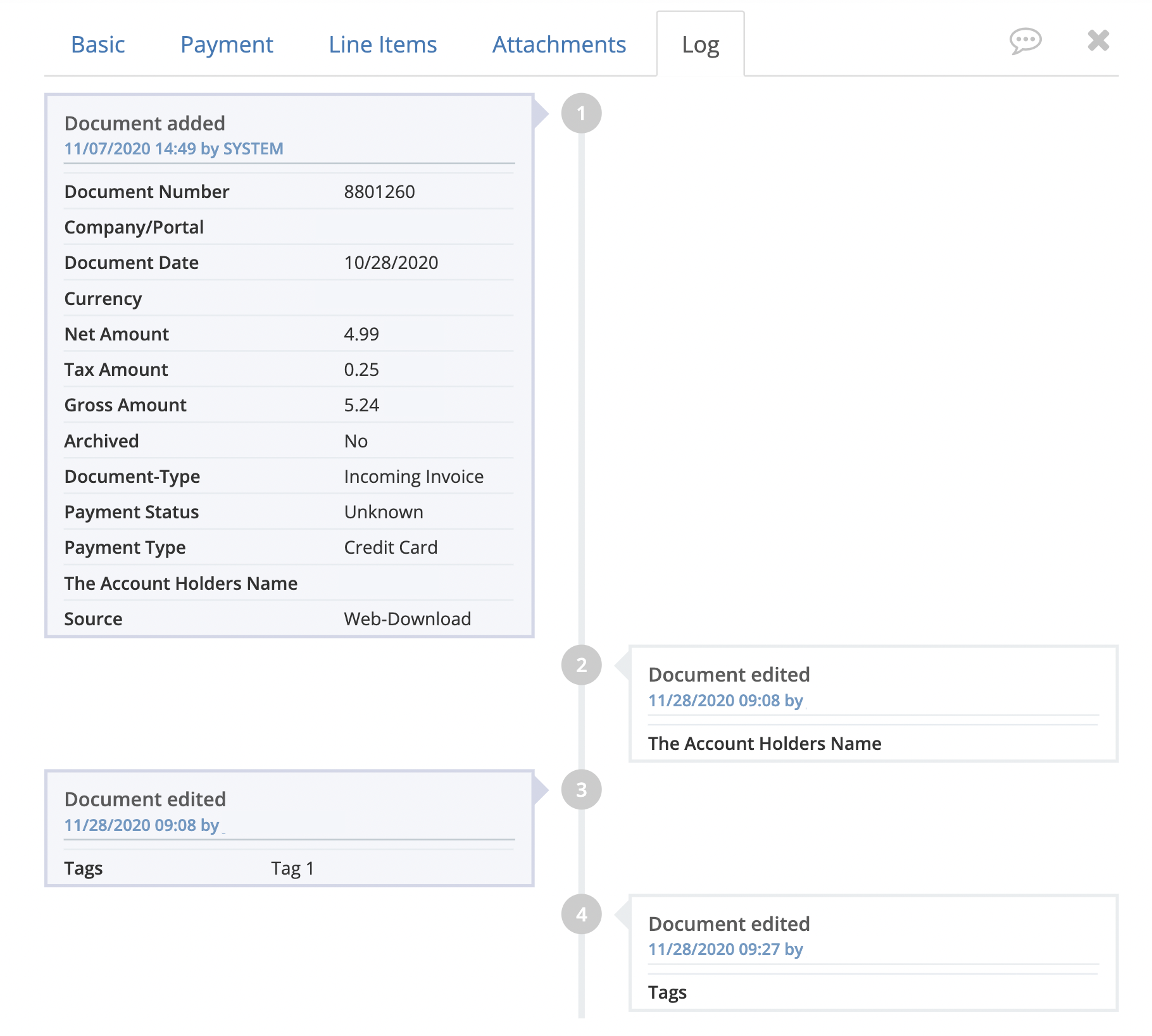
Step 3. Once the document comes up to view, the document editing panel will appear on the right-hand area. Click the Log tab.
Step 4. A vertical chronological timeline of events will show up under the Log tab, showing all changes made to the document in view. Scroll up or down to see the rest of the timeline of changes.
See changes made to multiple documents
Step 1. From the GetMyInvoices dashboard, click Documents on the left-side menu.
Step 2. Click the Edit Documents button on the upper right corner of the Documents page.
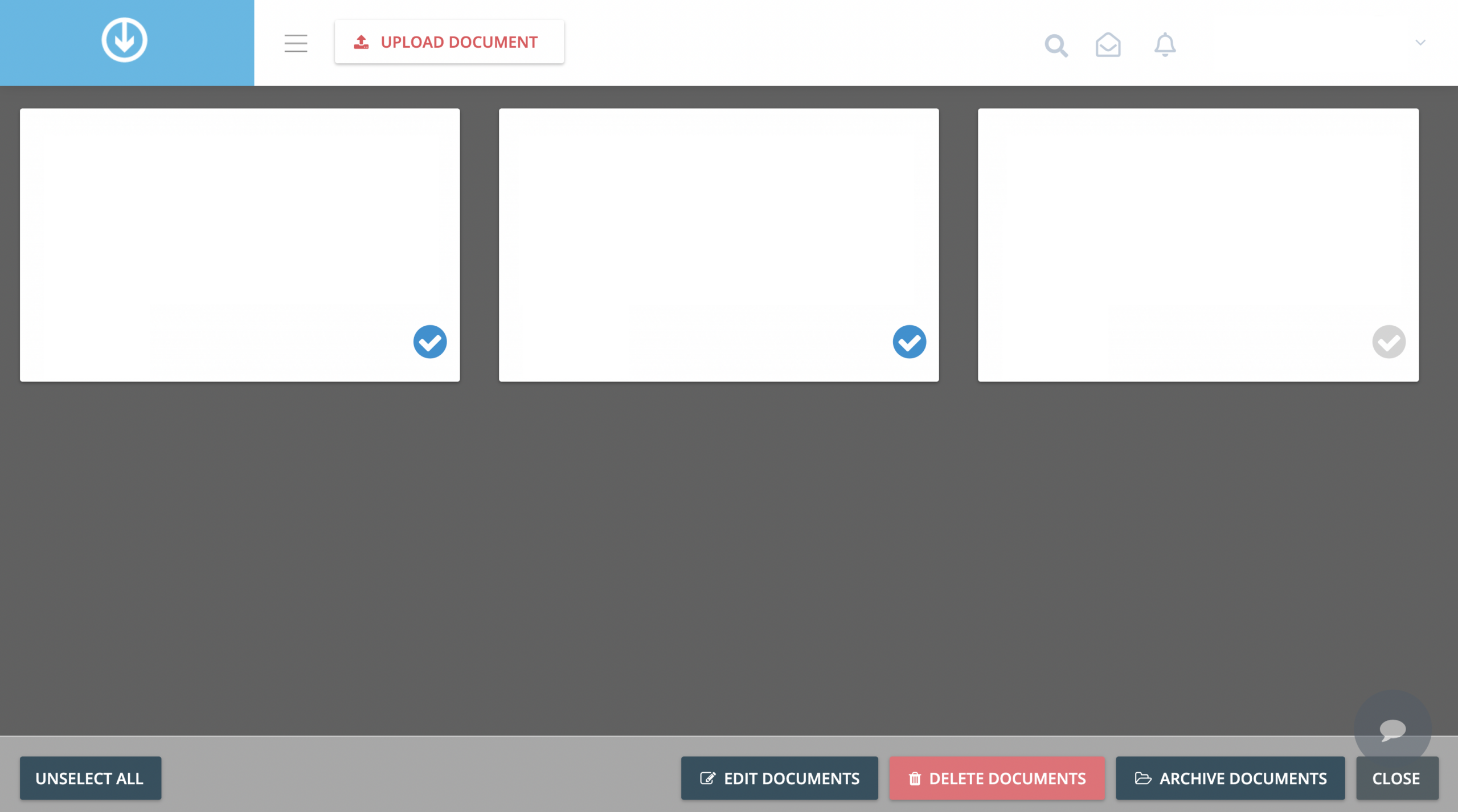
Step 3. All your imported documents will be shown in grid view. Click on the thumbnail of each document you want to check, then click Edit Documents.
Step 4. Once the first document comes up to view, the document editing panel will appear on the right-hand area. Click the Log tab.
Step 5. A vertical chronological timeline of events will show up under the Log tab, showing all changes made to the document in view. Scroll up or down to see the entire timeline of changes.
Step 6. To see changes made to the next document, click Save & Next. Repeat Steps 4 and 5 for the other documents you want to check.