

 Deutsch
 Français
 Español
 Nederlands
 Italiano




With banking rules in GetMyInvoices, you can automate the reconciliation of transactions and invoices. You can also permanently ignore certain transactions, such as duplicate or invalid entries.
Automatic assignment of transactions and invoices
Step 1
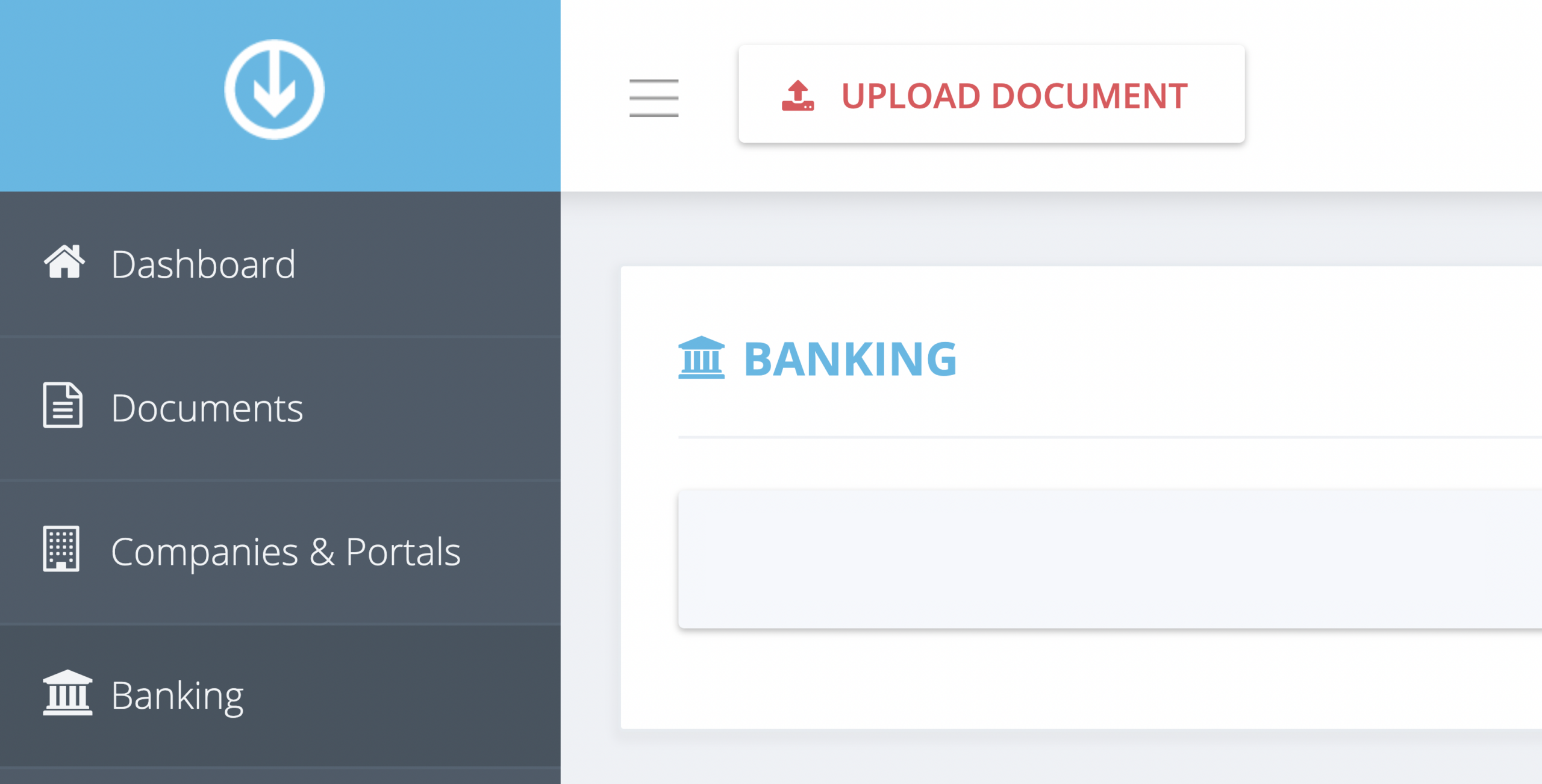
- Click Banking on the left-side menu.
Step 2
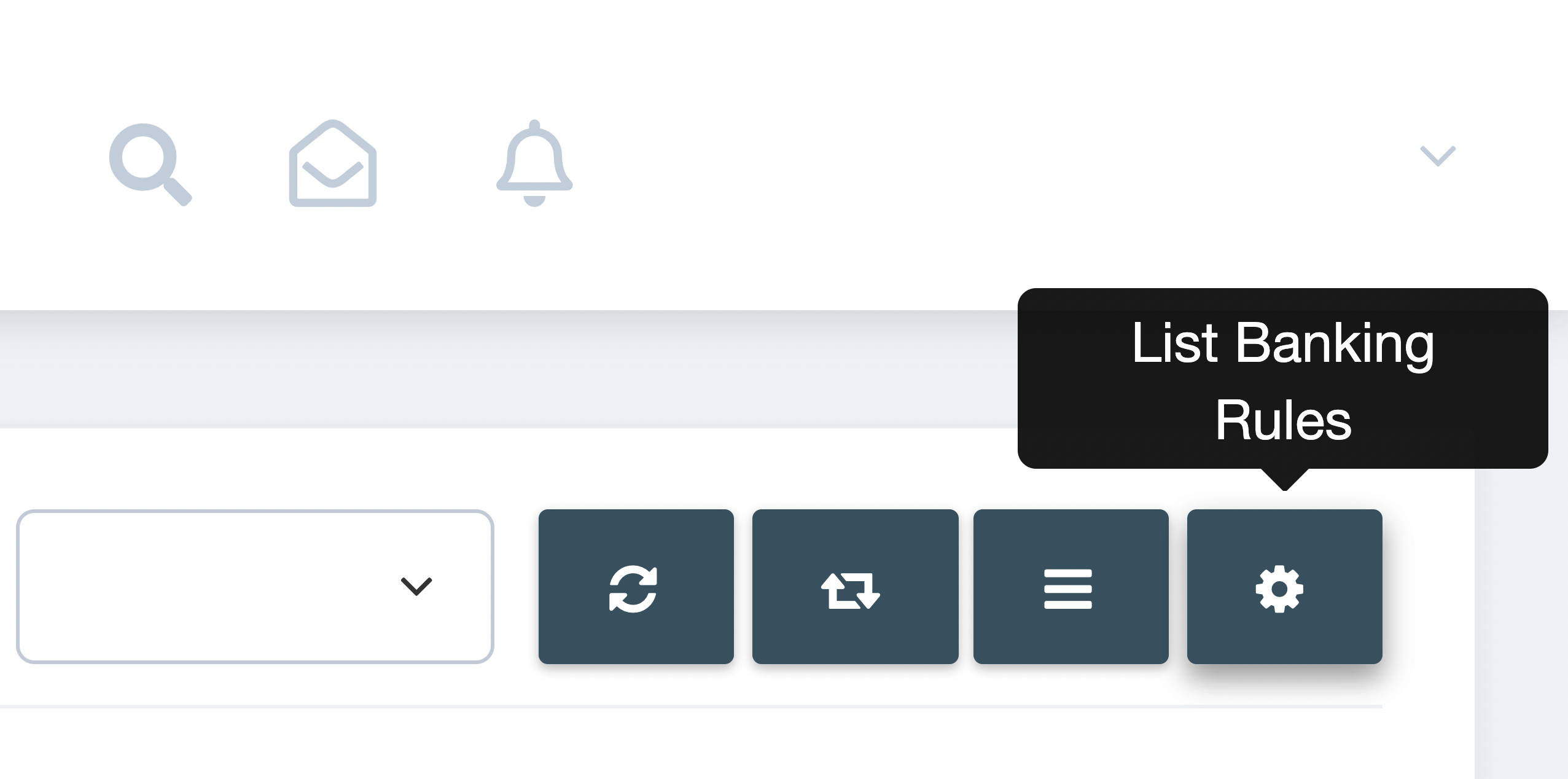
- Click List Banking Rules (gear button) on the upper right corner of the Banking page.
Step 3
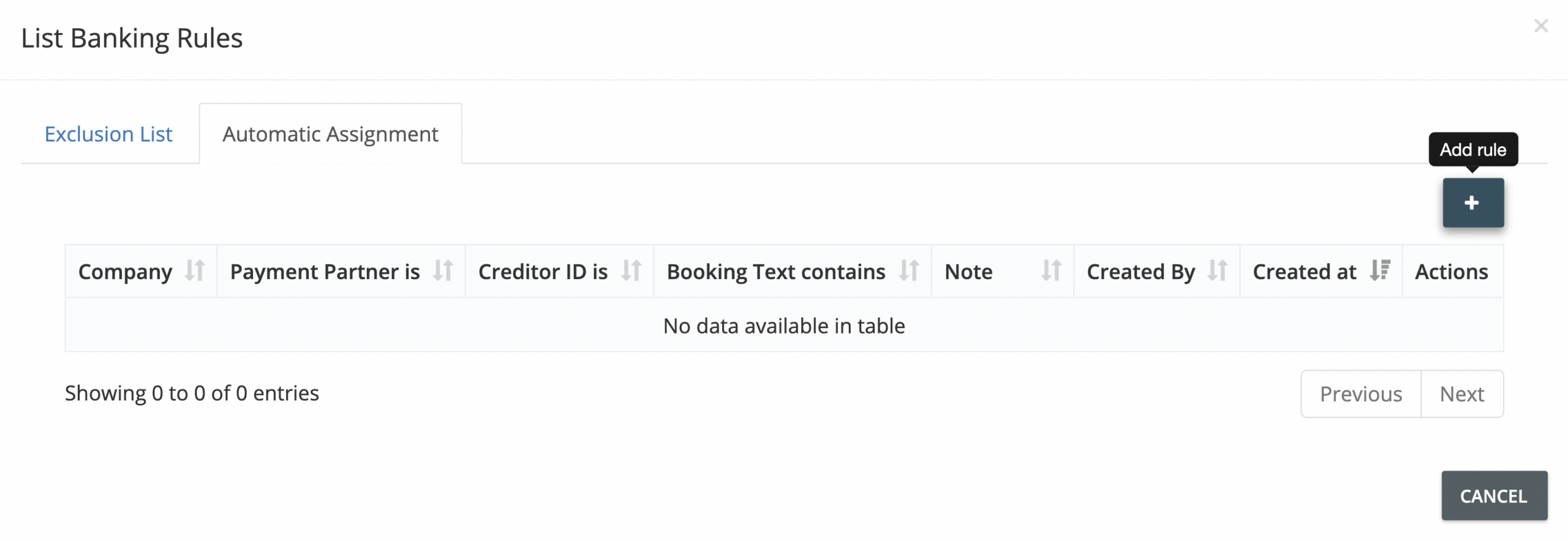
- On the pop-up window that appears, click the Automatic Assignment tab. Then click Add Rule (plus button).
Step 4
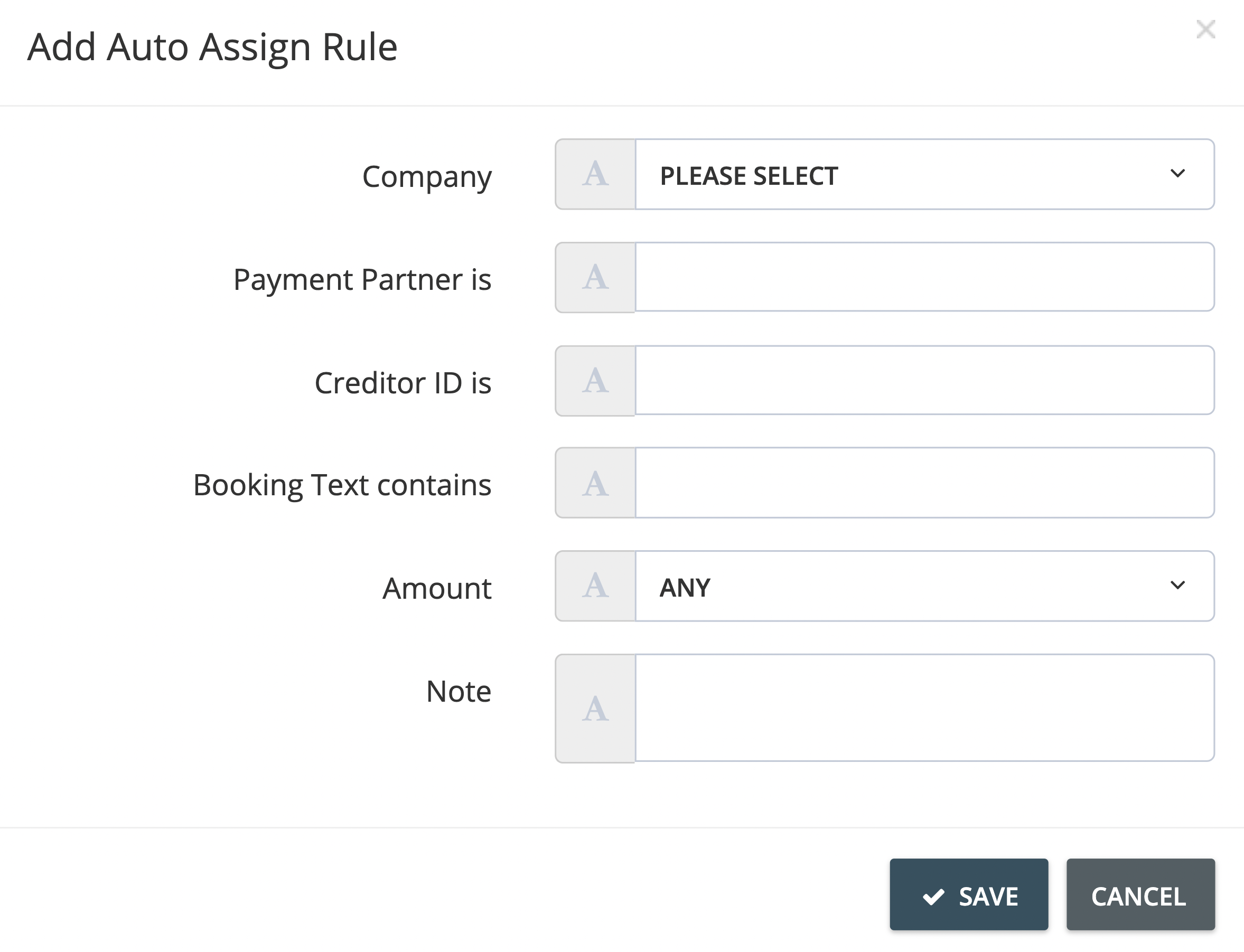
- Define your automatic assignment rule by filling out the required information in the Add Auto Assign Rule window.
Step 5
- Click Save to add the automatic assignment rule. The rule will take effect in your next invoice import run.
Exclusion List: Ignore certain transactions
Step 1
- Click Banking on the left-side menu.
Step 2
- Click List Banking Rules (gear button) on the upper right corner of the Banking page.
Step 3
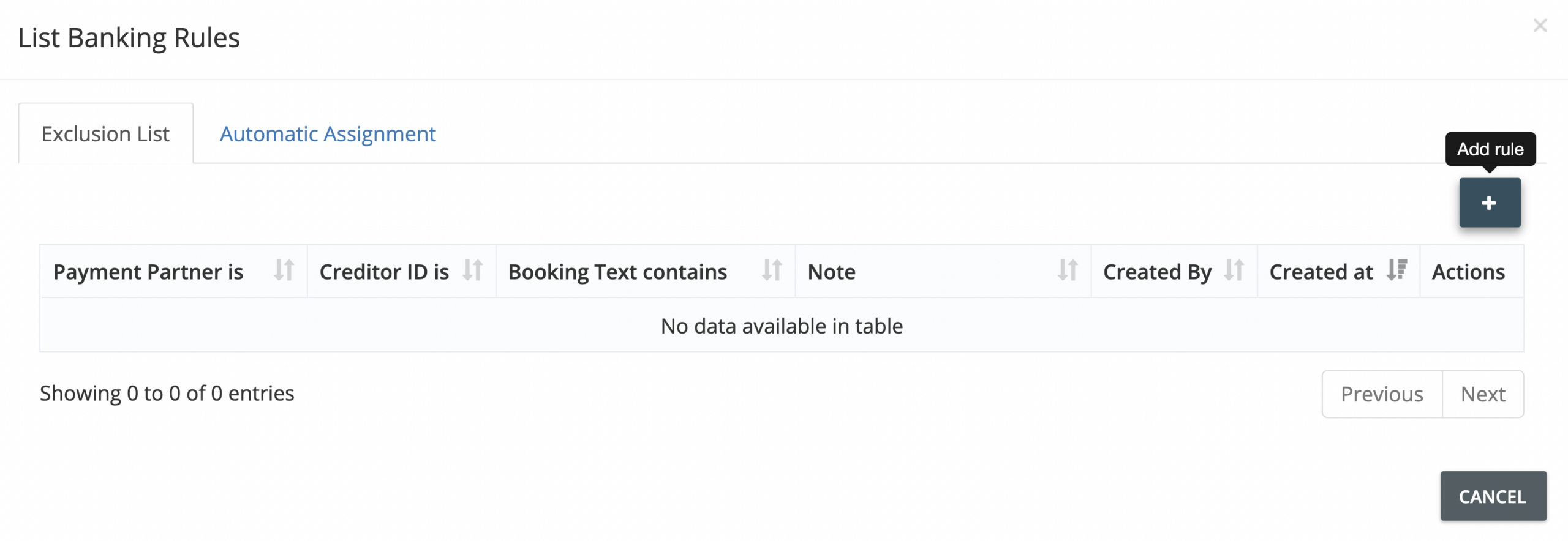
- On the pop-up window that appears, click the Exclusion List tab. Then click Add Rule (plus button).
Step 4
- Define your exclusion rule by filling out the required information in the Add Ignore Transactions Rule window.
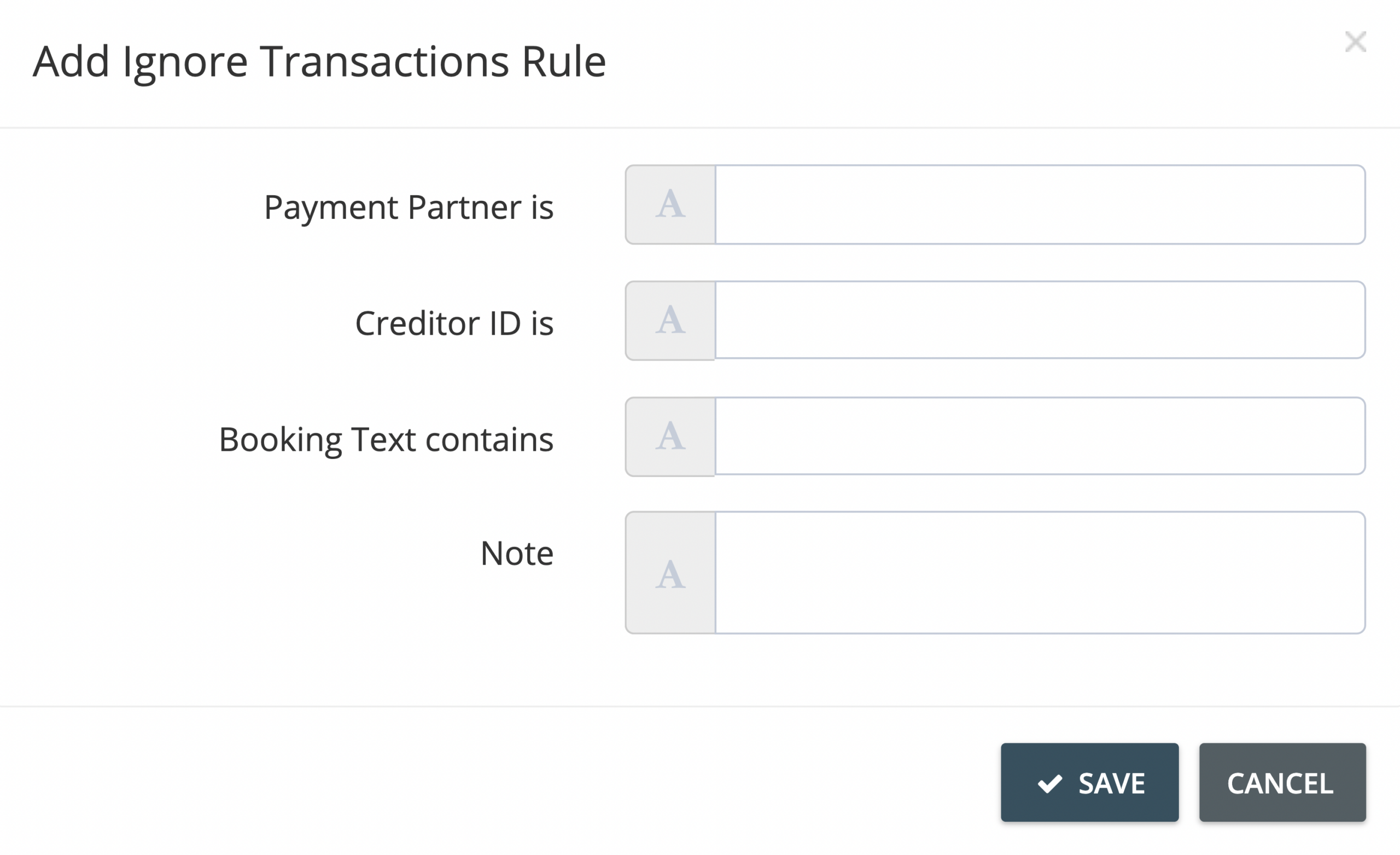
- Click Save to add the exclusion rule.