

 Deutsch
 Français
 Español
 Nederlands
 Italiano




In the Banking section of GetMyInvoices, you can view transactions even without a direct bank connection: To do this, upload a CSV or Excel file that you previously downloaded from your bank.
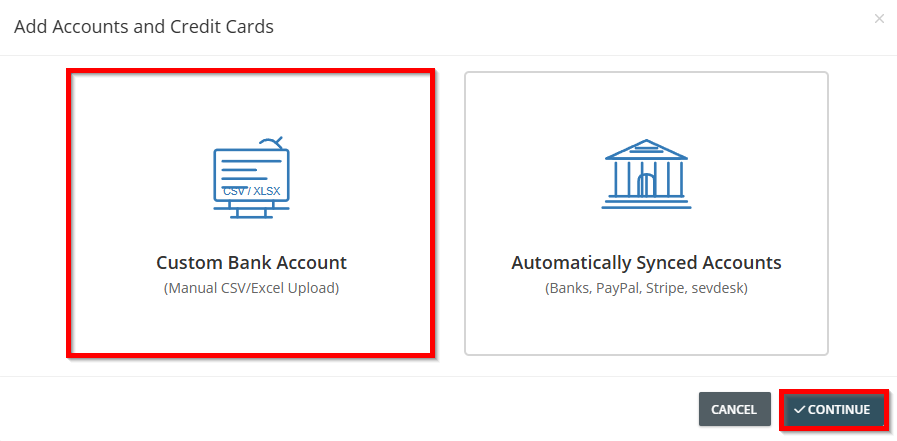
Step 1: Selecting Manual Import
- Go to the Banking section on the left.
- Click “Link Bank Accounts.”
- Select “Custom Bank Account.”
- Click “Continue”
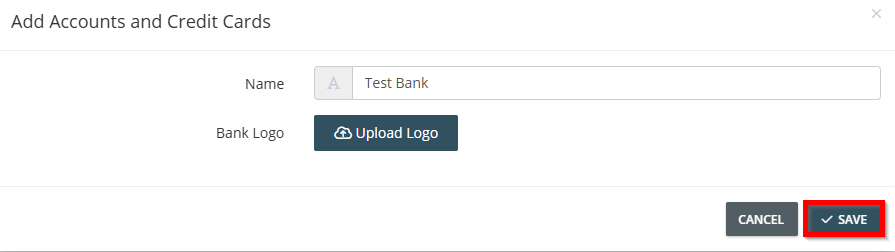
Step 2: Name the account
- Enter a name for the account.
- Optionally, you can upload a logo.
- Select “Save”
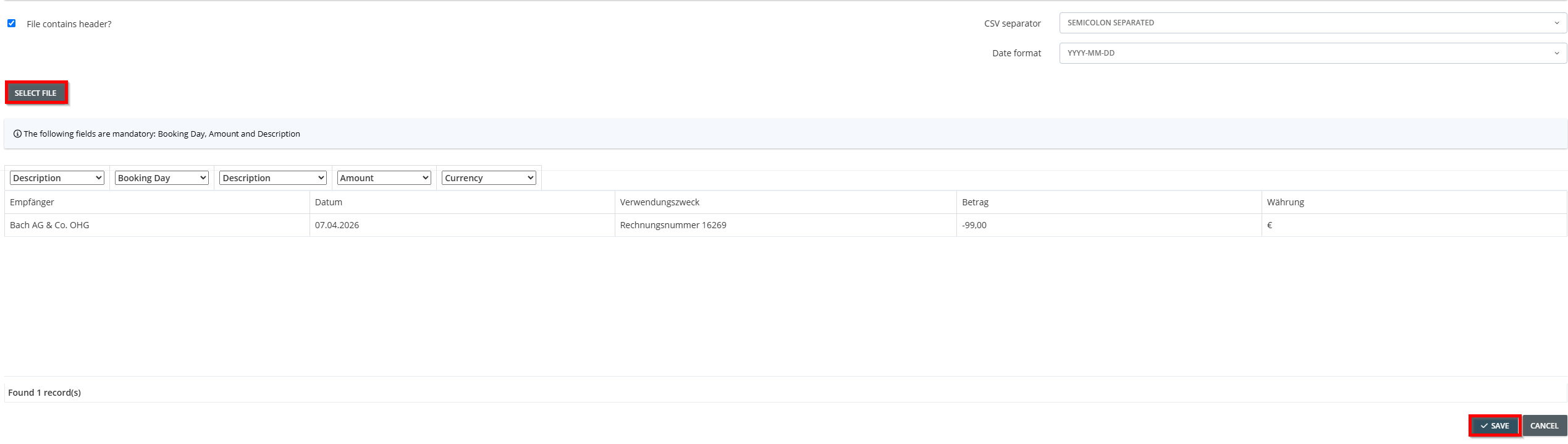
Step 3: Upload the file
Upload your bank's Excel or CSV file. Important: The file must not contain any empty columns.
- Check whether the file is semicolon- or comma-separated, and verify the date format.
- Make sure the fields match correctly, such as for transaction date, transaction description, amount, and currency.
- Be sure that payments yo have paid need to have a minus sign.
- Click Save to upload the file.
After a short while, the transactions will appear in GetMyInvoices. Use the suggestions to match them with the corresponding documents.