

 Deutsch
 Français
 Español
 Nederlands
 Italiano




Once your incoming invoices from the online portals and your email inbox have been imported into GetMyInvoices, export them to your target system. To do this, create a synchronization account.
GetMyInvoices supports numerous interfaces, including DATEV Unternehmen Online , LexWare Office , cloud systems, and services such as Dropbox . You can find a complete overview of the available interfaces on our website.
Once your incoming invoices from the online portals and your email inbox have been imported into GetMyInvoices, you can export them to your target system. To do this, create a synchronization account.
Step 1: Add Synchronisation
- Move your mouse to the top right corner.
- Select the “Synchronization” option from the drop-down menu.
- Click the plus.
- Select Export.
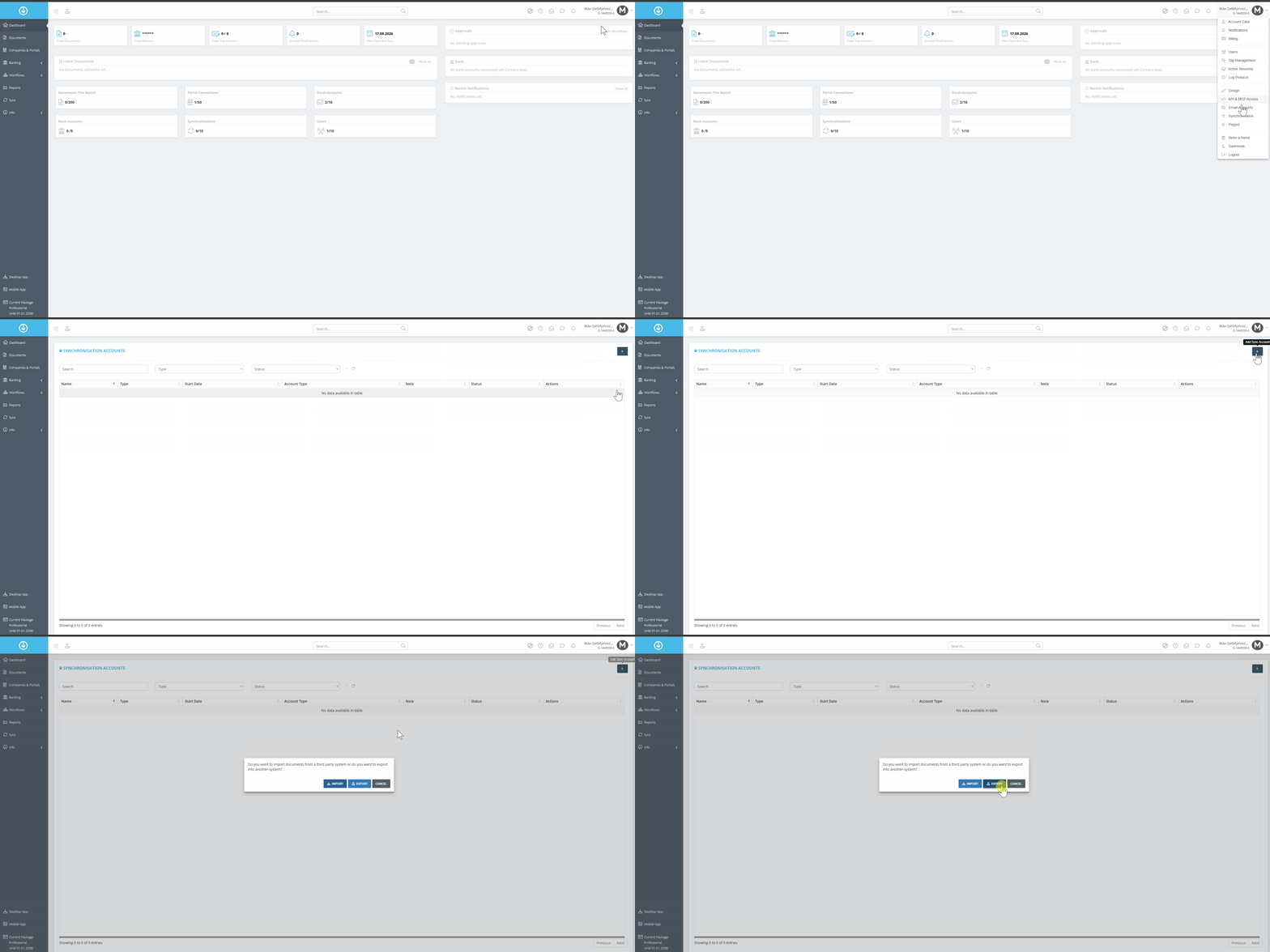
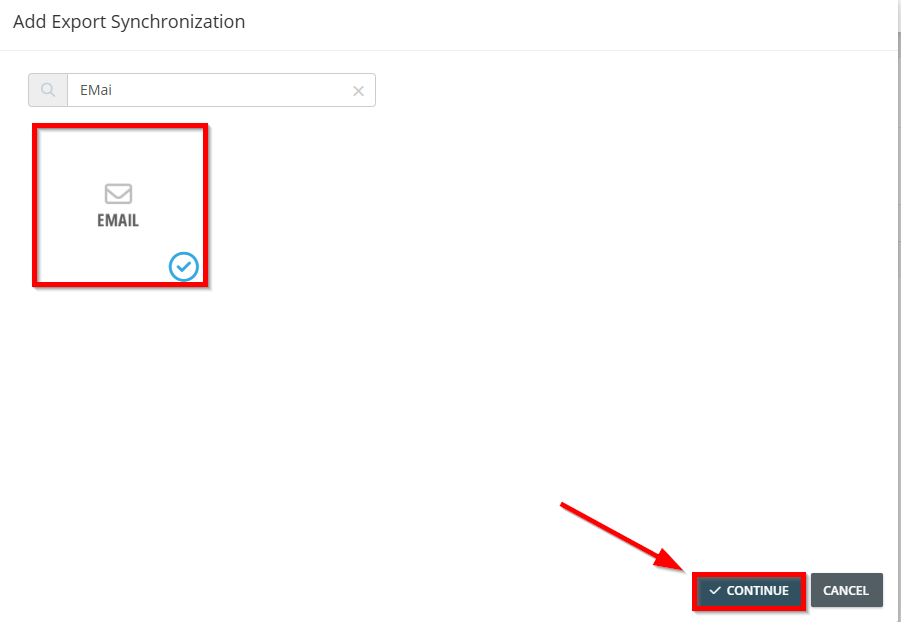
Step 2: Select the export system - In our example, we'll export to an email address
- Use the search function to find the system you want.
- Click on the system's tile.
- Click Continue.
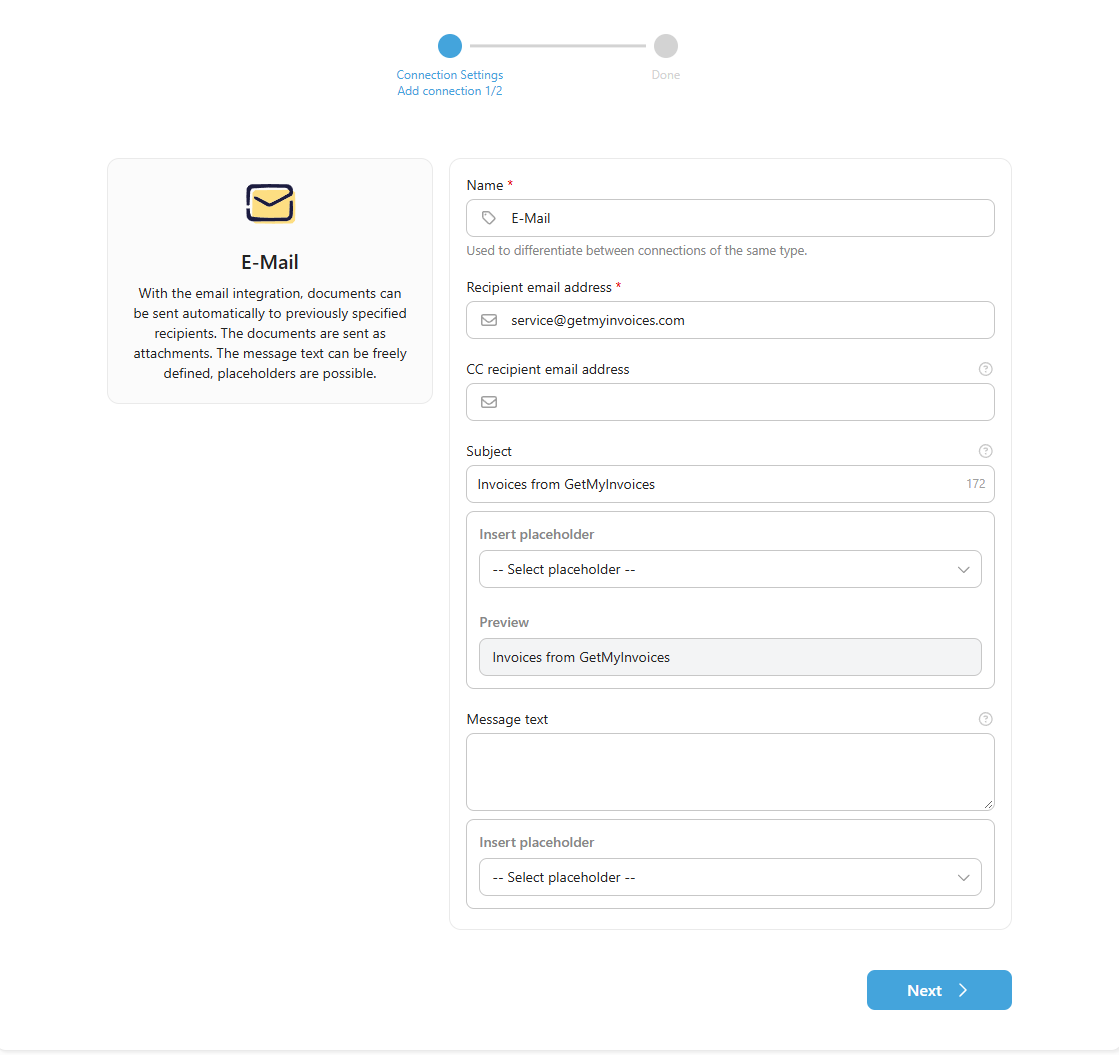
Step 3: Set Export Destination Settings
When exporting to an email address, enter the following information
- Recipient's email address - Who receives the invoices
Optionally, you can also use the fields
- CC recipient's email address
- Subject
- Message text
Step 4: Configure Extended Settings
- Configure the settings for the export account.
- Set the time interval at which invoices are exported.
- Configure the Extended Settings.
- Click Continue
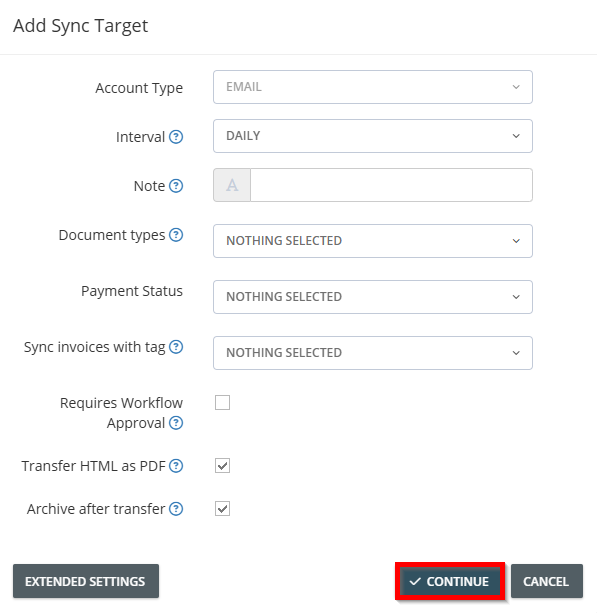
Please note: Any settings you configure may affect the export of invoices.
Step 5: Start Export
- Check all the entered values.
- Click Save.
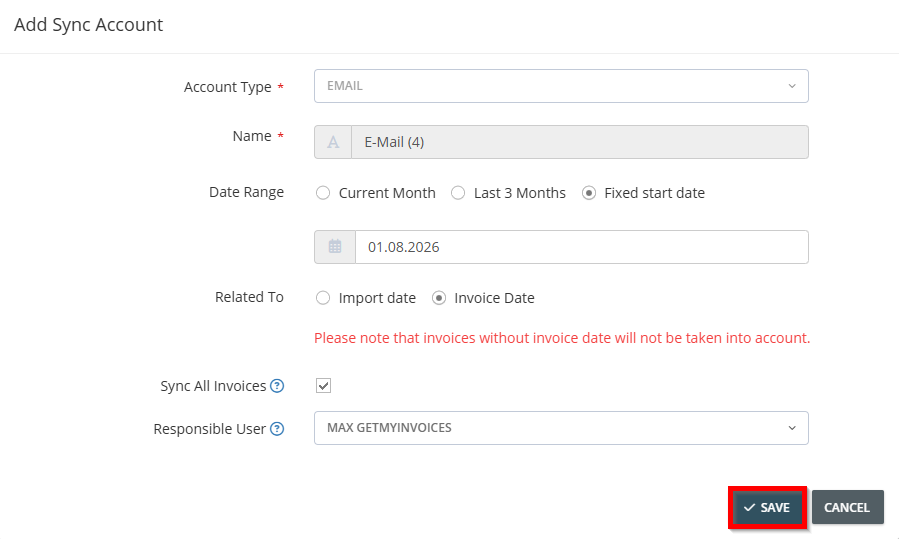
The export process begins and transfers your invoices to the destination according to the configuration.