

 Deutsch
 Français
 Español
 Nederlands
 Italiano




You can archive incoming invoices in GetMyInvoices in two ways: automatically after exporting them to an interface, or manually in the Documents section. To learn how automatic archiving after export works, see “Advanced Settings for Export Interfaces.”
Please note: Archived invoices will no longer be transferred to your third-party system.
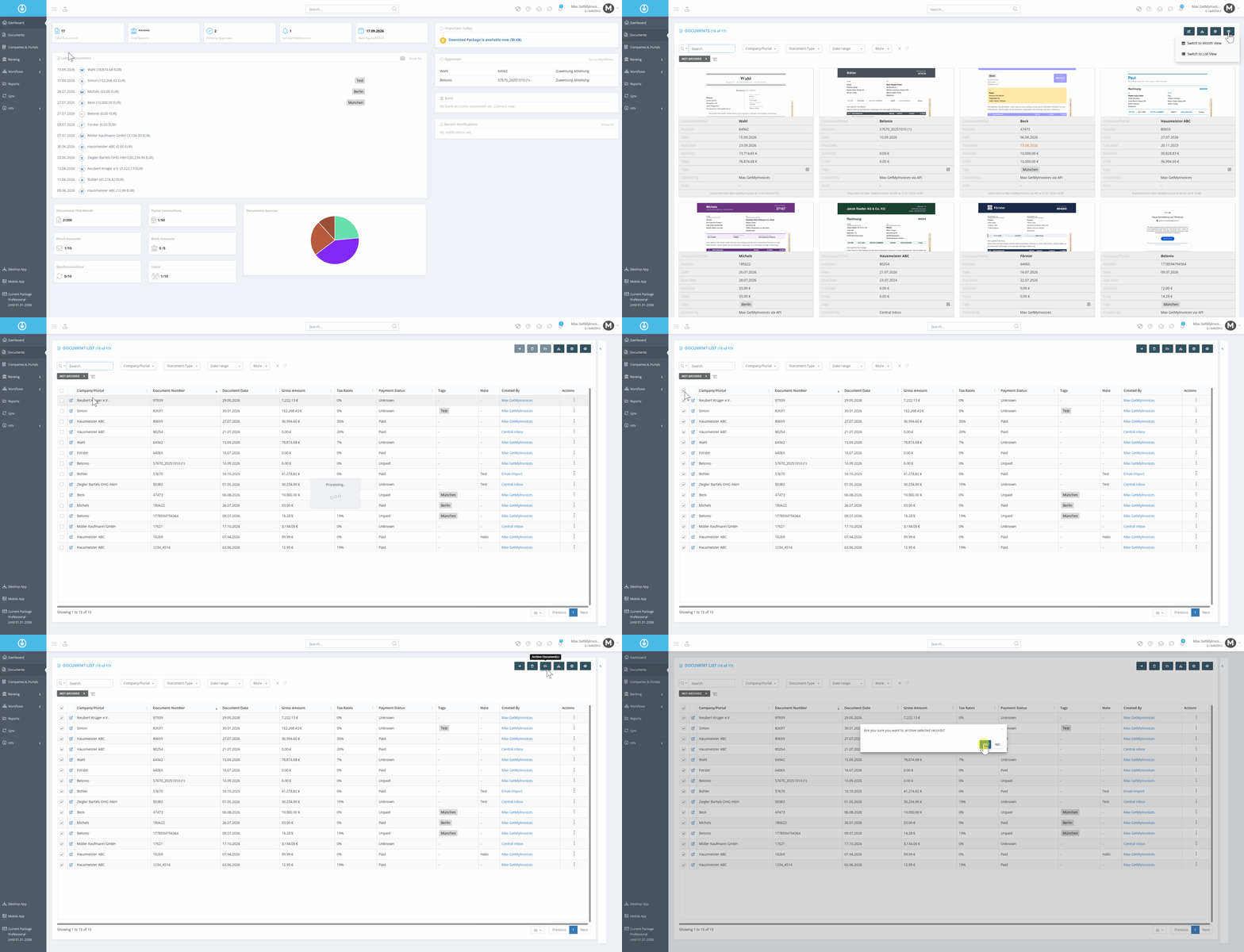
Step 1 Archive Multiple Documents at the Same Time
- Click on the “Documents” section on the left.
- Switch to list view in the upper-right corner.
- If necessary, apply filters to select specific invoices.
- Adjust the number of documents displayed below the table.
- Select all documents using the checkbox above the table.
- Click the “Archive” icon.
Note: Depending on the number of invoices selected, the archiving process may take a moment.
By default, GetMyInvoices displays only unarchived invoices. To view the archived invoices, remove the corresponding filter in the document area.
