

 Deutsch
 Français
 Español
 Nederlands
 Italiano




GetMyInvoices allows you to automatically transfer your invoices to the Agenda interface. This enables you to streamline your accounting processes and manage invoices directly in FastBill without any manual effort. In this article, you’ll learn how to set up Agenda synchronization.
Step 1
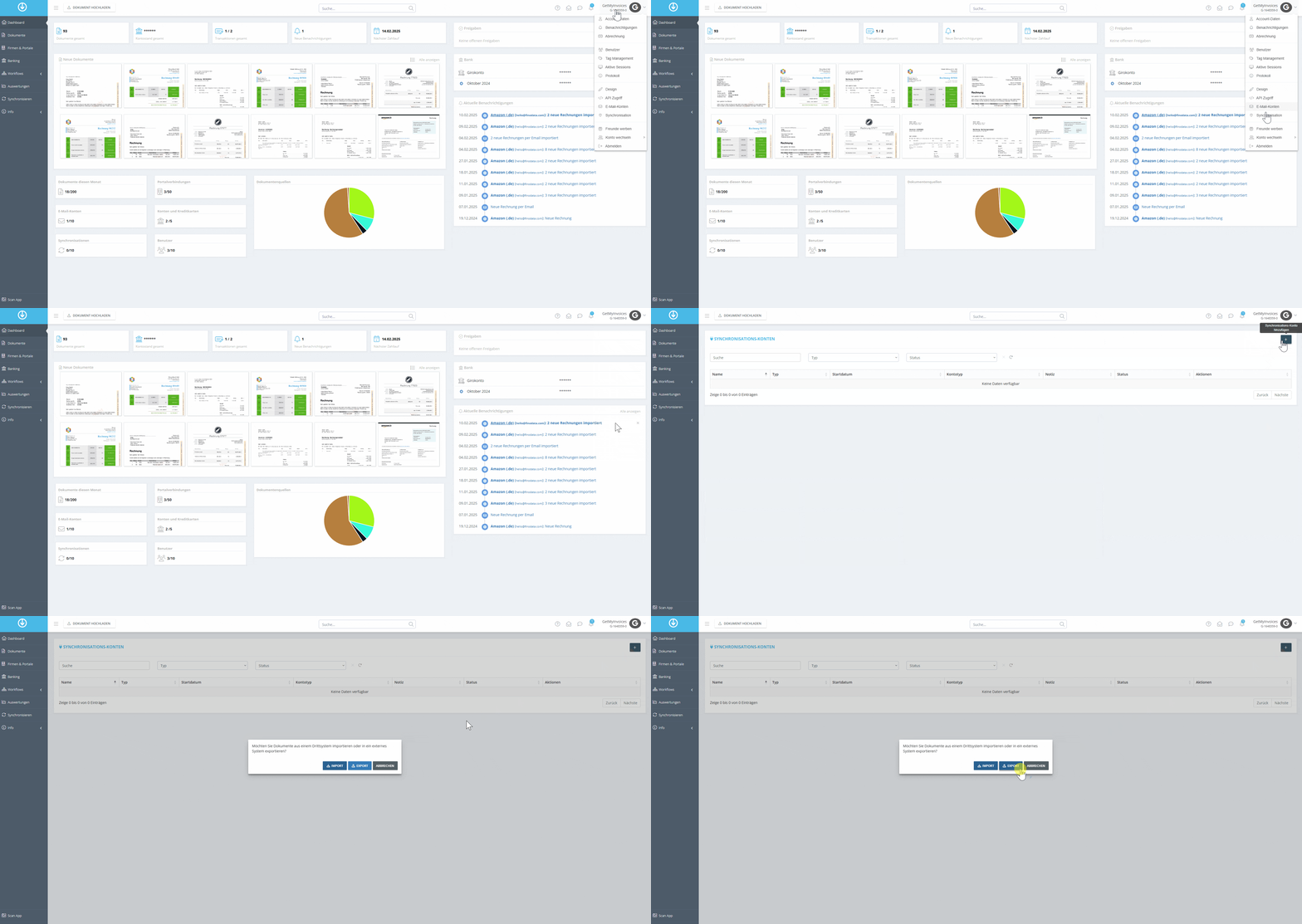
- Click on Profile in the top right corner and select Synchronization from the dropdown menu.
- Click the plus icon (+) in the top right corner to add a new synchronization.
- Select the Export option to automatically transfer invoices.
Step 2
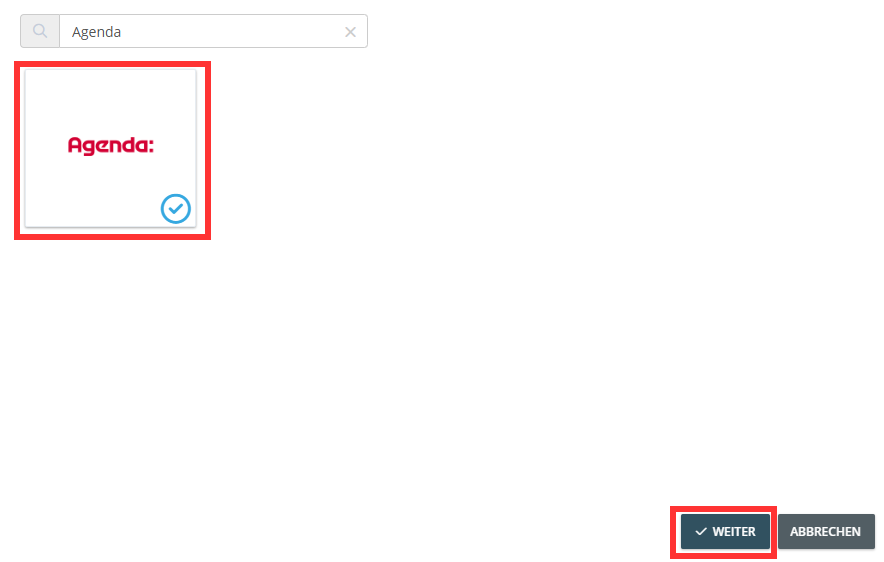
- Use the search function and type in Agenda.
- Select the Agenda tile
- Click Next.
Step 3
- You will be automatically redirected.
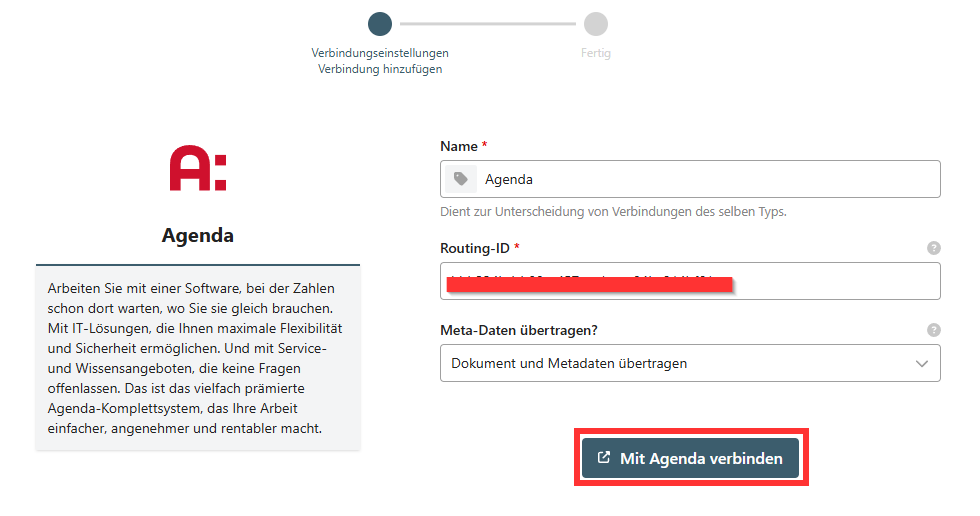
- Enter the Agenda Routing ID. (In Agenda, navigate to Connect Partners. Select GetMyInvoices.)
- Copy the displayed Routing ID and paste it into the “Routing ID” field in GetMyInvoices.
- Choose whether the file will be transferred to Agenda including metadata or only as a PDF.
- If you’re transferring metadata, it must be included in the invoice.
- Click Connect to Agenda to start synchronization.
Step 4
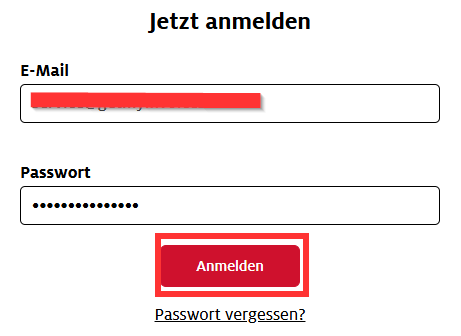
- Enter your Agenda login credentials.
- Click Log In.
Step 5
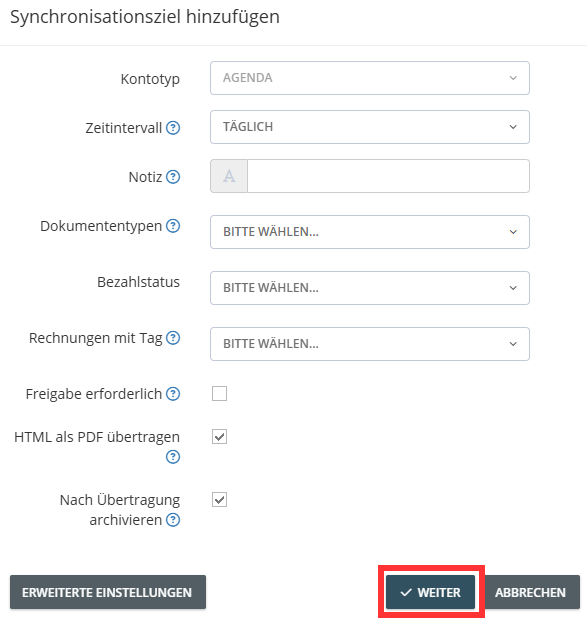
- Configure settings for exporting the documents.
- Use Advanced Settings to specify additional criteria for the export.
- Click Next.
- In our example, we’ll have Agenda archive the invoices after the export is complete.
Step 6
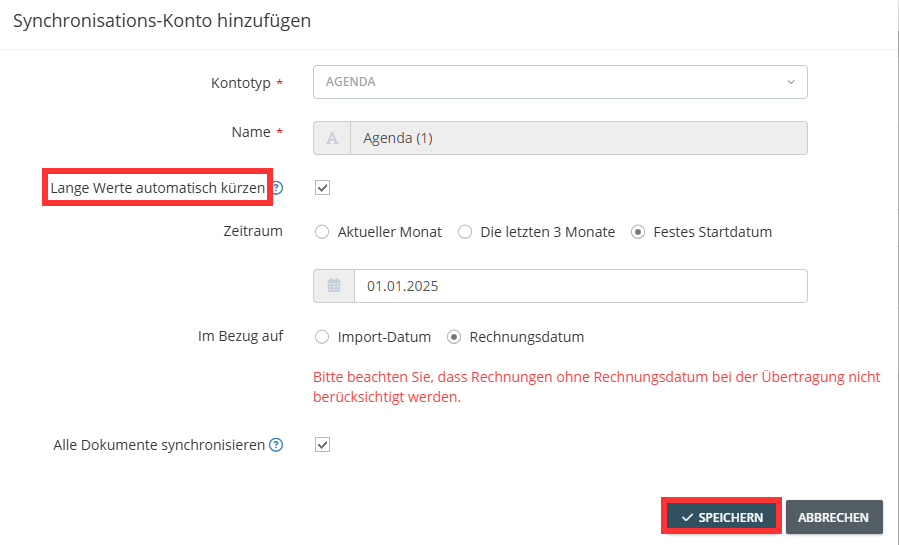
- Optional: Limit the export period based on the invoice or import date.
- Automatically truncate long values: If invoices contain too many characters, they will be automatically truncated.
- Click Save to start the export.
GetMyInvoices will now automatically transfer all relevant invoices to Agenda based on your settings.