

 Deutsch
 Français
 Español
 Nederlands
 Italiano




The approval feature in GetMyInvoices helps you integrate approval processes efficiently, transparently, and flexibly into existing workflows. It enables structured collaboration, clear responsibilities, and seamless tracking of all approval steps. This article explains how approvals can be carried out within workflows and how the next step can be specifically controlled.
- Approve:
With a single click, you approve the current step of the workflow, and the process automatically moves on to the next step.
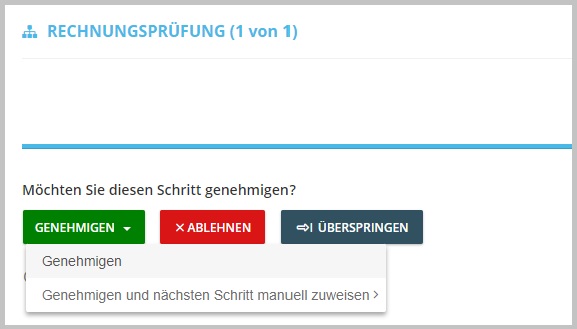
- Approve and manually assign the next step:
This option not only allows you to approve the current step but also to specifically assign the next step to a particular user. This ensures that the right employee takes over the next step.
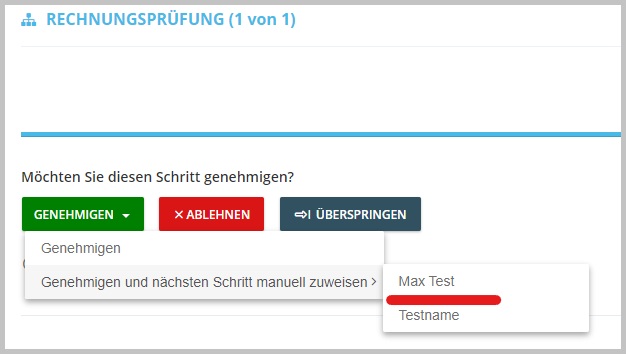
If you choose to manually assign the next step, you can select from a list of users:
List of users: You’ll see a list of all users configured for the next step in the workflow. For example, this could include all users designated for the payment step in the workflow.
- User Assignment: You have the option to assign the next step either to yourself or to another user.
- Assign to Yourself: If you assign the step to yourself, you are responsible for approving the next step.
- Assign to another user: If you assign the step to another user, that user will be notified that they are scheduled to approve the next step. However, as an administrator, you still have the option to take over this approval task.