

 Deutsch
 Français
 Español
 Nederlands
 Italiano




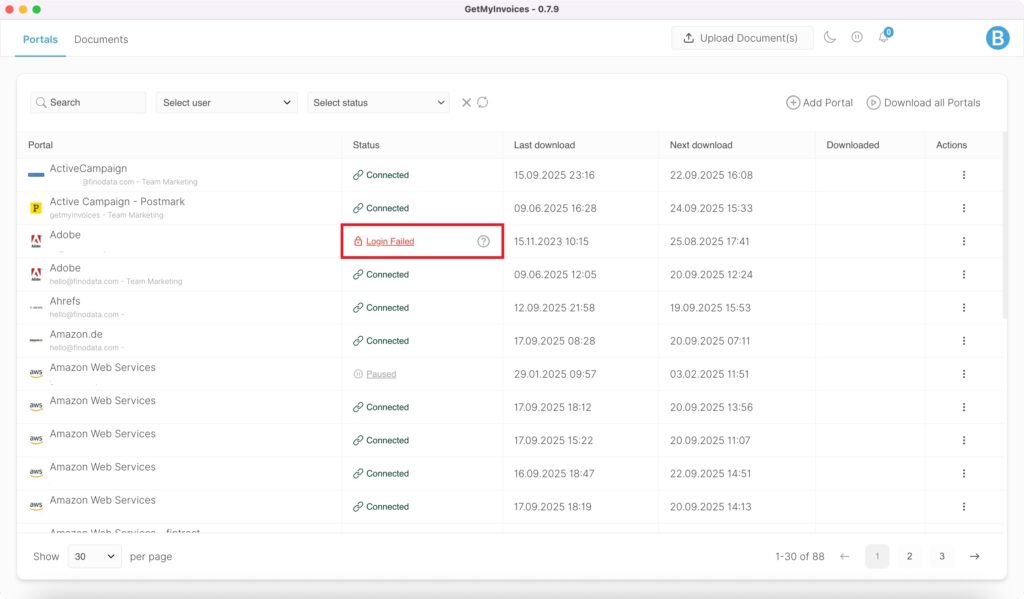
Occasionally, an existing login may expire or require re-authentication-for example, if a portal changes its security policies or a session expires automatically. If the message “Login failed” appears in the portal, this usually means that your current login session has expired or your stored access data is no longer valid. In this case, you will need to log in again so that the desktop app can continue to access the portal and download invoices.
Option 1
You have selected the “Login via browser” option:
You can easily log in again via your browser.
- Click on “Login failed.”
- Enter your login details in the browser and confirm.
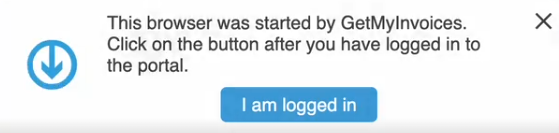
- Click on “I am logged in” at the bottom right of the dialog window.
→ A new login attempt will start and the download process will restart.
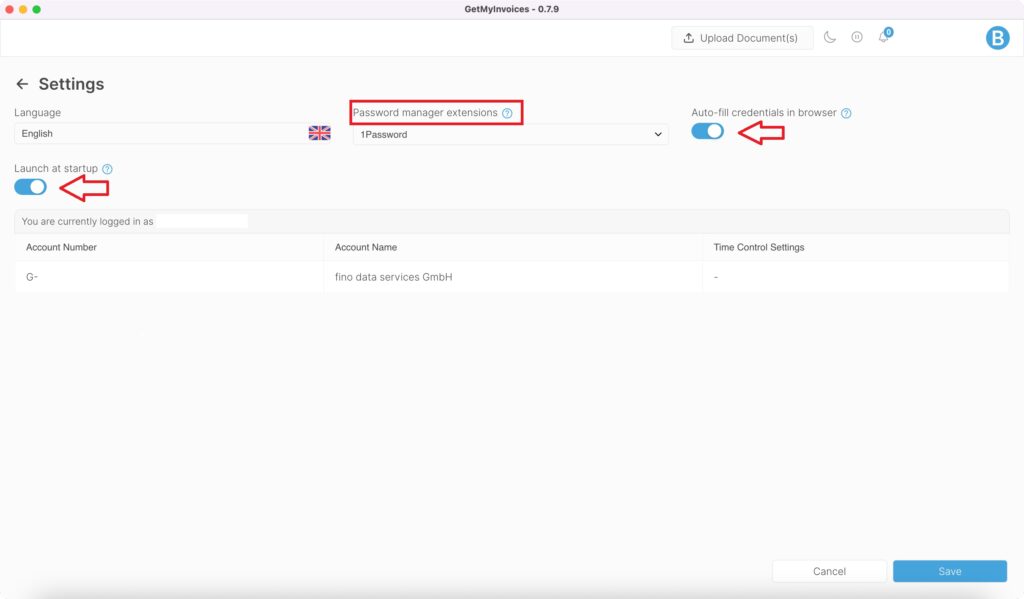
Tip: Password managers and passkeys can also be used to make the login process even easier. You can enable this feature in the desktop app settings. This will automatically update your logins as soon as you launch the desktop app.
Option 2
You have the option “Save my login details (recommended)”:
- Click on “Login failed”.
- Update and confirm your login details in your browser.
- Click on “I am logged in” in the dialog box at the bottom right.
Note: If automatic two-factor authentication (2FA) has already been set up, this must also be updated afterwards:
- In the affected portal, click on the three dots under “Actions” on the right.
- Select “Edit”.
- At the top of the menu, go to “Authentication”.
- Enable the option “Save my login credentials”.
- Turn on the switch for “2FA”.
- Confirm the prompt “Automatic retrieval of the 2FA code” by selecting “Yes”.
- Finally, select the “QR code authentication” method.
Important: If two-factor authentication (2FA) is already enabled, please disable it first before proceeding.
- When activating 2FA, select the “Authentication App” option.
- Save the displayed QR code. Important: Make sure to capture only the QR code itself - without any additional screen content.
- Scan the QR code with your preferred 2FA app (e.g., Authy, Microsoft Authenticator, Google Authenticator).
- Enter the generated one-time passcode (OTP) to complete the 2FA setup.
- Click “Upload screenshot with QR code” and select the saved file.
- Continue with “Submit”.
- A message confirming the successful activation of 2FA will appear.
- Then click “Save”.
The portal has now been successfully added, and the invoice download will start automatically as
soon as it is queued.
Tip: You can minimize the GetMyInvoices Desktop App while it continues running in the background and
retrieving your invoices.