

 Deutsch
 Français
 Español
 Nederlands
 Italiano




With the GetMyInvoices desktop app, importing and managing your invoices is now even easier, more secure, and more transparent. The application allows you to automatically download invoices from thousands of online portals and organize them centrally in one place.
In the following steps, we will show you how to set up the desktop app and get the most out of it.
Step 1
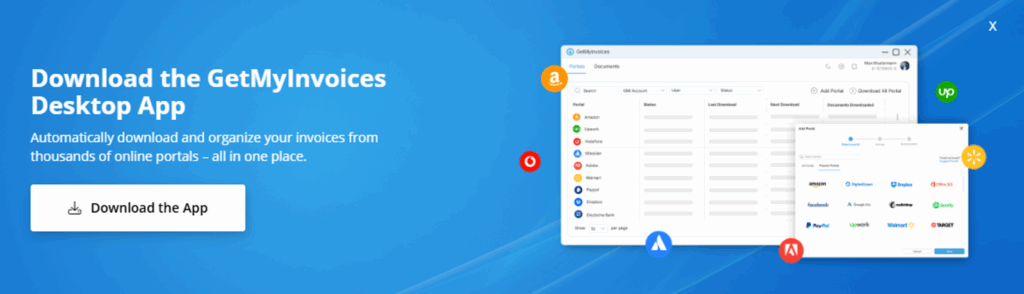
- In the dashboard or on the left under Companies & Portals, click on “Download the app” in the banner.
- Select your operating system - macOS or Windows.
- Perform the download.
Step 2
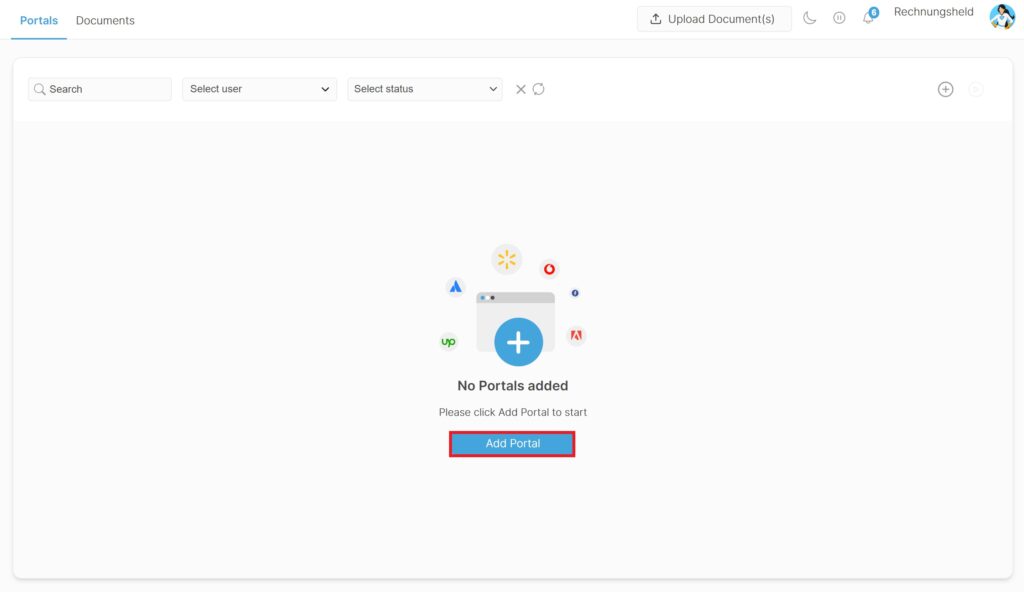
- Click on “Add portal.”
- Select the desired portal in the search field.
- Then click on “Continue.”
Step 3
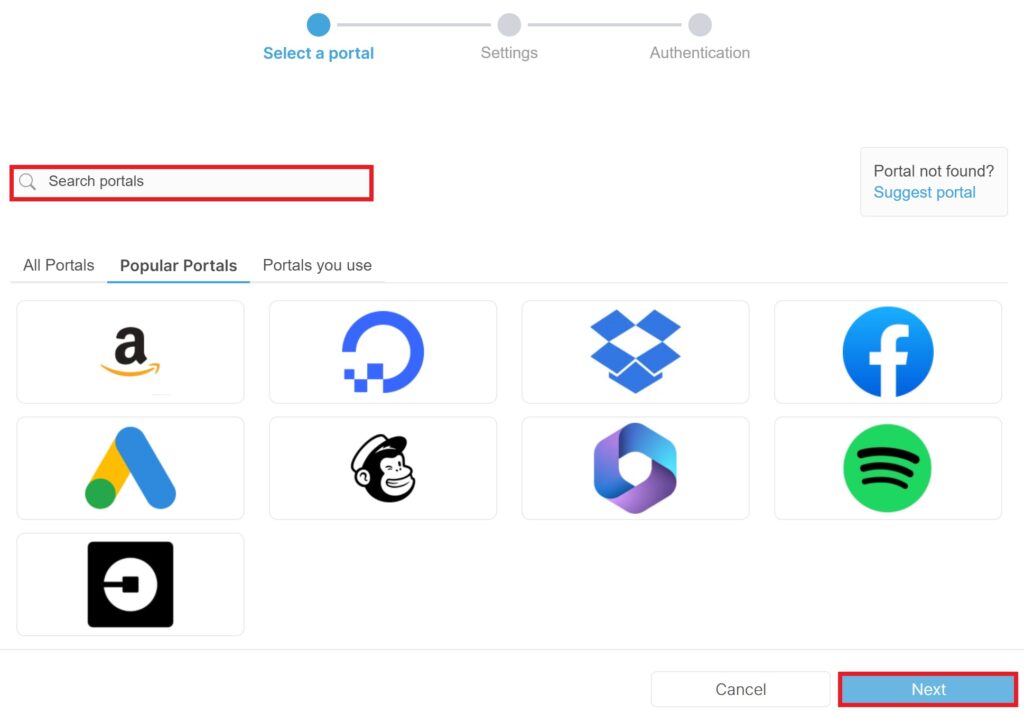
- Select the desired portal in the search field.
- Click on “Continue”.
Step 4
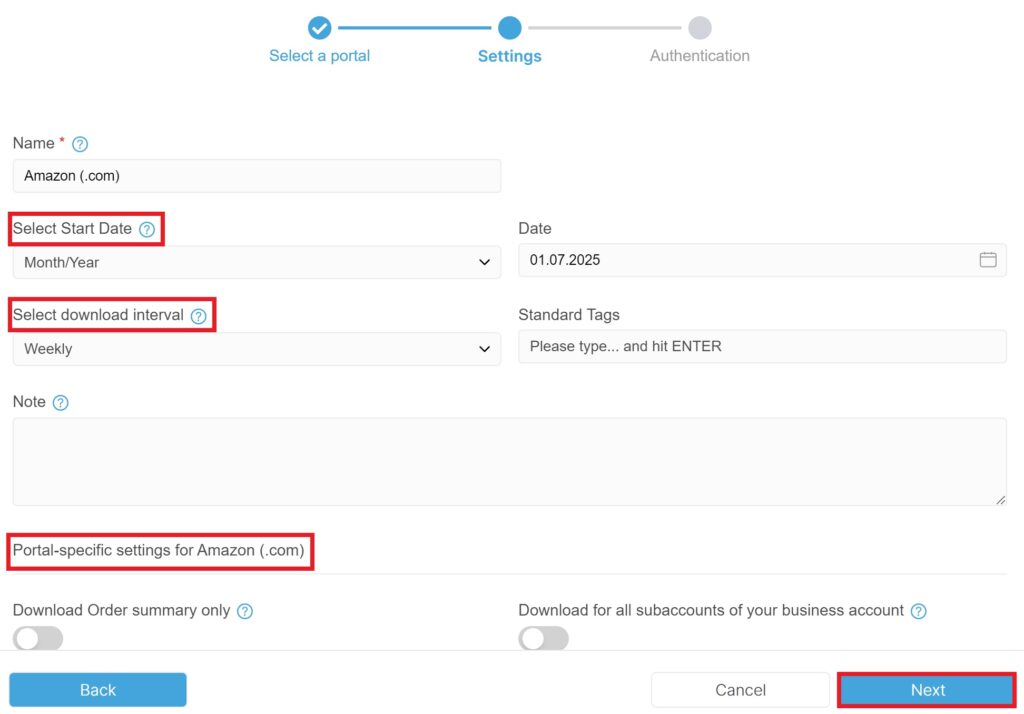
- Set the start date, download interval, and portal-specific settings.
- Then click “Next”.
Step 5
- Set authentication method.
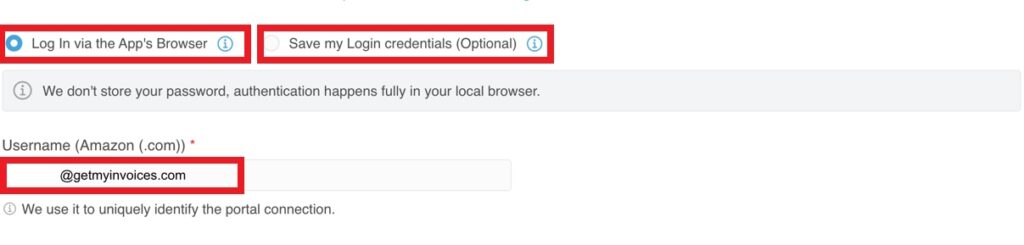
Option 1: Log in via the app’s browser
- Enter your username and click “Save”.
- A new browser window will open for you to log in to the selected portal.
- Enter your login details and log in to the portal.
- Click on “I am logged in” in the dialog window at the bottom right.
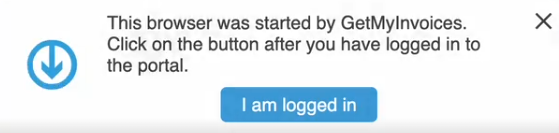
- The login process will start.
- The invoice download for this portal will then start and begin automatically when it is your turn. You can minimize the GetMyInvoices desktop app and let it run in the background.
Option 2: Save my login credentials (recommended)
Step 1
- Enter your login details.
- Activate the lever for automatic two-factor authentication (2FA), if available (recommended).
- Confirm the prompt “Automatic retrieval of the 2-factor code” with YES.
Step 2
- Select the authentication method “Authentication with QR code”.
IMPORTANT: If two-factor authentication (2FA) is already enabled, please disable it first.
Step 3
- When activating 2FA, select the “Authentication app” option.
- Save the QR code that is displayed. IMPORTANT: Make sure to only frame and save the QR code itself, without any additional content.
- Scan the QR code in your preferred 2-factor authentication app and enter the one-time password (OTP) that is displayed to complete the 2FA setup.
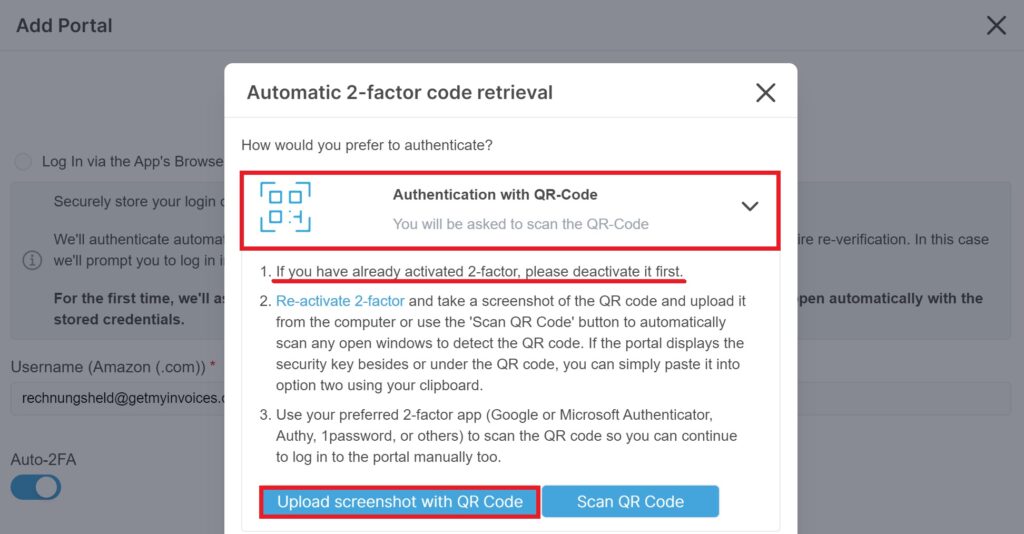
Step 4
- Click on “Upload screenshot with QR code” and select the corresponding file from the file manager.
- Continue with “Send”.
- A message will appear indicating that 2FA has been successfully activated.
- Then click on “Save”.
- The portal has now been successfully added and the download process will start automatically.
- The invoice download for this portal will then start automatically when it is your turn. You can minimize the GetMyInvoices desktop app and let it run in the background.
Tip: You can find detailed step-by-step instructions on how to set up automatic two-factor authentication (2FA) via QR code in this help article.