Deutsch
 Français
 Español
 Nederlands
 Italiano




To automatically retrieve invoices from online portals that require two-factor authentication (2FA) without manual intervention, activate the automatic 2FA retrieval feature in GetMyInvoices . This requires the use of an authenticator app, such as Google Authenticator , Microsoft Authenticator , or Authy .
1. Step
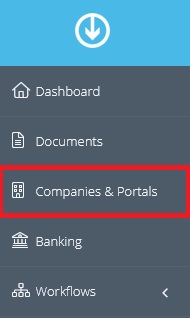
- Navigate to Companies & Portals in the menu on the left.
- Click the Plus (+) symbol.
2. Step
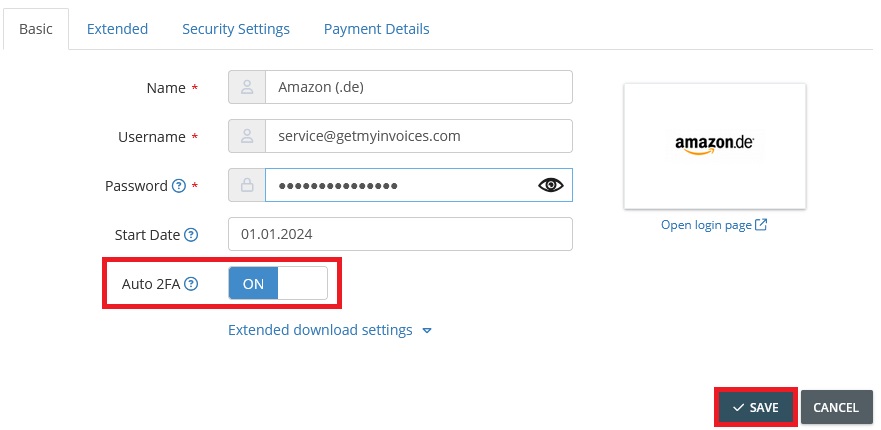
- Select the online portal from the list and add the desired portal.
- Enable the Auto 2FA option.
- Click Save.
3. Step
- After saving, an expanded window will open.
- There are three options available to automatically upload the second factor:
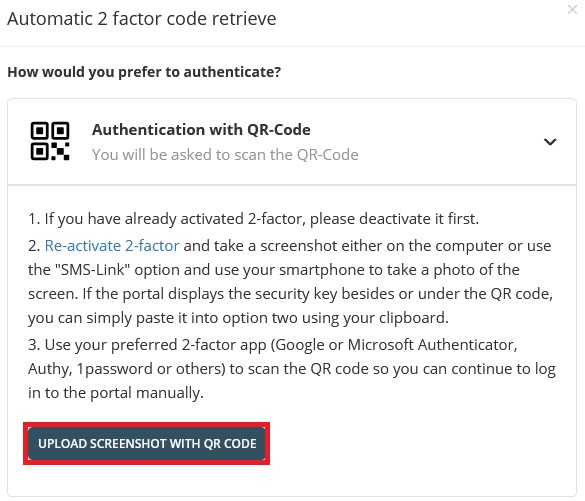
1st Option: Authentication via QR Code
- Scan the QR code with your authenticator app (Google Authenticator, Microsoft Authenticator, or Authy).
- Ensure that the second factor is activated in the app and accepted by the portal.
- Upload a screenshot of the QR code to GetMyInvoices.
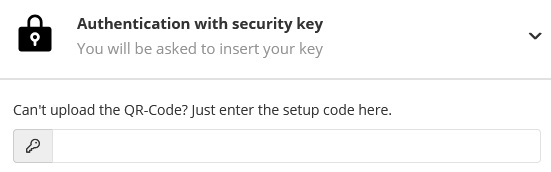
2nd Option: Authentication via Security Key
- Activate the second factor in the portal using the generated security key in your authenticator app.
- Enter the security key in GetMyInvoices to link the 2FA.
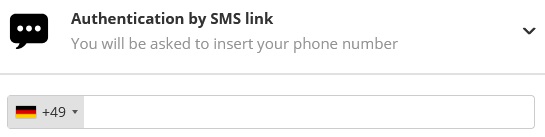
3rd Option: Authentication via SMS Link
- Take a picture of the QR code with your smartphone and activate the second factor in the authenticator app.
- Enter your phone number to receive an SMS. Use the link in the SMS to upload the QR code photo.