

 Deutsch
 Français
 Español
 Nederlands
 Italiano




In this article, you will learn how to link your American Express Business Card to your GetMyInvoices account. Note: There are three different options to do this directly from the dashboard. After you have completed an option, continue with the 1st step.
First of all, you need a GetMyInvoices account. Not yet a customer? Create your account here in just a few steps.
Option 1: Link via the dashboard
- Log in to your GetMyInvoices account.
- Click on the yellow Connect Business Card button and continue the registration with the 1st step (see below).

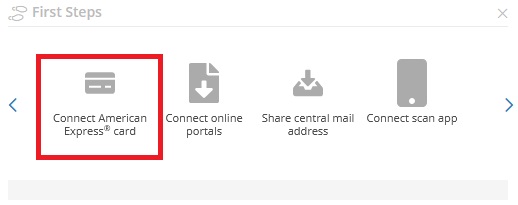
Option 2: Link via the “First steps” menu
- Log in to your GetMyInvoices account.
- Click on Connect American Express card at the top right under First Steps.
- Continue the registration with the 1st step (see below).
Option 3: Link in the Banking menu
- Log in to your GetMyInvoices account.
- Click on Banking in the menu on the left.
- Link bank accounts button.
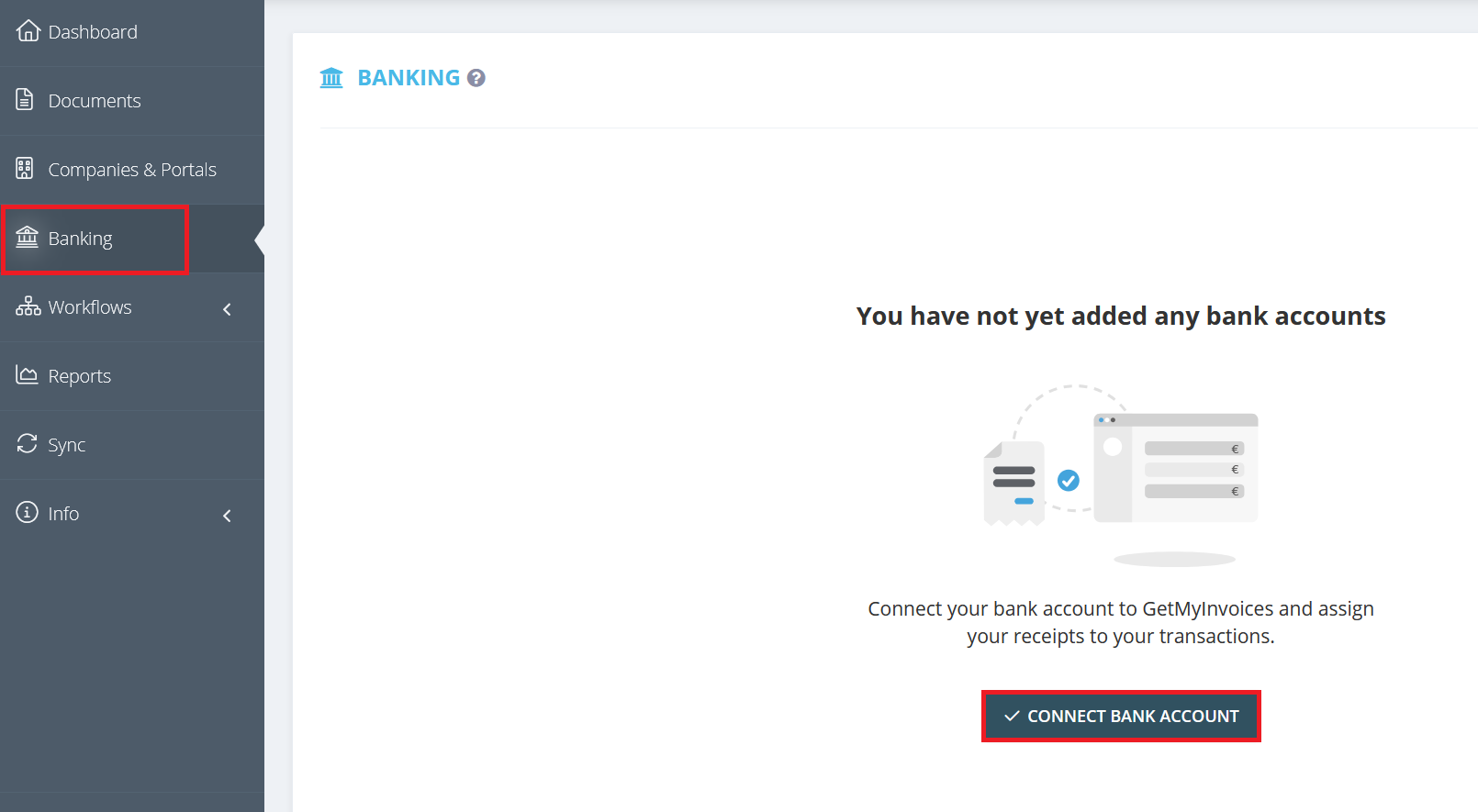
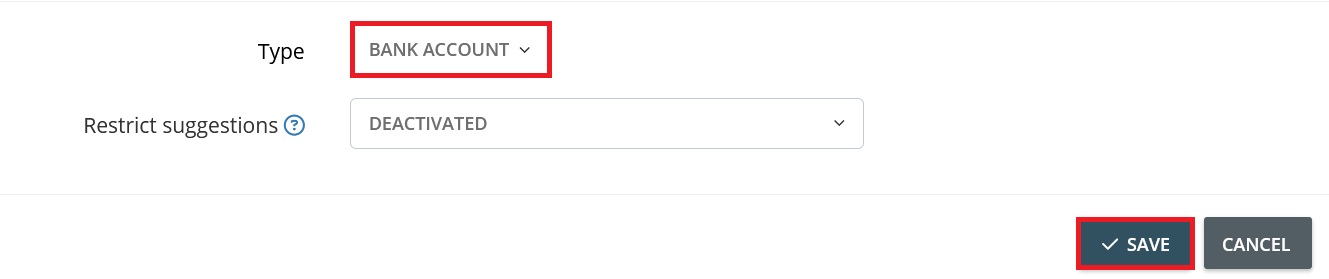
- Select bank account type.
- Select and save your online banking login and continue with the 1st step (see below).
Step 1: American Express login window
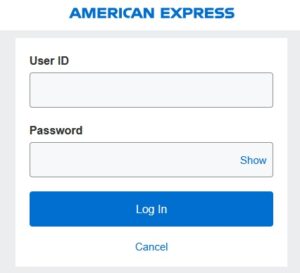
- Click on the Connect to American Express button in the bankconnect window.
- Enter your American Express account login details.
- Select Login. Your data is absolutely secure with us, as it is protected with the latest encryption technology. Neither GetMyInvoices nor third parties have access to your access data.
Step 2
- Select the receiving method for the confirmation code.
- Enter the confirmation code in the next window.
Step 4
- Select business credit card
- Click authorize now
We now ask you to be patient while your transactions are imported into your GetMyInvoices account. As soon as the transaction has been successful, you will receive a success message in your dashboard.
Step 5
- Sepa bank accounts menu appears.
- Select American Express Business Card via checkbox and save.

We look forward to having you on board!