

 Deutsch
 Français
 Español
 Nederlands
 Italiano




To ensure that your invoices are captured completely and accurately in GetMyInvoices, you should maintain the advanced settings and payment details for your portals.
Why this helps
With up-to-date information, you can take full advantage of the filter options in GetMyInvoices. You’ll find invoices faster and manage the synchronization of your incoming invoices more effectively.
An example
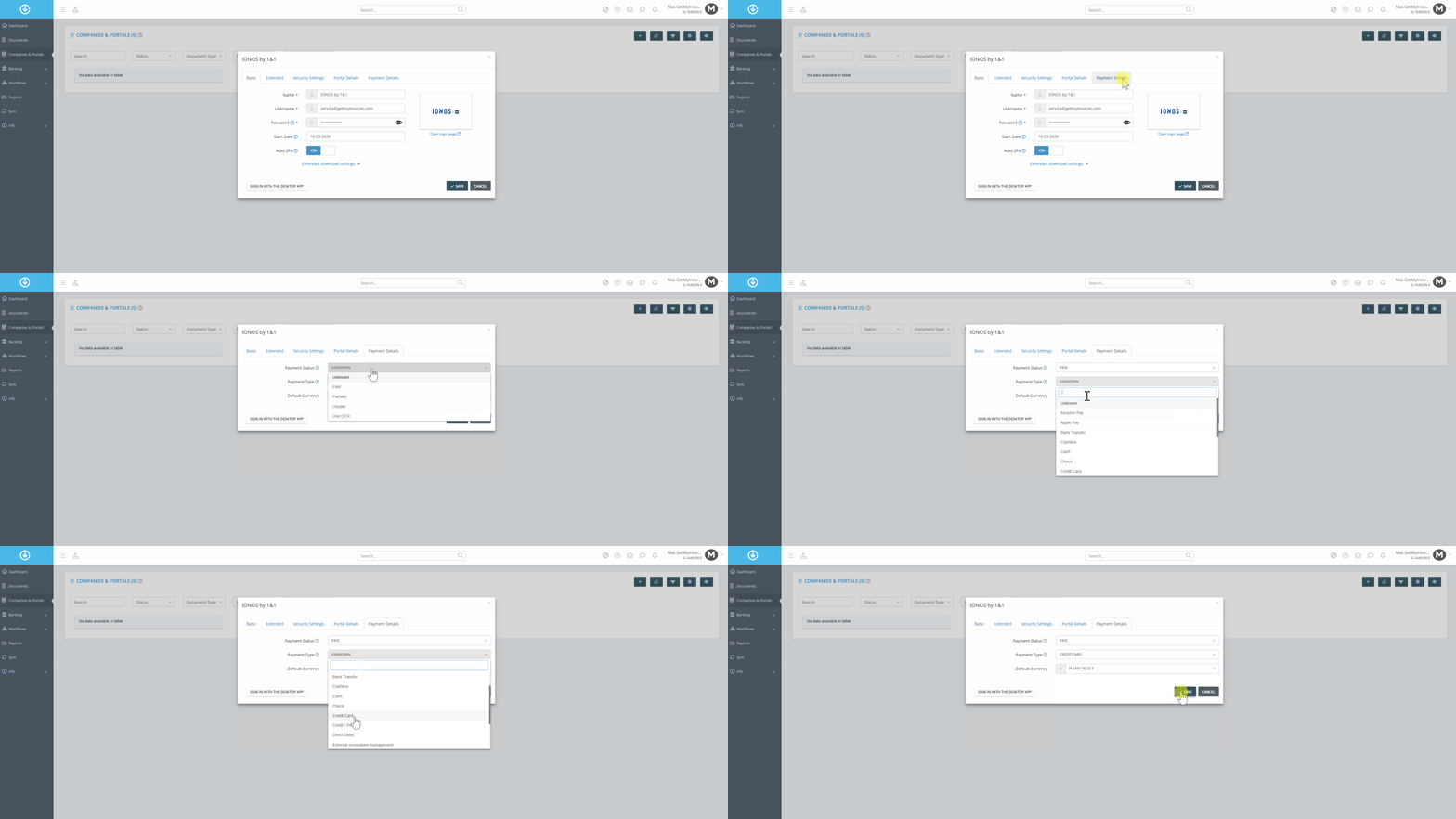
When you download invoices from a portal—such as your cell phone provider—only the invoices you’ve actually received appear there, for example, your monthly cell phone bill. In most cases, these have already been paid because billing is handled via direct debit or credit card. This is exactly what you should specify in the payment details.
Unpaid Invoices
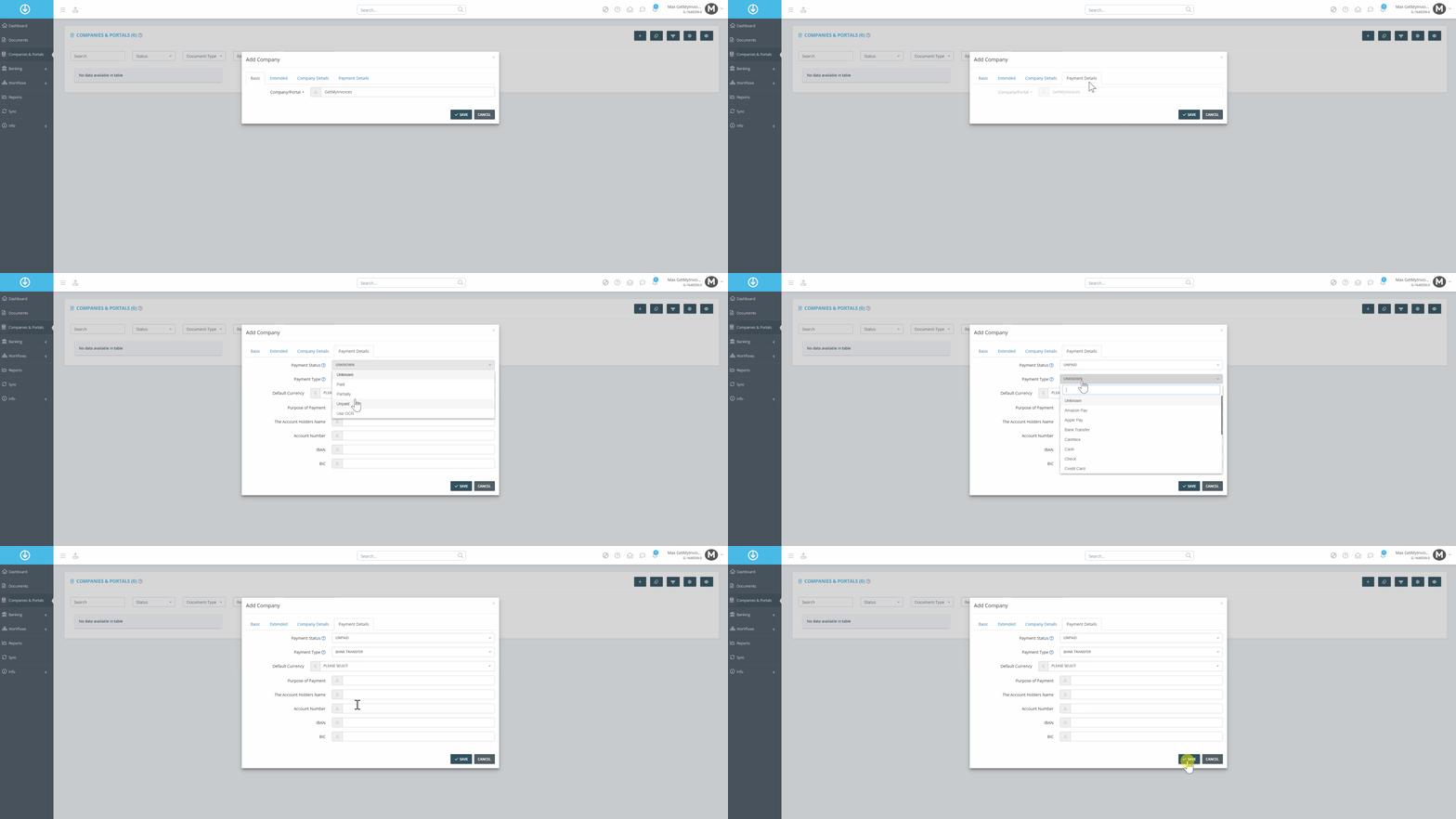
Follow the same procedure for outstanding supplier invoices. Update the information in the Payment Details section of the respective supplier portal:
- Set the payment status to Unpaid.
- Select a payment method, such as bank transfer.
Payment Description and Bank Information
You can also specify a payment description, either manually or automatically using variables such as the invoice number. OCR text recognition reads the invoice number directly from the document and enters it as the payment description.
You can also enter the account holder’s name, the recipient’s IBAN, and the BIC. All incoming invoices assigned to this company will automatically use the stored payment details.
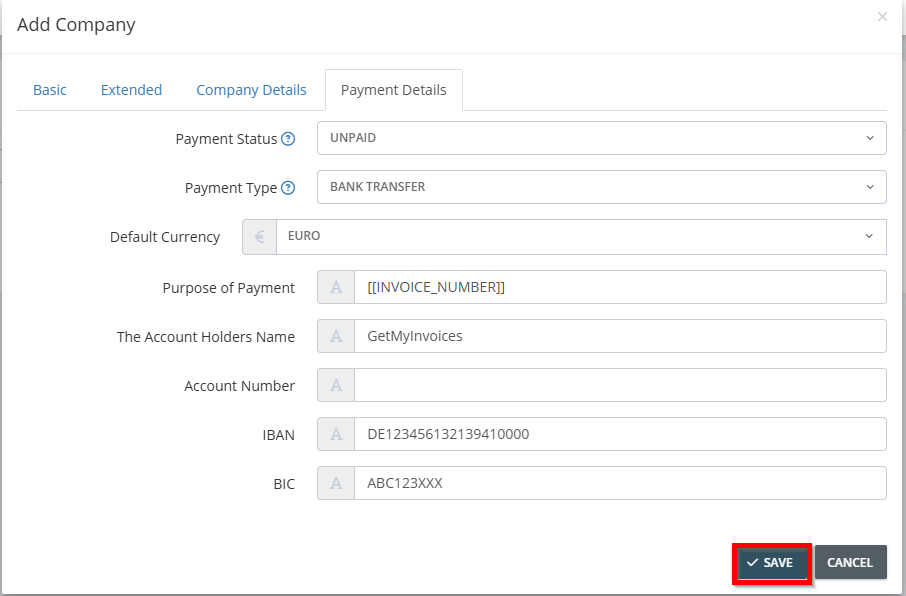
Click Save to apply the settings.