Deutsch
 Français
 Español
 Nederlands
 Italiano




With GetMyInvoices , you can link invoices directly to transactions in workflows. This step ensures that all payment steps are transparent and traceable. From the invoice to the final payment.
Here’s how the linking works
- Automatic Approval: If a transaction is already linked to the invoice, the process is automatically approved.
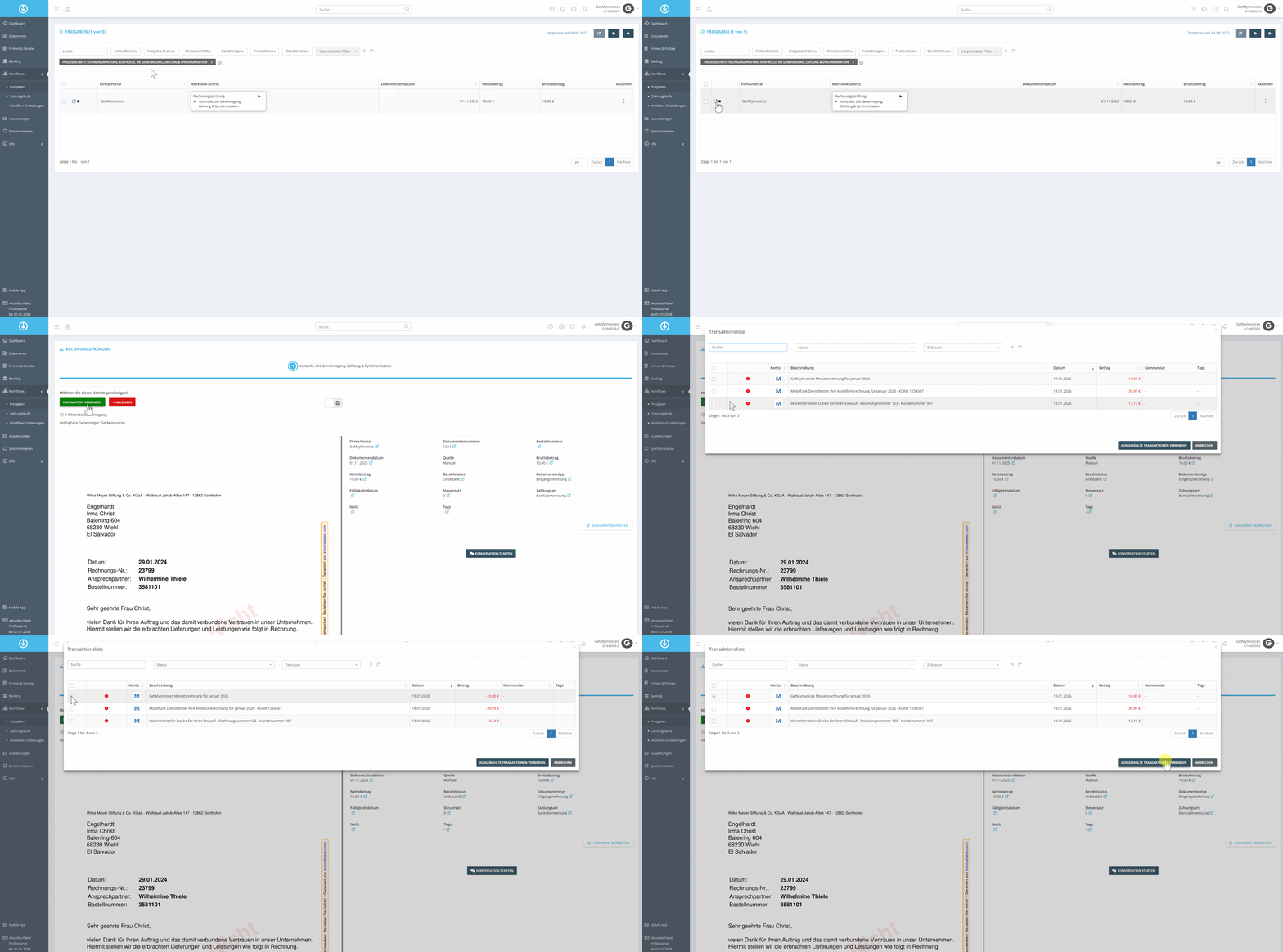
- Missing Transaction: If no transaction exists, the “Link Transaction” option appears instead of the “Approve” button.
- Manual assignment: The user selects a matching transaction from the displayed list and links it to the invoice.
- Automatic Continuation: After linking, the workflow continues seamlessly.
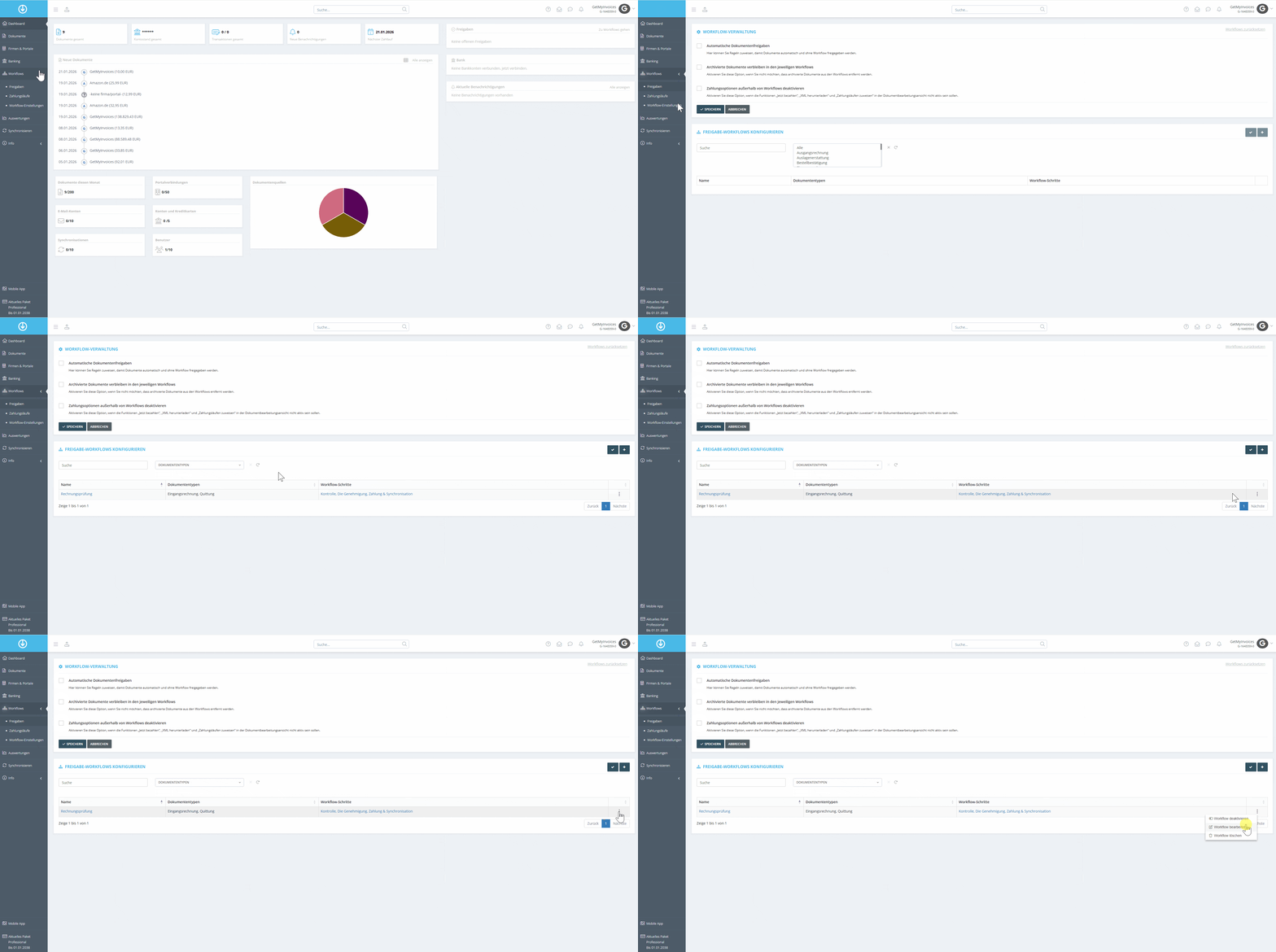
Step 1
- Navigate to Workflows in the menu on the left.
- Click Workflow Settings
- Under the desired workflow, click Edit on the right.
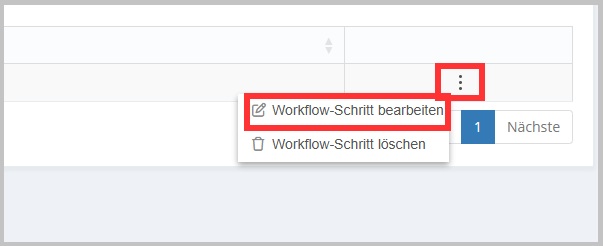
Step 2
- Select Process Step.
- Click Edit.
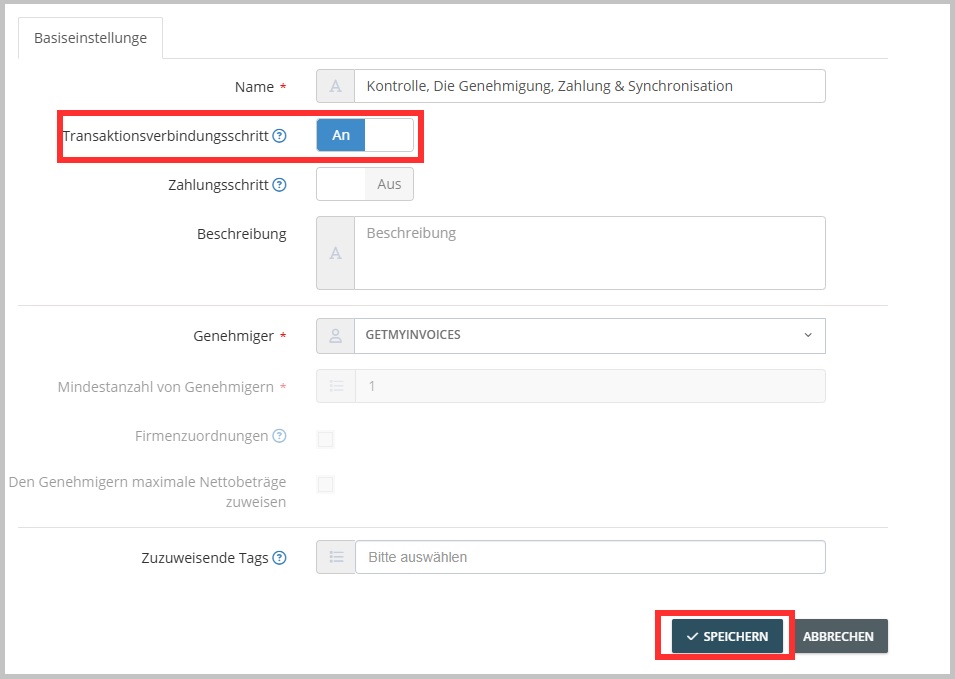
Step 3
- Enable the transaction link step.
- Click Save.
Note: If the “Payment Step” is enabled, it will be disabled in this workflow step.
Step 4
- Open invoices to be approved.
- Start approving the invoices.
- Click Link Transaction.
- Select transaction.
- Click Save.