

 Deutsch
 Français
 Español
 Nederlands
 Italiano




GetMyInvoices allows you to approve invoices digitally. To ensure that invoices appear correctly in the invoice approval process, the settings must be configured properly. If invoices do not appear in the approval process, this may be due to incorrect or inappropriate workflow settings. The following check allows you to quickly determine whether the configuration is correct and why certain invoices are not being assigned.
Step 1
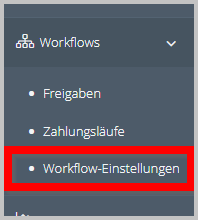
- In the left navigation pane, select Workflows.
- Click the menu item Workflow - Settings.
Step 2
- Click Check Workflow Settings.

Step 3
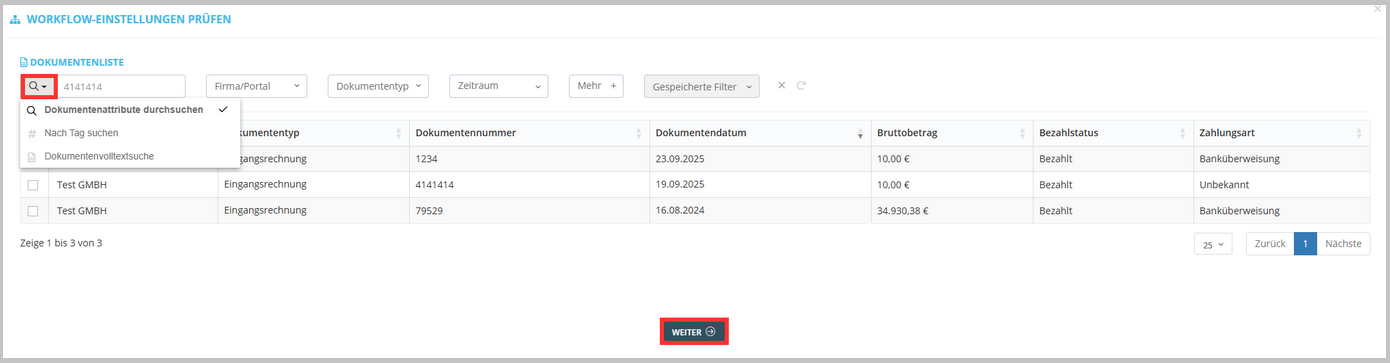
- Search for an invoice using the search function (e.g., by invoice number).
- Optional: Use full-text search or tag search.
- If necessary, use additional filter options as shown in the document area.
- Select the desired invoice.
- Click “Continue.”
Step 4
→ The system automatically performs a validation.
- The validation result is displayed.
- Open the invoice approval process by clicking on the validation result.
- Review the comparison between the invoice and the workflow settings.
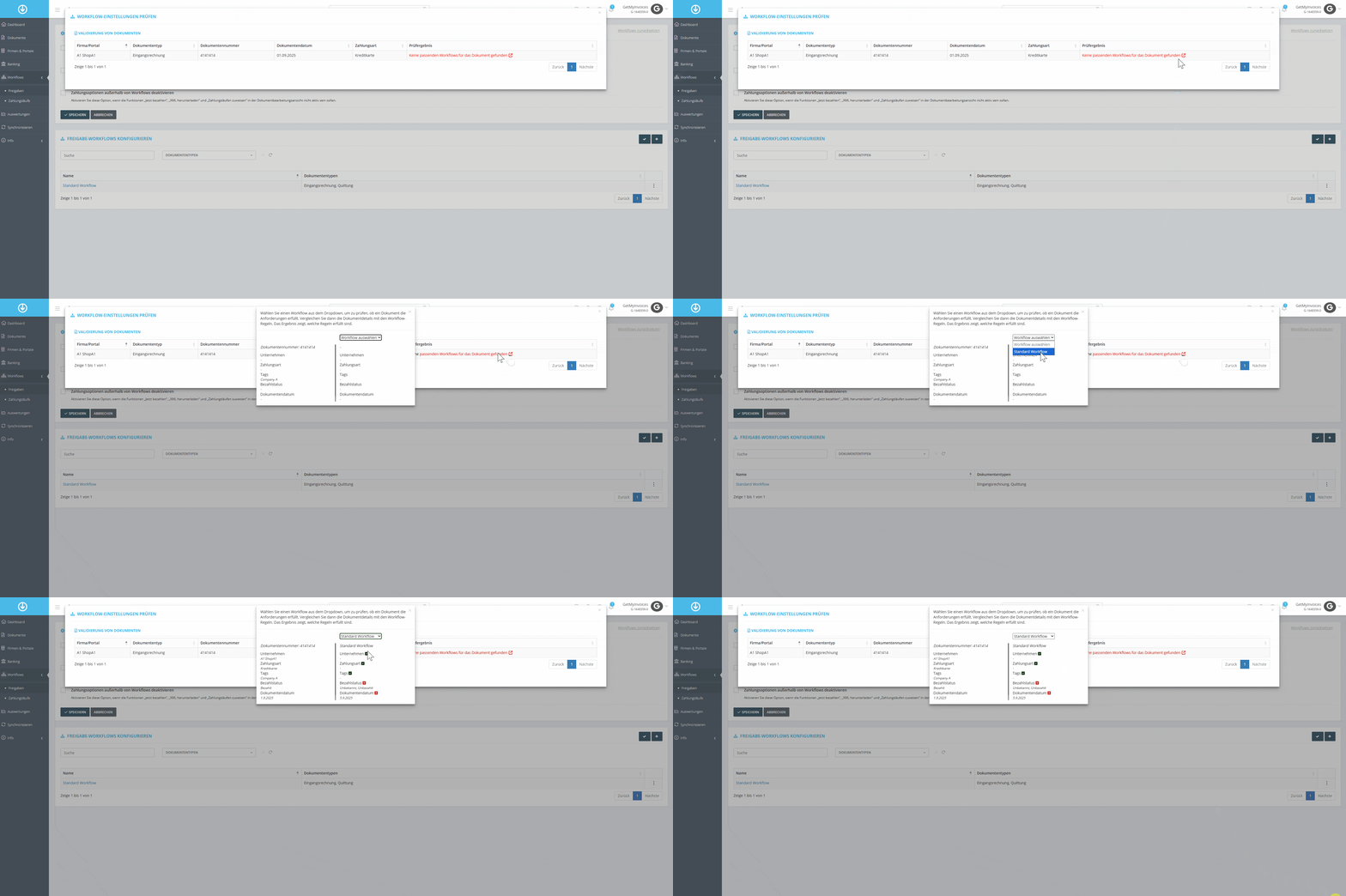
The validation result clearly shows which settings do not match. In the example, it is evident that the “Payment Status” and “Document Date” values do not match the defined settings in the workflow or in the approval process.
Next steps
- Adjust settings in the approval process so that future invoices are correctly recognized and assigned to the workflow.