

 Deutsch
 Français
 Español
 Nederlands
 Italiano




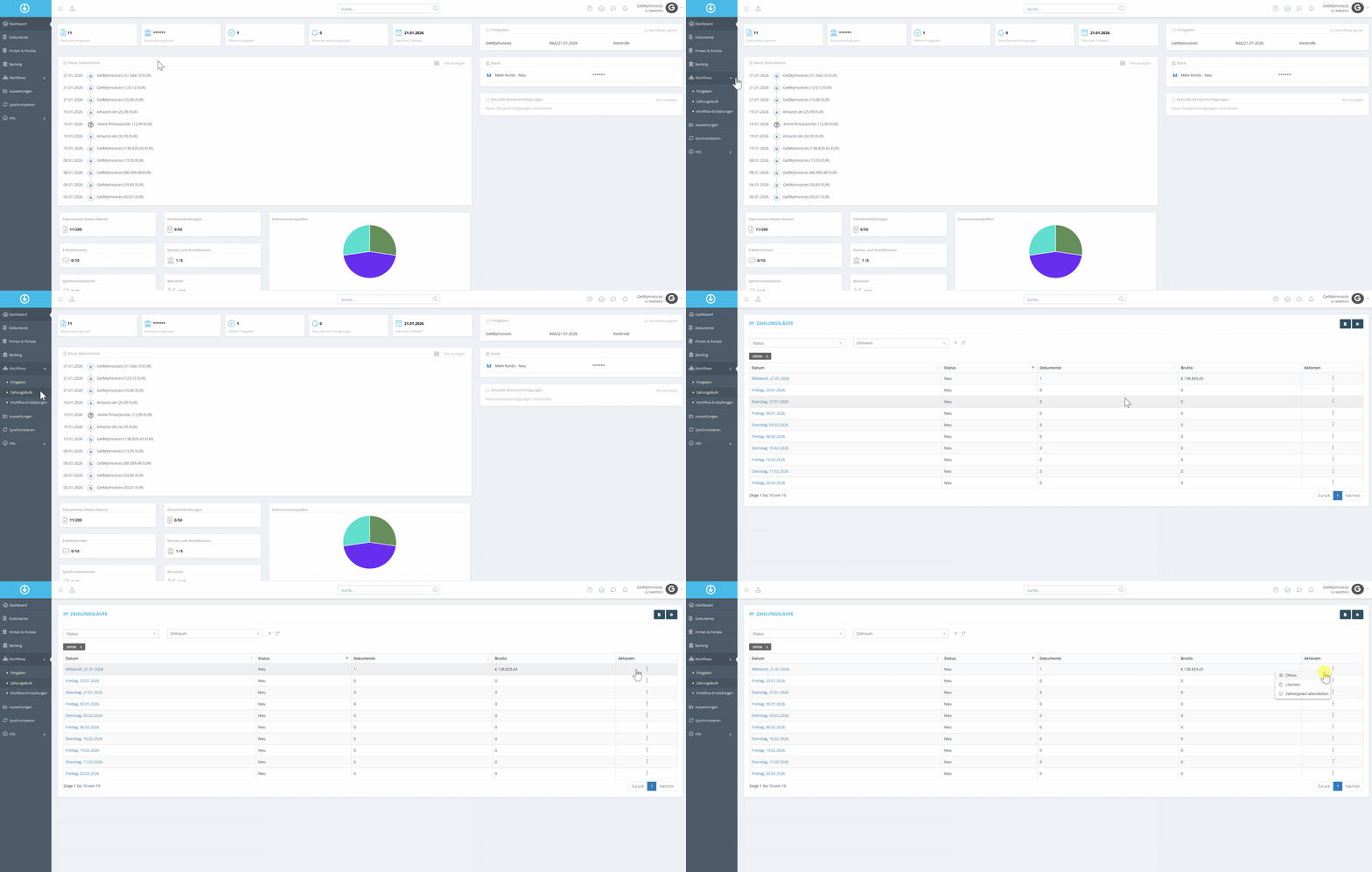
After you’ve **created payment runs in GetMyInvoices **, you can pay invoices directly from these payment runs. To access a payment run and manage payments, follow these steps:
- In the left-hand menu, navigate to Workflow.
- In the drop-down menu, click Payment Batches.
- Select the desired payment batch.
- Click Open to view the payment batch details.
Paying Individual Invoices
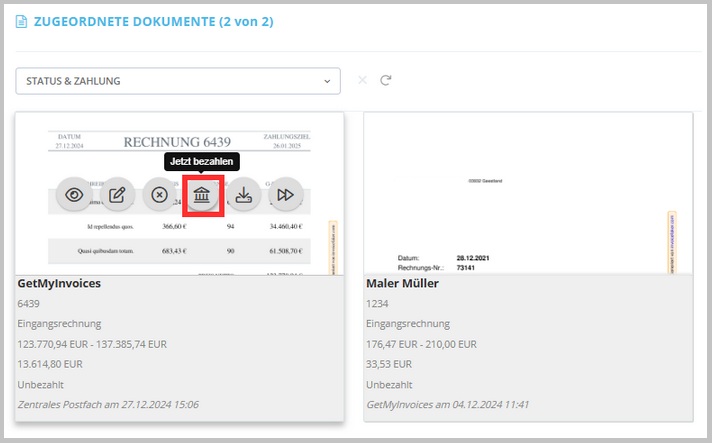
Step 1: Select an Invoice
- Hover your mouse over the desired invoice.
- Click the Pay Now icon.
- Select the payment account from which the transfer should be made.
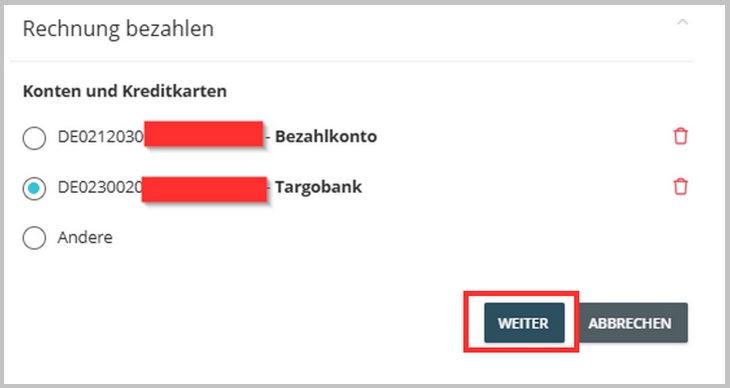
Step 2: Redirect to FinAPI
- After selecting the account, you will be automatically redirected to the payment service provider FinAPI.
Step 3: Make a Single Transfer
- Complete the transfer in the FinAPI portal.
- After the payment is successful, the invoice will be marked as paid in the payment run.
SEPA XML Download
In addition to individual transfers, you can also pay invoices using the SEPA XML download. This option is particularly helpful if you want to process multiple invoices at once.
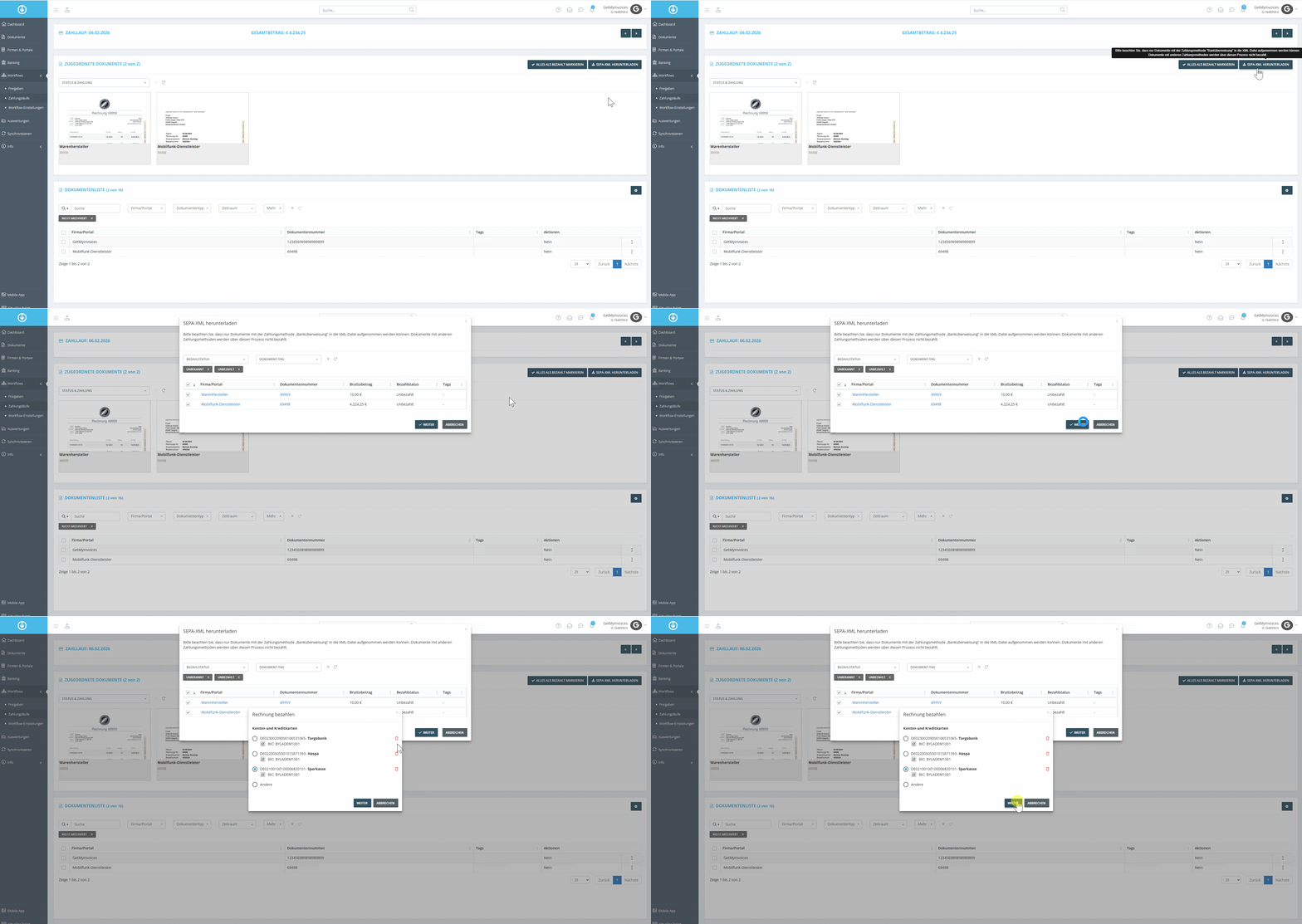
How the SEPA XML download works
- Click Download SEPA XML.
- Review the invoices automatically selected from the payment run.
- Select the desired account for the transfer
- Click Next to continue the download process.
Different SEPA XML Options
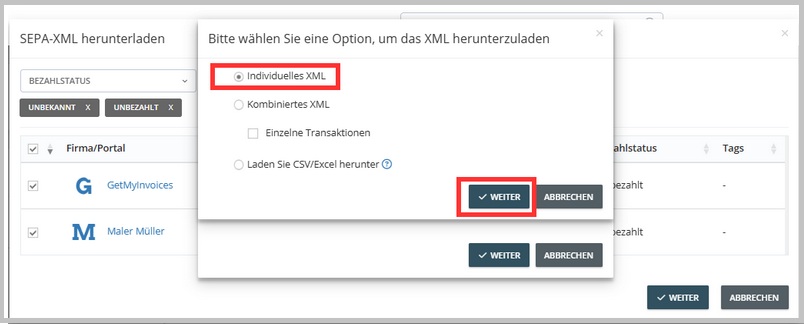
After you’ve selected the invoices, you have three different options for creating the SEPA XML file:
1. Individual SEPA XML files - ideal for users who want to process each invoice separately.
- A separate SEPA XML file is created for each invoice you select.
- These files are combined into a ZIP file and made available.
- Each XML file can be uploaded individually to your bank.
2. Combined SEPA XML file - ideal for users who want to make a bulk transfer for multiple invoices.
- A single SEPA XML file is created for all selected invoices.
- This file can be uploaded to the bank.
- The individual invoices are not broken down separately by the bank but are transferred as a total amount.
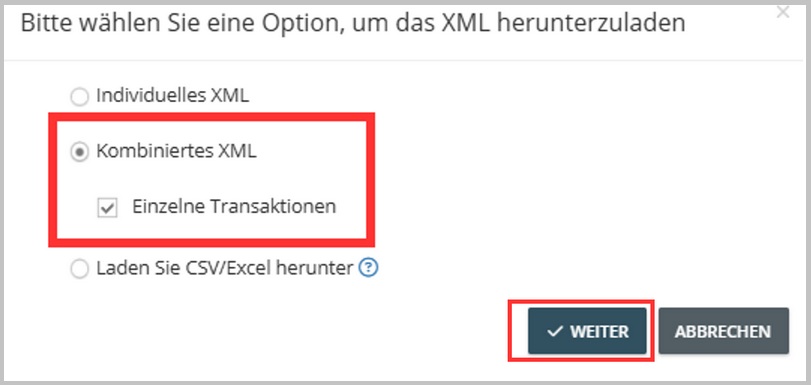
3. Combined SEPA XML file with individual transactions - ideal for users who want the convenience of a batch file but prefer to have invoices posted individually.
- As with Option 2, a single SEPA XML file is created for all selected invoices.
- In this case, however, the bank processes the payments as individual transactions, so that each invoice is posted separately.
“Paid” Status After SEPA-XML Download
After you download a SEPA-XML file, the payment status of the corresponding invoices in GetMyInvoices is automatically changed to “Paid”.
Why is the status changed?
The automatic status change helps you keep track of your invoices. It indicates that the invoices have been submitted to your bank for payment.
What does this mean for you?
The “Paid” status in GetMyInvoices indicates that the invoices have been marked as paid, even though the actual payment will not be made until your bank has processed the SEPA-XML file. It’s important to check the status in your bank account to ensure that the payments were processed successfully.