

 Deutsch
 Français
 Español
 Nederlands
 Italiano




In GetMyInvoices, tags can be added not only manually to individual invoices, but also directly to import sources such as online portals, email inboxes, or the central inbox. This way, every invoice from that source automatically receives the tag upon import.
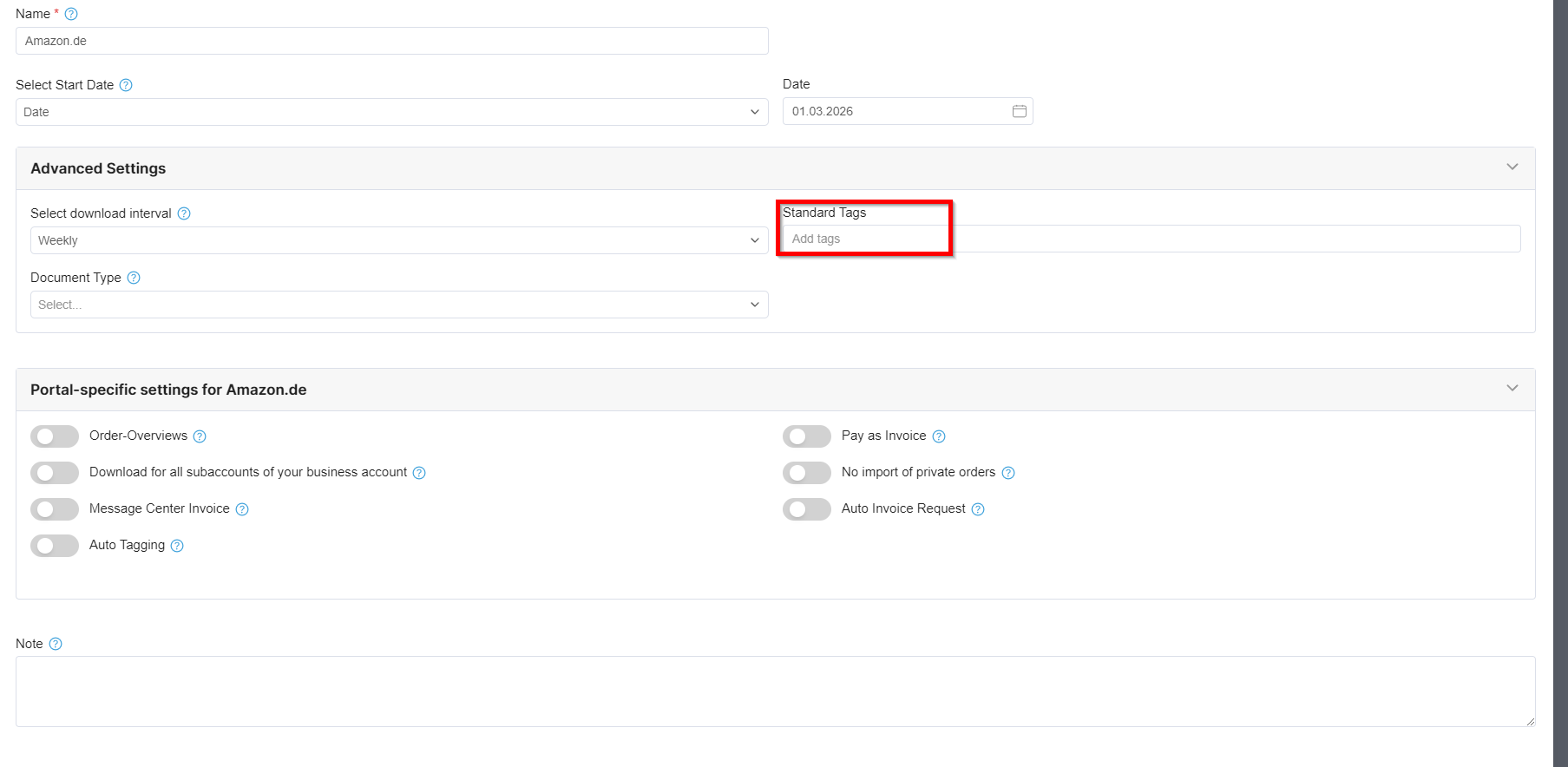
1: Add a tag to a new online portal
- When connecting an online portal, add the tag directly during setup, in the portal settings under “Advanced.” This can be done in both the desktop app and the web UI.
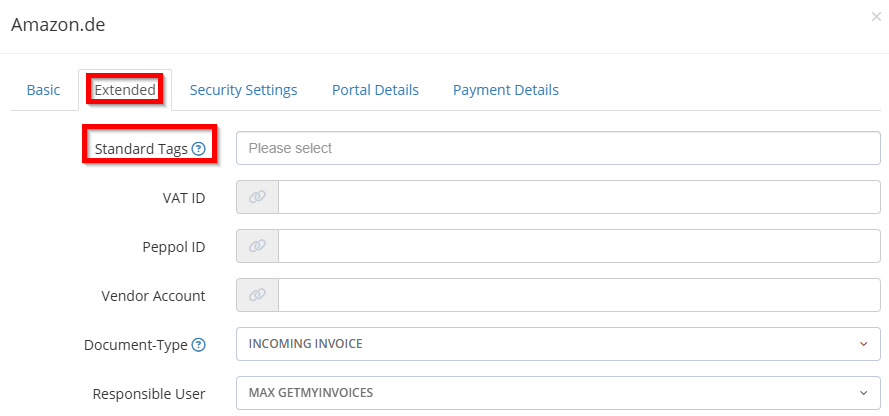
Add a tag to an existing portal
Desktop App:
- Click on “3 dots” at Action
- Add “tag”
- Click on Save
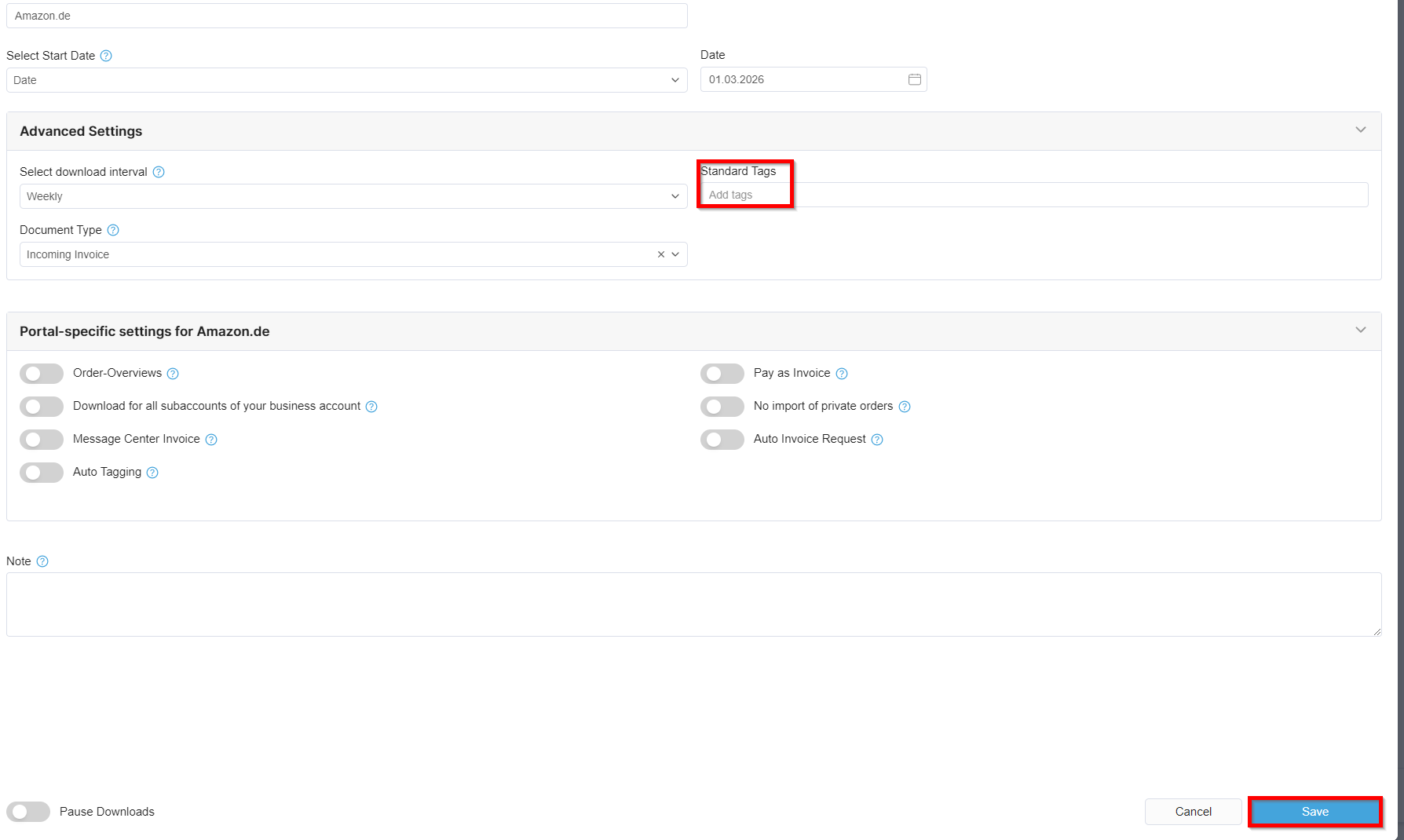
Web UI
- In the portal settings, go to the Advanced tab.
- Add the new tag. If documents already have a tag, you can overwrite it here so that only the new tag applies in the future.
- Click Save. You can then choose whether to assign the tag to all invoices that have already been imported or only to future imports.
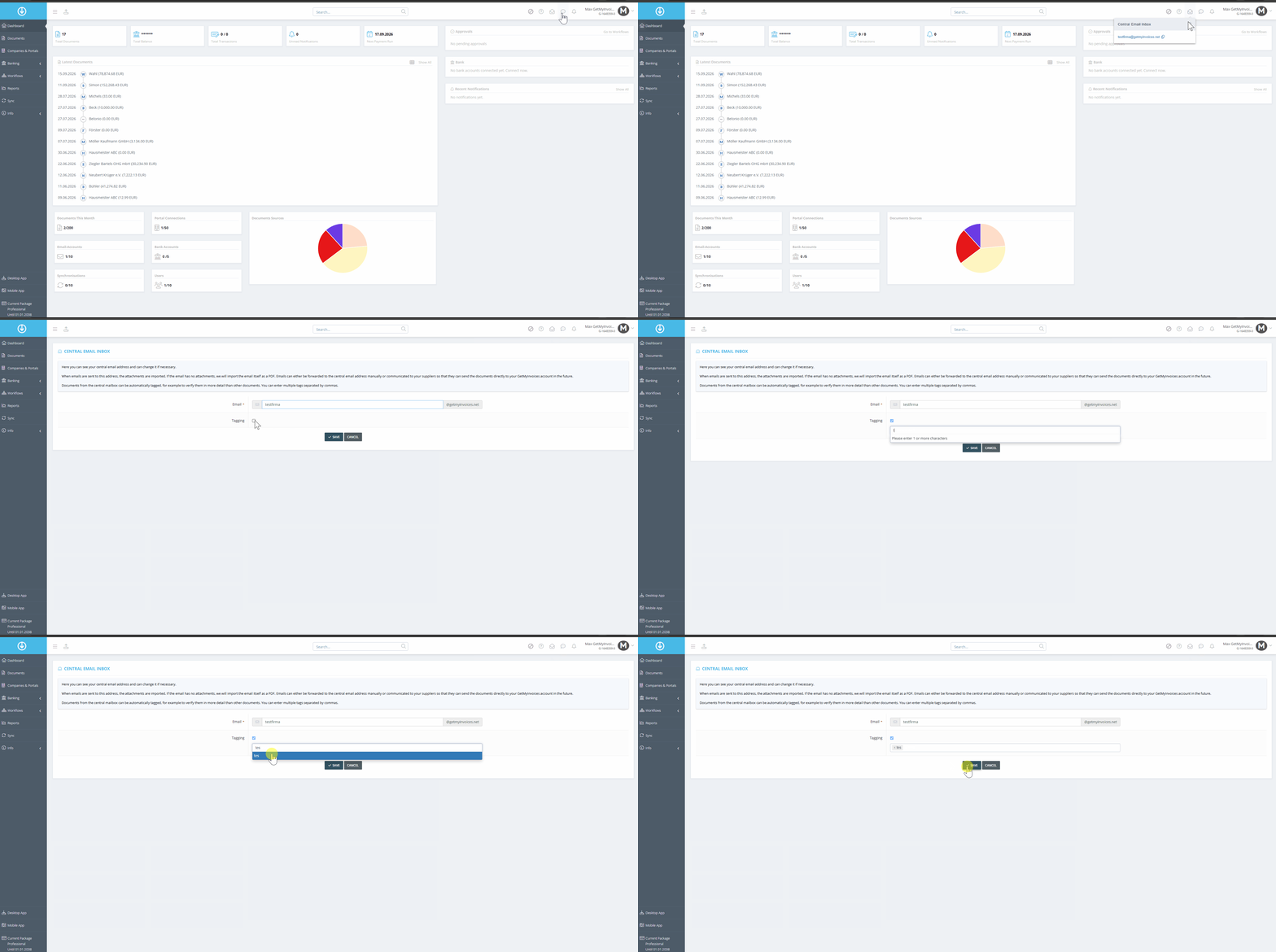
2: Set a tag on the central mailbox
If you use the central email inbox, set the tag directly for this source:
- Click the envelope icon at the top of your account.
- Click the gear icon, enable tagging, and add the desired tag.
Important Note: This tag applies only to invoices imported in the future. Existing invoices will not be tagged retroactively.
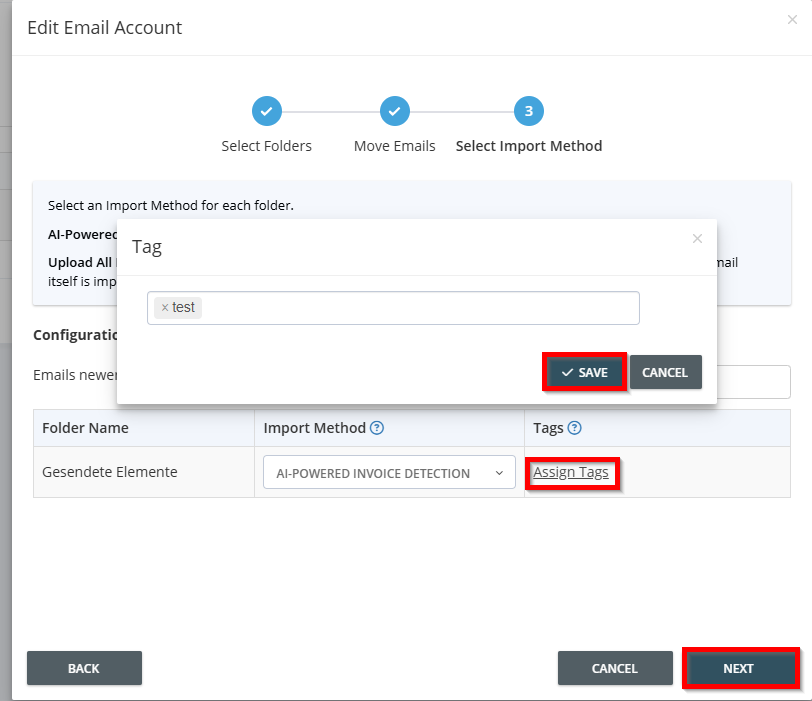
3: Tag to be assigned to a folder when an email account is first linked
When you connect an email account for the first time, add tags directly to the selected folders:
- Click “Assign tags”
- Fill in the “tag” click on “Save”
- Click on next to follow the process
Add a tag to a folder in an already connected email account
- Go to your account name in the top-right corner and click “Email Accounts.”
- Under “Folders,” click the number displayed to add the tag as described above.
The tag is then automatically assigned to all invoices in this folder.
Important Note: This tag applies only to invoices imported in the future. Existing invoices will not be tagged retroactively.