

 Deutsch
 Français
 Español
 Nederlands
 Italiano




GetMyInvoices enables the automatic transfer of document images to DATEV Unternehmen Online . Important Note: For the integration to work, the DATEV Document Image Service for Accounting must be enabled.
Connecting the interface between DATEV and GetMyInvoices
Step 1: Open Synchronization
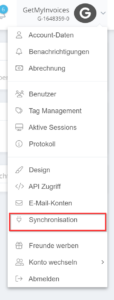
- Click on your name in the top right corner.
- Select Synchronization from the drop-down menu.
Step 2: Create a new synchronization account
- In the synchronization accounts section, click the plus icon in the top right corner.

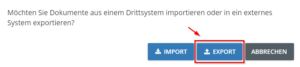
Step 3: Select Export
- In the window that appears, click Export.
Step 4: Select DATEV as the destination system
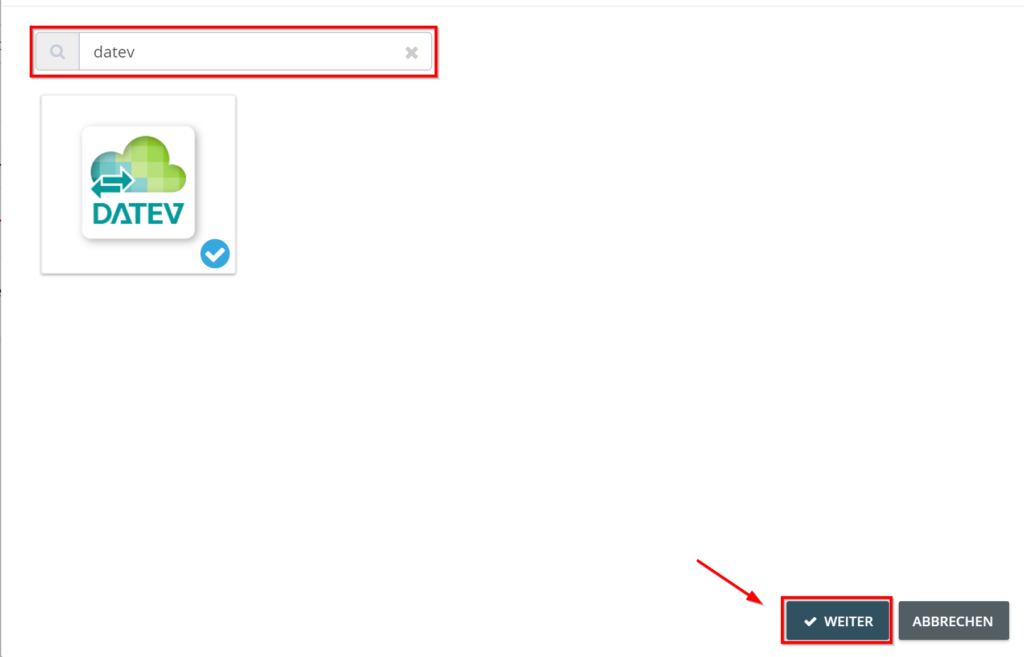
- Enter DATEV in the search field.
- Select the DATEV tile and click Next.
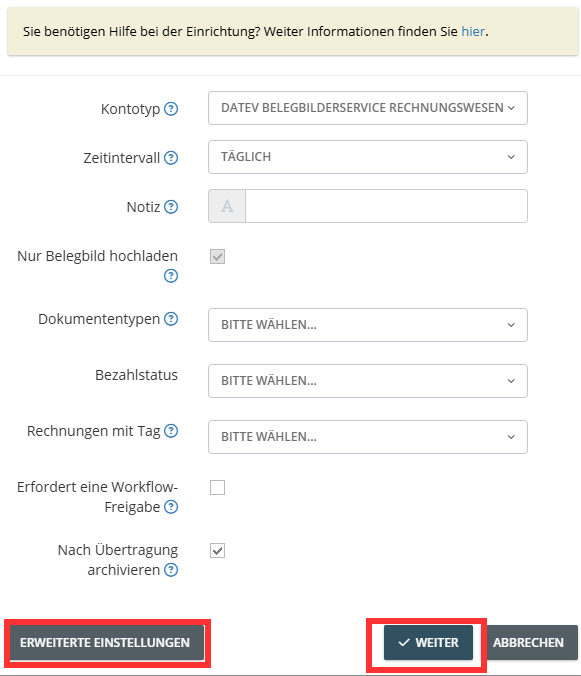
Step 5: Configure document image export
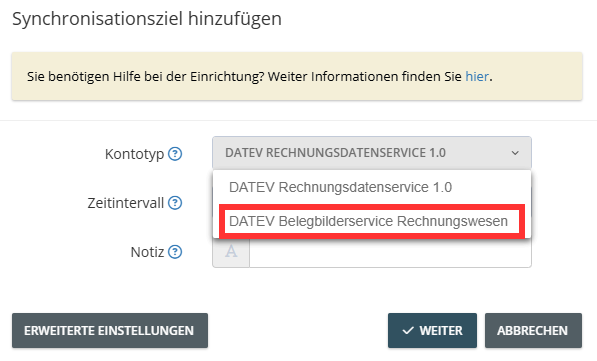
- Under Account Type, select DATEV Document Image Service Accounting.
- If necessary, adjust the advanced settings for your specific export.
Important Notes on Configuration:
- Careful Review of Settings: To ensure the export runs without errors, all configuration options should be checked and adjusted.
- Archiving after export: In our example, invoices are automatically archived after a successful export. This option can be enabled or disabled as needed.
Step 6
- Click Next.
Set Token Validity and Establish Connection:
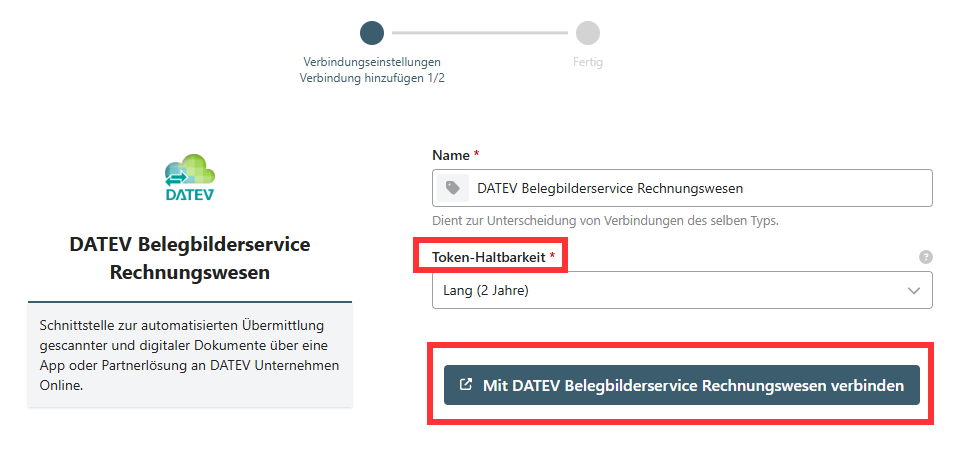
When setting up the interface to the DATEV Belegbilderservice Accounting service, you can define the token’s validity period. This determines how long the interface remains active before re-authentication is required.
Step 7: Select Token Validity
- Short (11 hours): The token must be manually renewed after it expires.
- Long (2 years): The token remains valid for two years and must be renewed afterward.
Step 8: Establish a connection to the DATEV Document Image Service for Accounting
Connect to the DATEV Document Image Service for Accounting
- Select the token validity period.
- Click Connect to DATEV Document Image Service Accounting.
- Confirm your login in the pop-up window using one of the following methods:
-
-
- SmartCard
- SmartLogin
-
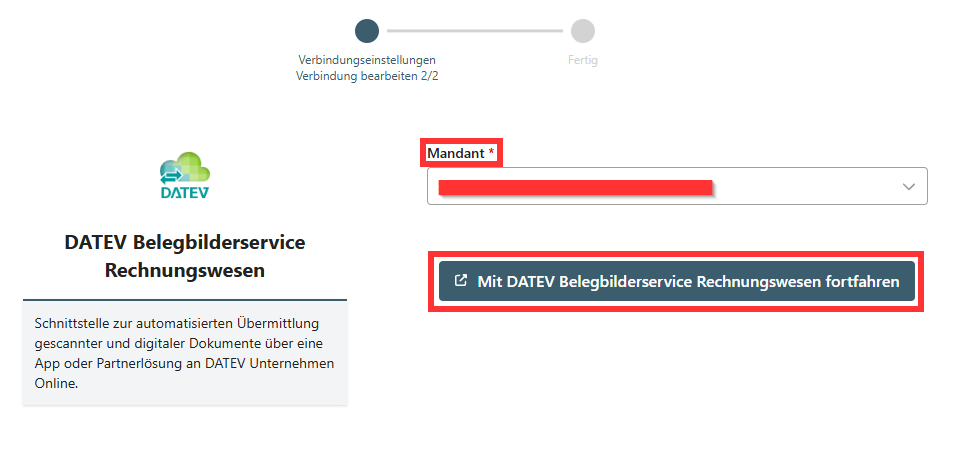
After you have set the token validity period and confirmed your login, you must select your client to complete the setup.
Step 9: Select a Client
- In the Client field, select the appropriate client from the list.
- Click Continue with DATEV Document Image Service Accounting.
- Confirm the connection in the following window.
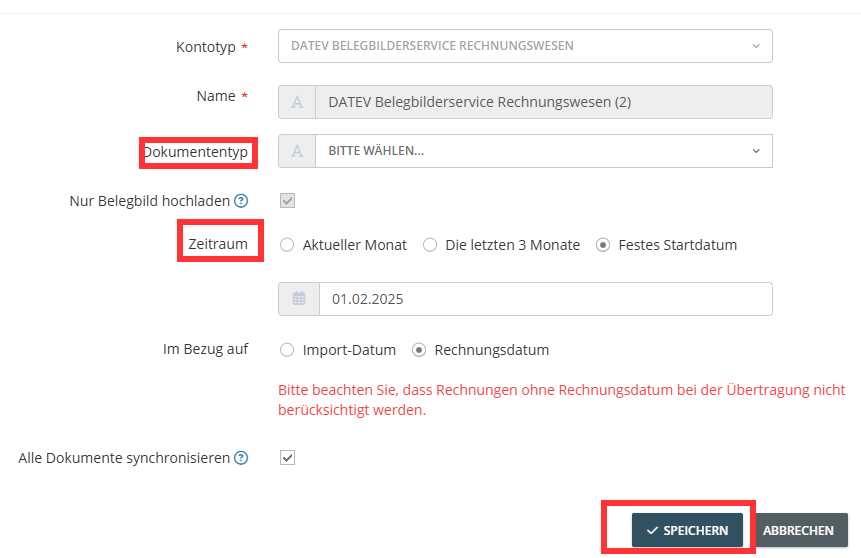
In the final step of setup, you can specify which document type the invoices from GetMyInvoices should be assigned to in DATEV.
Step 10: Specify Document Type and Export Period
Select Document Type
- Manual Selection: You can define a specific document type.
- Automatic Assignment: Leave the field blank; DATEV will assign the type automatically.
Set Export Period (optional)
- Enter a date range to export only invoices from a specific period.
Start Export
- Select a document type or leave the field blank.
- Set the export period (if necessary).
- Click Save to start the export.
Once setup is complete, invoices are automatically transferred to the DATEV Accounting Document Image Service according to the specified configurations.