Deutsch
 Français
 Español
 Nederlands
 Italiano




GetMyInvoices automates document import into DATEV Invoice Data Service 1.0 , enabling seamless integration of invoice data into DATEV Unternehmen Online. This service ensures that your invoice data is exported efficiently and directly to your accounting system. In this article, we’ll show you how to set up the interface and transfer both basic and advanced invoice data to DATEV.
Please note that MyDATEV client registration must be activated to use the Invoice Data Service 1.0.
Step 1
- Click on your account name in the upper-right corner of the dashboard.
- Select Synchronization from the drop-down menu.
Step 2
- In the Synchronization Accounts section, click the plus icon.

Step 3
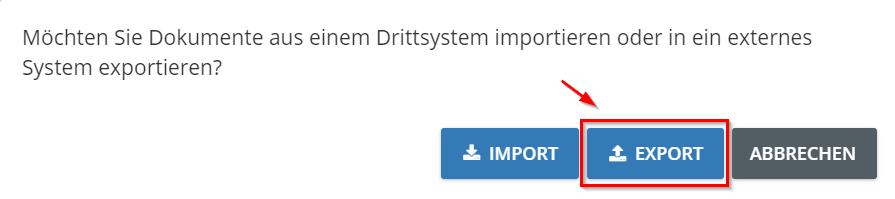
- In the window that opens, select Export.
Step 4
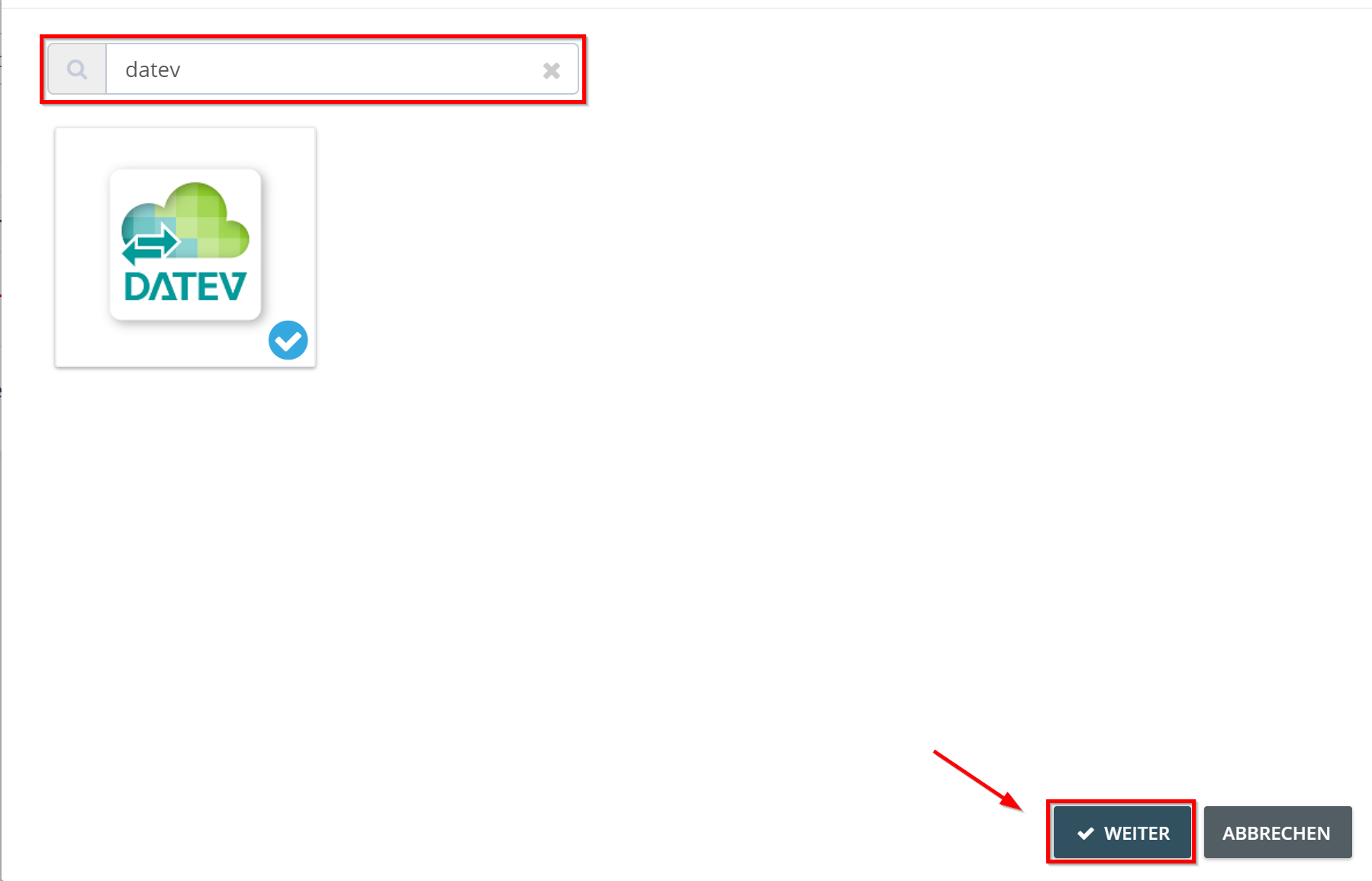
- Search for DATEV.
- Click the DATEV tile.
- Select Next.
Step 5
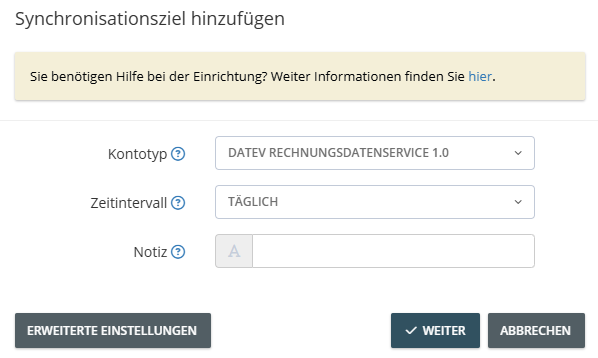
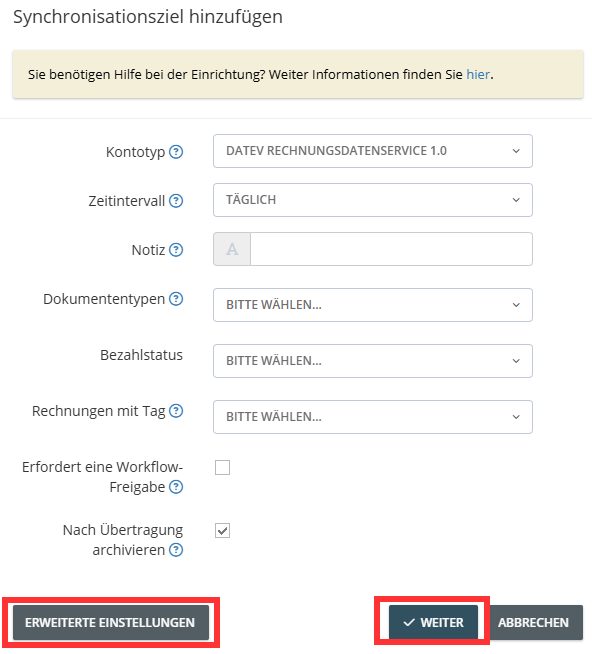
- Select DATEV Invoice Data Service 1.0 under Account Type.
- Configure the desired export settings.
Important Notes on Configuration
- Careful Configuration of Settings: To ensure the export runs without errors, you should carefully review and adjust all configuration options.
- Archiving after export: In our example, invoices are automatically archived after a successful export. This option can be enabled or disabled as needed.
Step 6
- Adjust the ** Advanced Settings ** to customize the export.
- Click Next.
Step 7
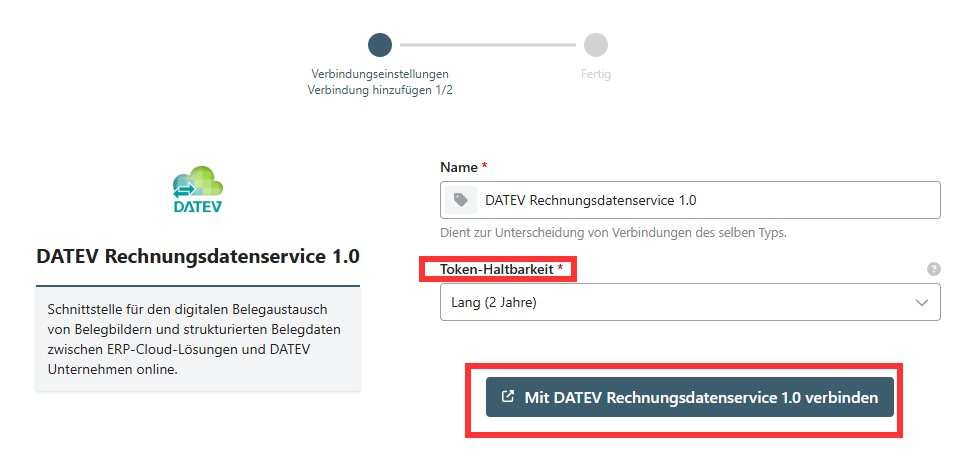
Set the token’s validity period to determine how long the connection remains active
- Short - 11 hours: Requires manual renewal after expiration.
- Long - 2 years: The token remains valid for two years and must be renewed afterward.
Step 8
Establish a connection to DATEV Invoice Data Service 1.0
- Select the desired token validity period.
- Click Connect to DATEV Invoice Data Service 1.0.
-
A pop-up window will open-confirm your login using one of the following methods:
- SmartCard
- SmartLogin
Step 9
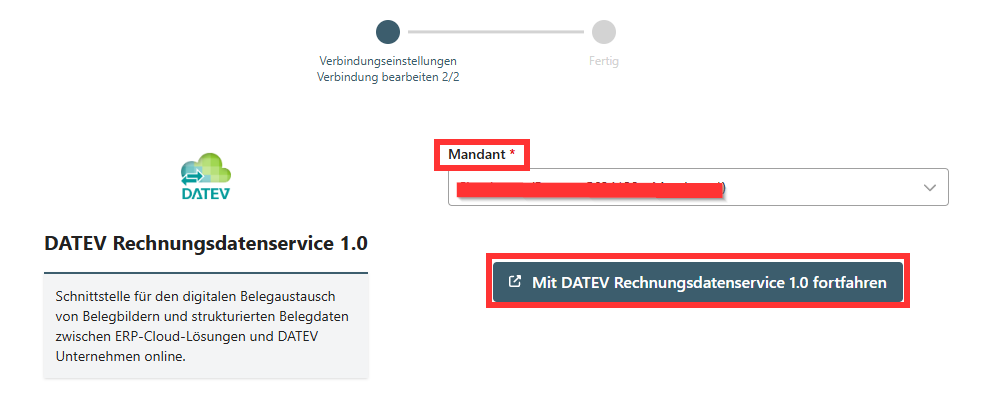
After the token validity period has been set and the login confirmed, you must select the client to complete the setup.
- Click the Client field.
- Select the desired client from the list.
- Click “Continue with DATEV Invoice Data Service 1.0”
- Approve the connection.
Step 10
Finally add the interface to Invoice Data Service 1.0 and configure the necessary settings for data transfer:
-
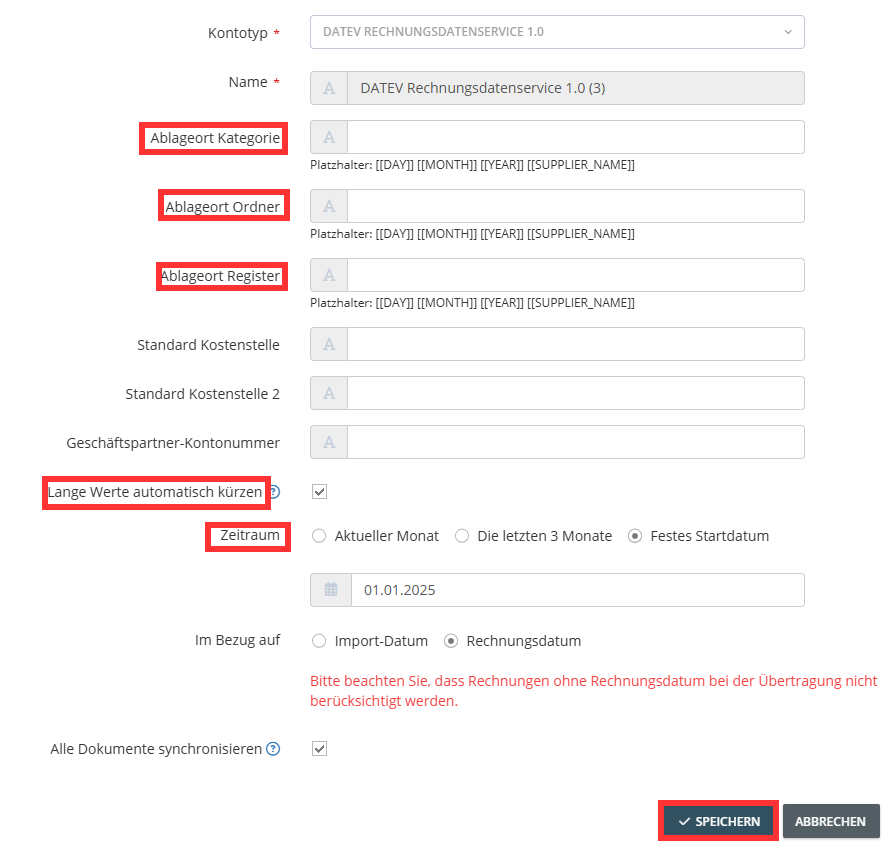
Define the storage location in the DATEV root directory:
- Category
- Folder
- Register
-
These values can either be created automatically via the API at DATEV or entered manually if you want to use existing values.
Additional Settings
- Default Cost Center: Specify a cost center that will be automatically transferred with the invoices.
- Business Partner Number: Specify a business partner number to assign invoices directly to a specific party.
- Export Period: Optionally select a time period to export only invoices from a specific timeframe.
- Automatically truncate long values: If invoices contain too many characters, they will be automatically truncated.
Step 11
Start Export
- Review all entered values.
- Click Save to confirm the settings.
- The export will start, and the invoices will be transferred to Invoice Data Service 1.0 according to the configuration.