

 Deutsch
 Français
 Español
 Nederlands
 Italiano




Through the integration of GetMyInvoices with **MOCO **, documents can be automatically exported to the solution. Please follow the steps below:
Step 1
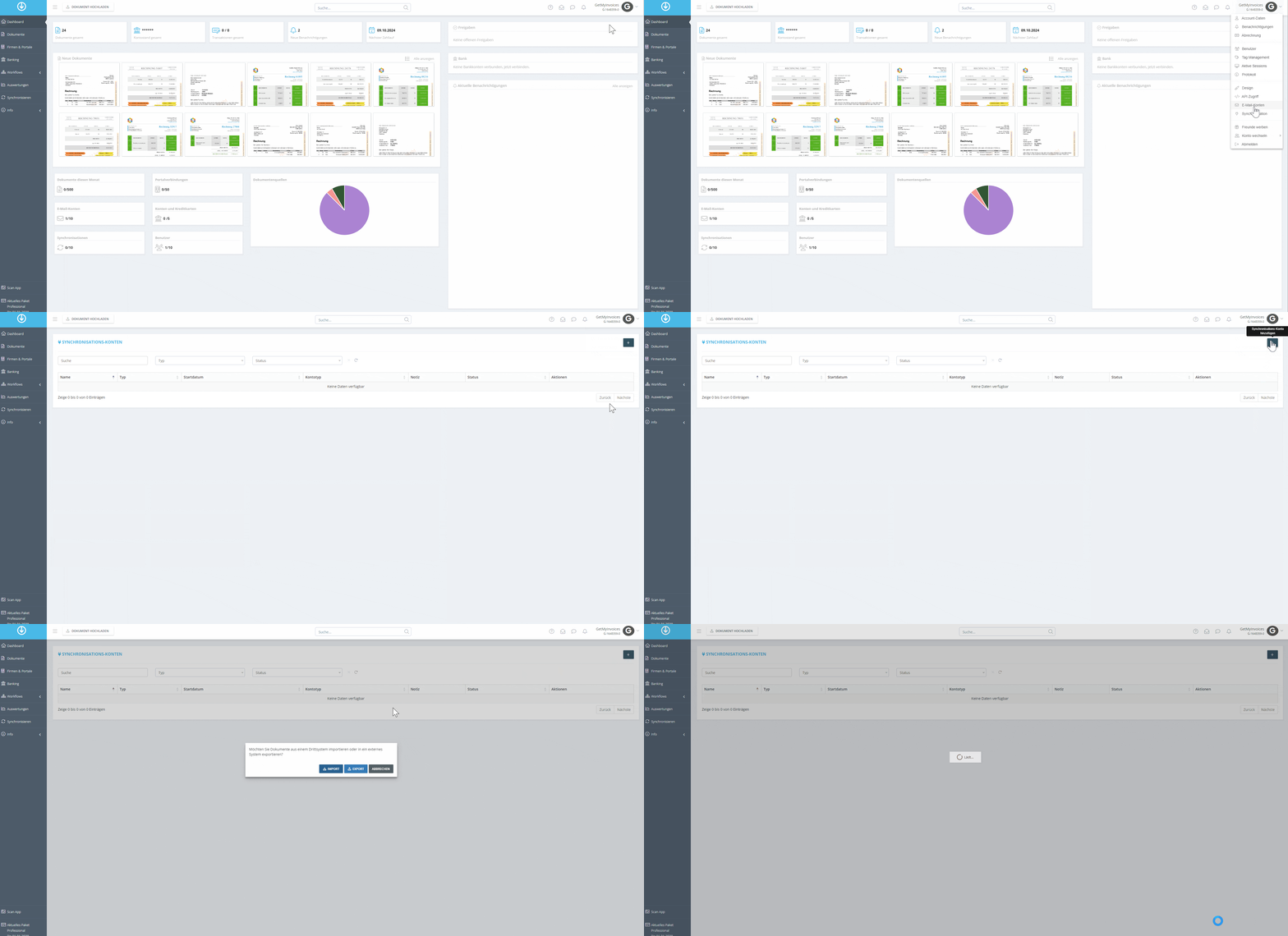
- Click on “Profile” in the top right corner and select Synchronization from the drop-down menu.
- In the Synchronization Accounts section, click the Plus icon in the top right corner.
- In the window that opens, click Export.
** **
**
Step 2
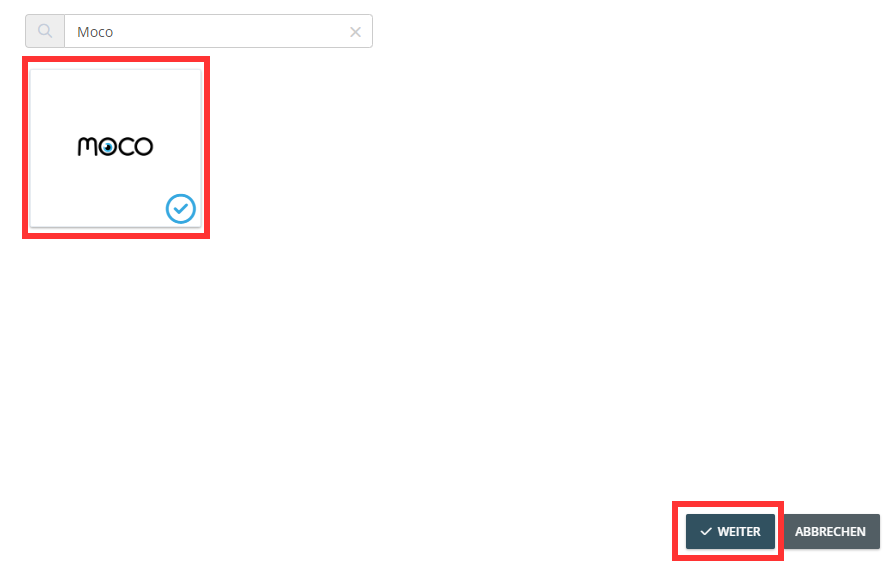
- Search for MOCO in the search bar.
- Click the MOCO tile.
- Then click Next.
Step 3
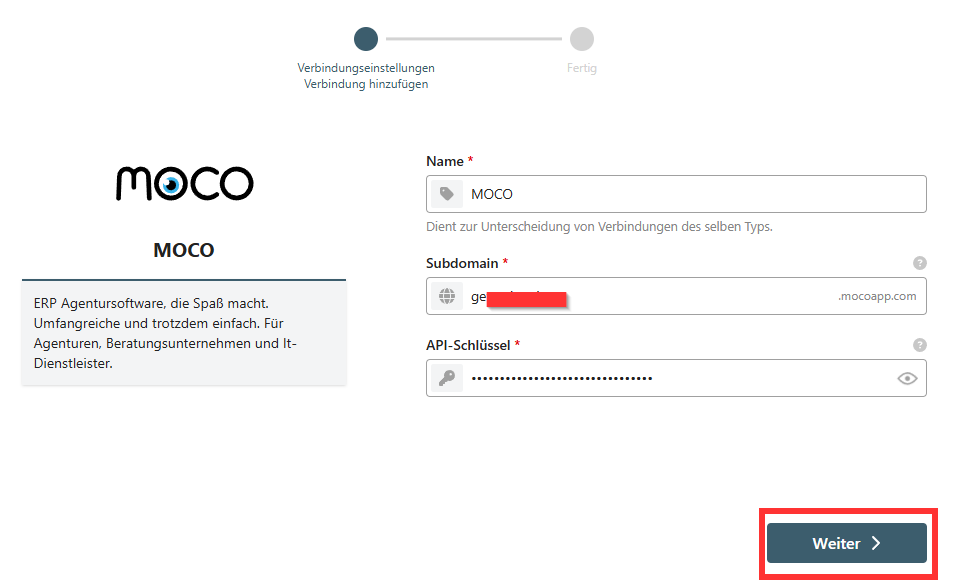
- You’ll be redirected to the Pushdocs interface.
- Enter the subdomain and API key.
- For more information, see **here **.
Step 4
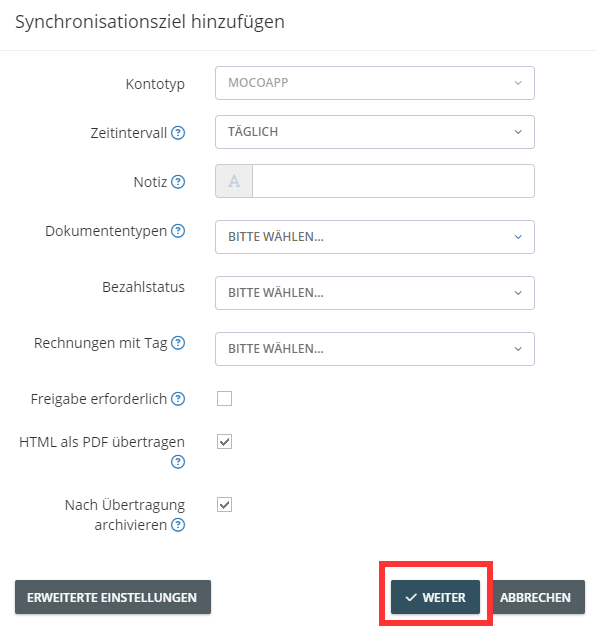
- Configure the settings for exporting the documents.
- Define additional criteria for the export under Advanced Settings .
- Click Next.
- In this example, the invoices are archived in MOCO after a successful export.
Step 5
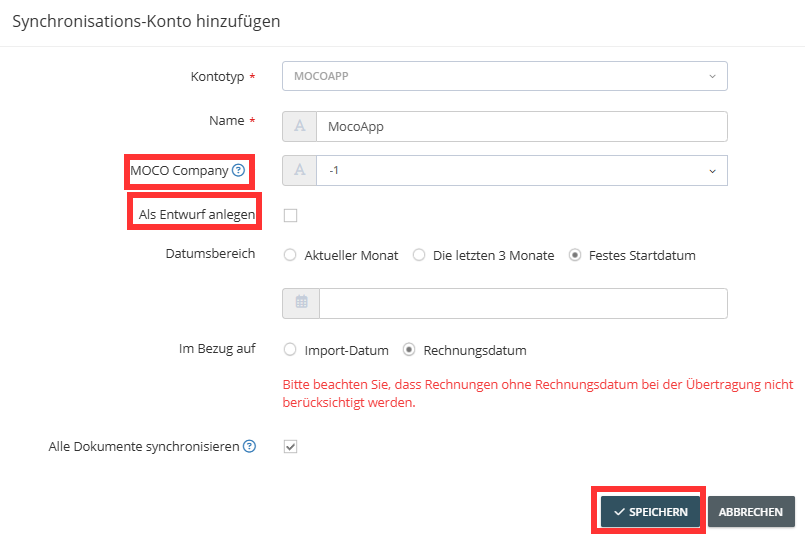
- Specify a default company for transfer to MOCO.
- All invoices are assigned to this default company in MOCO.
- Optional: Select “Create as Draft” for invoices.
Step 6
- Optionally, set a start date.
- Click Save, and the interface to MOCO is linked.