

 Deutsch
 Français
 Español
 Nederlands
 Italiano




In GetMyInvoices , you can export your incoming invoices via a synchronization interface after a specific workflow step. To do this, you can use tags to specifically mark invoices for export. In this article, you’ll learn how to set up this process.
Step 1: Create a tag
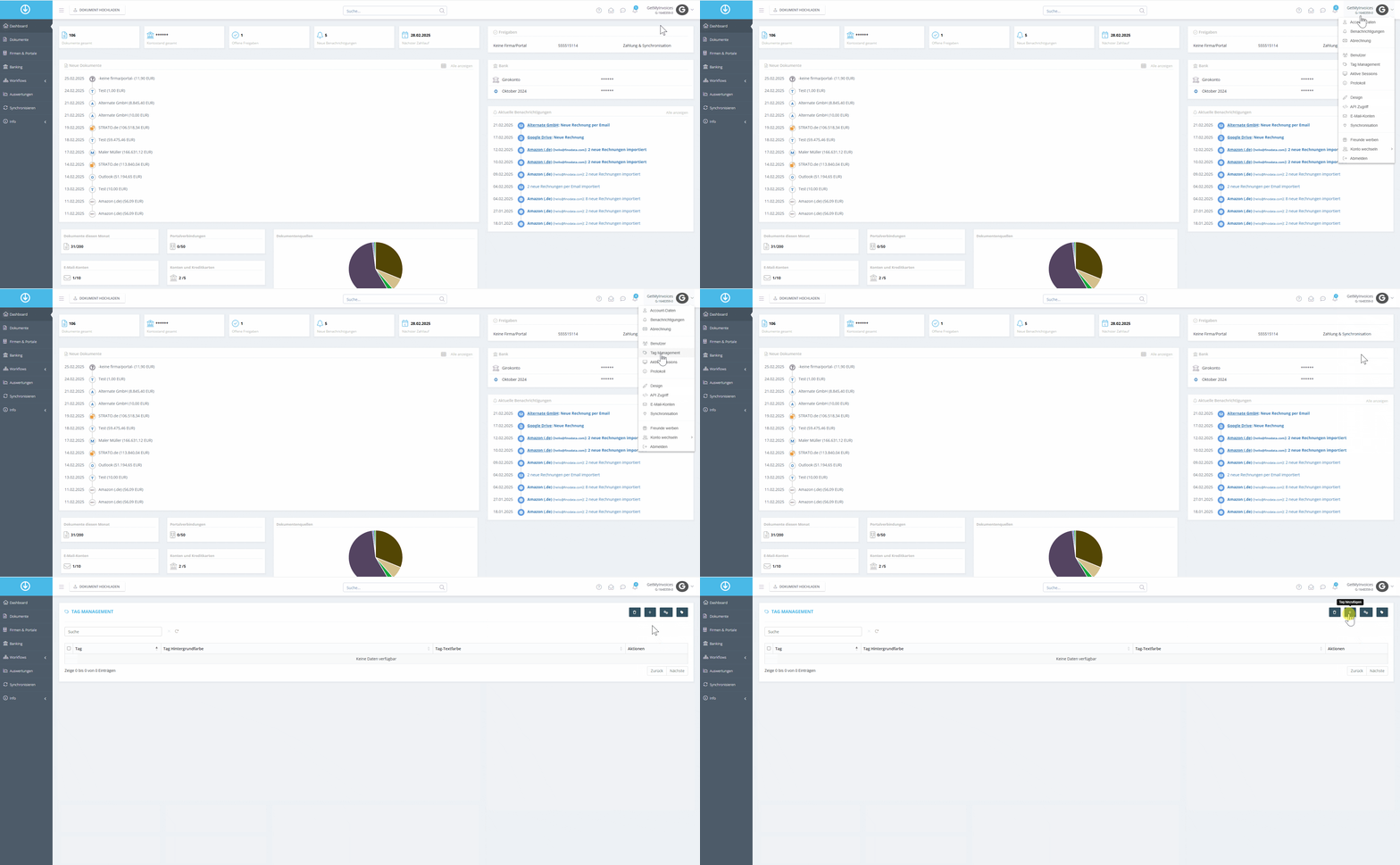
- Click on Profile in the top right corner.
- In the dropdown menu, select Tag Management.
- Click “+ Add Tag”.
- Create a new tag with an appropriate name.
Step 2: Add the tag to the export interface
- Click on Profile in the top right corner.
- In the dropdown menu, click Synchronization.
- Select the export destination to which the invoices should be transferred after a specific workflow step.
- Click Edit.
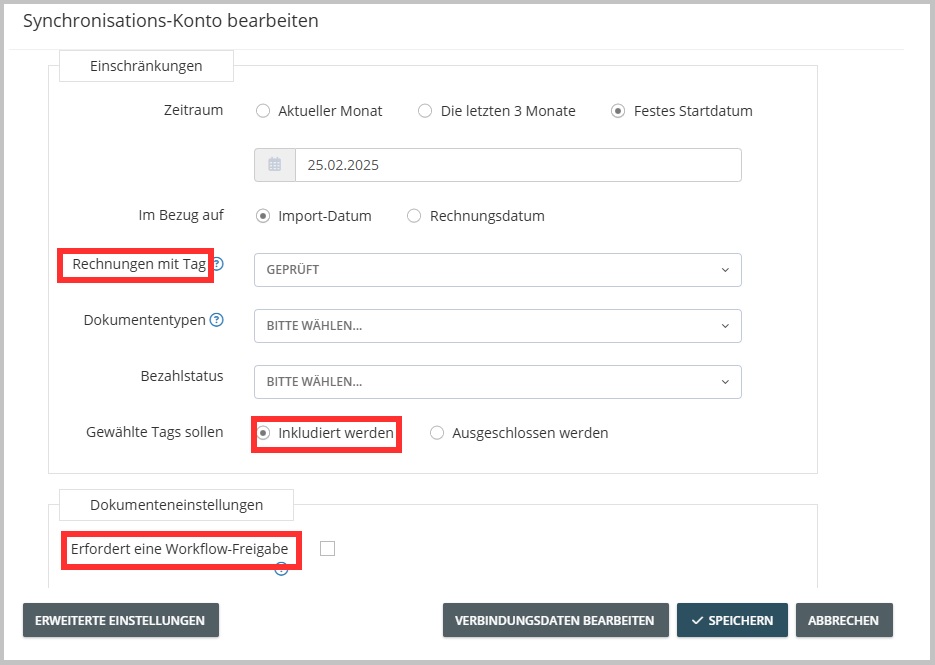
- Switch to Advanced Settings.
- Enter the tag you created earlier in the Invoices with Tag field.
- Uncheck the Does NOT require workflow approval checkbox.
- Click Save.
Step 3: Assign the tag to the correct workflow step
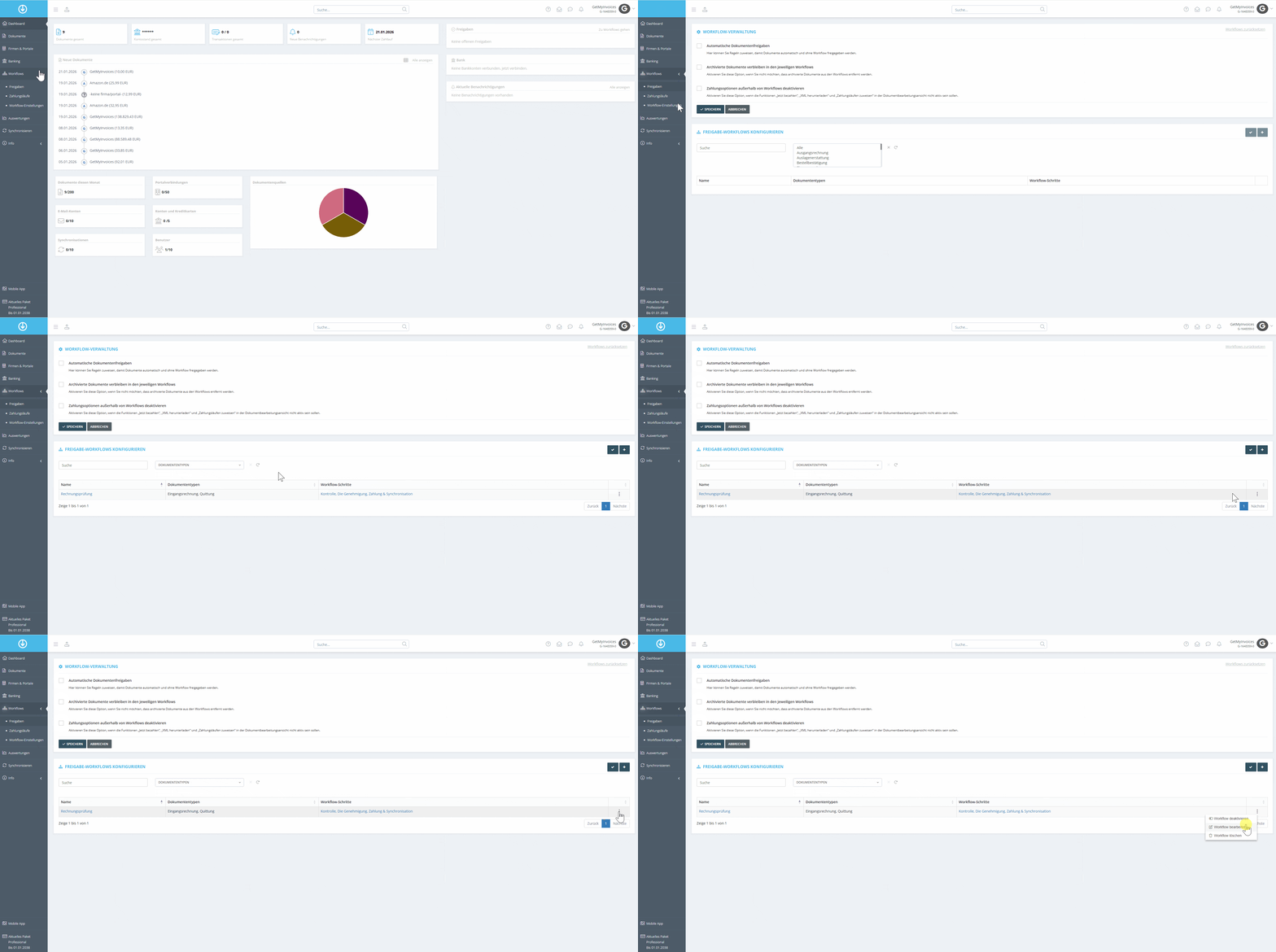
- In the menu on the left, click Workflows and select Workflow Settings.
- Click the three dots next to the corresponding workflow step, or alternatively, click directly on the respective workflow steps.
- Select “Edit Workflow”.
Step 4
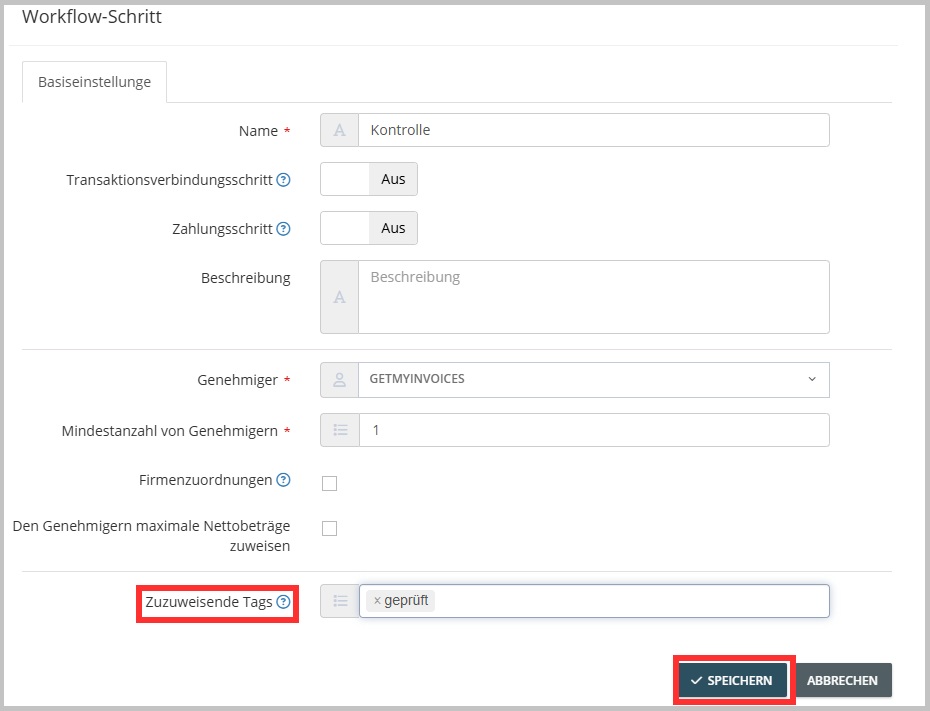
- In the “Tags to Assign” field, enter the tag you created in the first step.
- Click Save.
The behavior is now as follows
- As soon as an invoice receives the corresponding tag after the first approval step, it is transferred directly to the selected export interface.
- If you use another export interface and want the invoice to be exported only after final approval, specify the desired interface directly in the workflow.
With these instructions, you can control the export of your invoices specifically after a certain approval step.